I want to be a VTuber, but making and animating a 3D character sounds like a lot of work...
Some people might think that, but the road to streaming is actually surprisingly simple, so I want to give you a quick rundown.
What you'll need is a PC and a webcam (optional), plus a smartphone (only if needed).
The path to streaming
- Create a 3D model (.vrm) with VRoid
- Animate and stream it with your favorite app (3tene (PC), Pape Moji (iPhone X), etc.)
*Note: To use your own model in Pape Moji, you have to submit an application.
First, create a 3D model with VRoid
If you use VRoid, a piece of software offered by pixiv, you can easily make a 3D model.
The finished data can be exported in .vrm format, so any app that supports it can load the model directly. Inside VRoid you can also animate the model and take screenshots.
With avatar-style apps like "Custom Cast" where you just pick parts, model creation and streaming are even easier, but this time I went with VRoid because it lets you export the 3D model data and gives you a high degree of editing freedom.
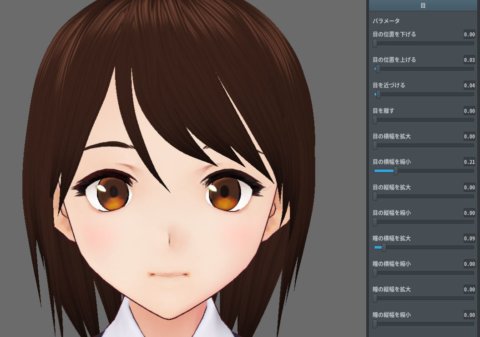
You can adjust items like the face, eyes, chest, and height with sliders, and you can also draw your own skin and eye textures.
The textures are basically painted directly over the base ones.
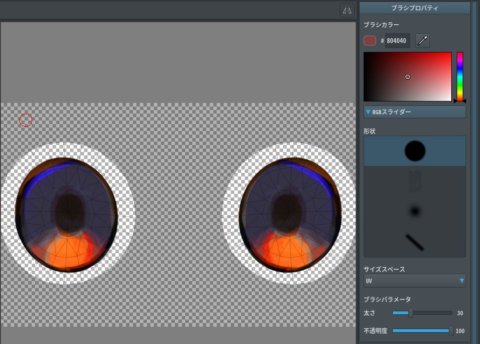
If you have a pen tablet, you can probably make even higher-quality characters.
The biggest appeal of this software is, without a doubt, that you can create the hair freely.
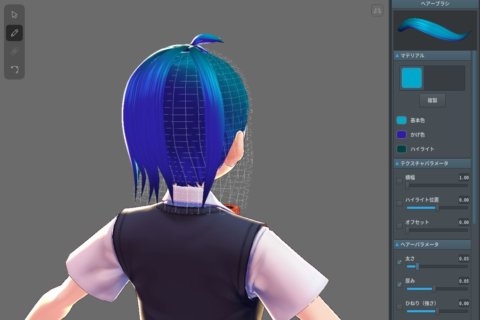
Since you can make the hair as if you were drawing it with a brush, you can freely express any hairstyle you like — straight, wavy, ahoge, you name it.
You can create an avatar with much more originality than with apps that only let you pick from preset parts.
It's a perfect fit for people who feel like just combining ready-made parts isn't quite enough.
Once you're done, export it in .vrm format from "Camera / Export."
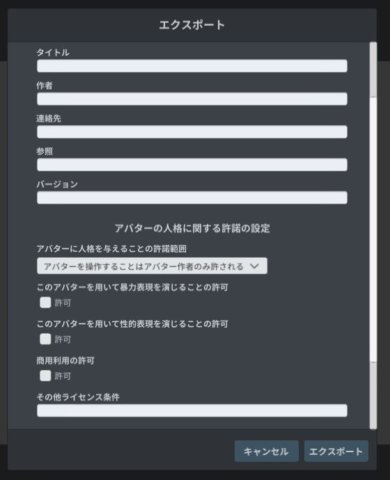
You also configure the distribution settings for the model here.
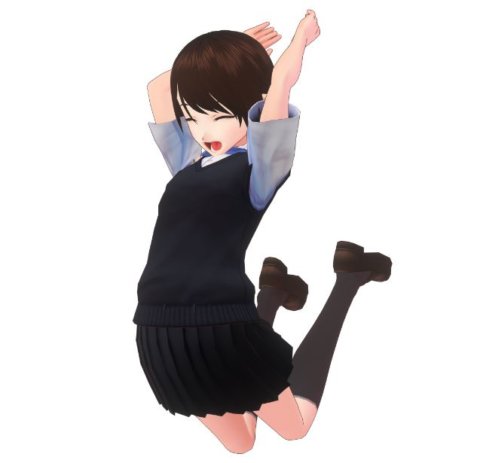
While you're at it, it might be fun to try out the camera feature for promo shots. You can export in 4K and apply various effects too.
Here's a sample of what I shot as a test.
Now use your favorite app to "incarnate" (sync with your own movements)!
So once your model is ready, the next step is syncing it with your own movements.
Watching VTubers, you'll see some whose face is the only thing that moves and others whose arms move too — there's a wide range. In this article I'll introduce some apps that sync just the face area, which is relatively easy. (Once you start syncing the hands, it generally costs money.)
3tene (Mitene) Free
In the Free version, you can sync your head angle and mouth movement (lip sync) with a webcam.
(Blinking and facial expressions don't sync, so you have to control those separately on the software side.)
It works on Windows and Mac.
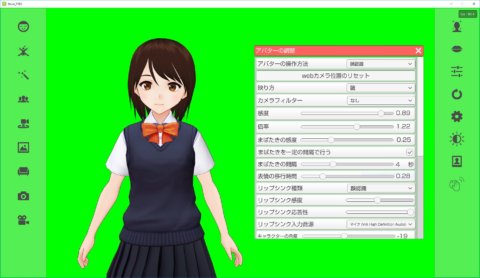
From what I've tried, it has recording, screenshot, and effect features (hearts, bombs, etc.), so it feels well suited for YouTube-style commentary videos.
In my environment, the lip sync was a bit iffy via webcam, but switching to mic input made it work nicely.
The background can be set to a chroma key color, so compositing it onto a video in editing software seems like a good approach.
By the way, the paid Pro version requires extra equipment, but lets you move your whole body, including the arms.
Pape Moji
This is an iPhone X app that lets you sync your head angle, mouth movement, and blinks with the front camera.
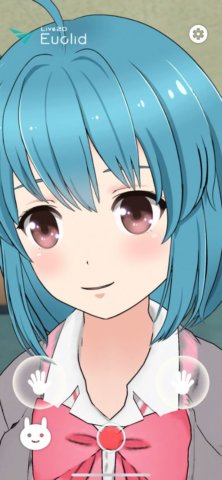
By default it can only animate the Unity Chan or Live2D sample models, but if you submit an application through the application form, you'll be able to use your own .vrm file inside the app.
Here's what an actually submitted model looks like when displayed.
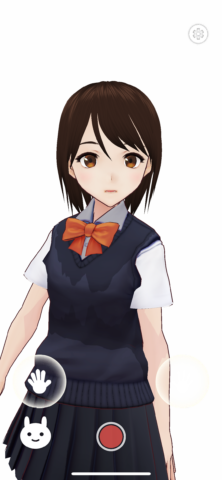
The default expression is blank, but the animation is very smooth, picking up blinks and head movements instantly.
You can also record with the red button in the middle, but the on-screen buttons get recorded along with everything else, so keep that in mind. (You can probably handle it with editing or by cropping.)
There's also a LIVE streaming button in the menu, so you can stream right from there.
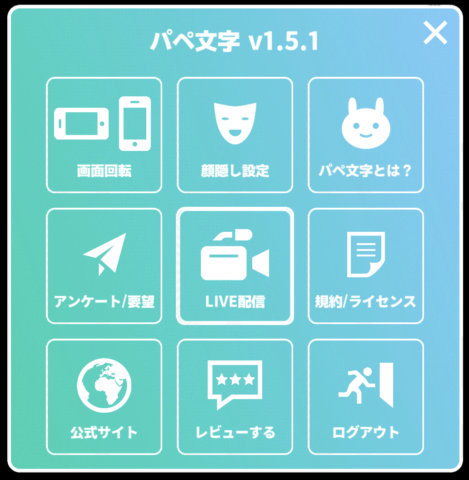
Since it runs on the iPhone, the fact that you can stream from anywhere is a nice plus.
After that, just stream through a LIVE streaming service, or import the recorded data into your video editor with chroma key compositing, and you're a VTuber.