Pros and Cons of Building Your Own PC
What sets a homebuilt PC apart from a prebuilt one? In short: you can build a high-performance machine for less, and it's much easier to customize. That said, "cheaper" isn't a guarantee, and you'll need a bit of technical know-how to put one together — so whether you self-build or just buy a manufacturer's PC is something worth thinking through. A manufacturer's PC comes with a warranty and customer support. A homebuilt PC has zero support of any kind, and if you break it during assembly, that's all on you. If trouble would worry you, I'd recommend going with a prebuilt PC.
A Homebuilt PC Is Basically a Plastic Model Kit
Buy the parts you need, put them together, and it works — so there's really no reason to overthink it. Anyone can assemble one as long as they keep "the things to watch out for" and "the bare minimum knowledge" in mind.
"Building Your Own PC": Things to Watch Out For!
Static Electricity Is the Enemy
PC parts are precision equipment, and static electricity can absolutely kill them. Always discharge yourself before you start assembling. Be extra careful in the winter!
Get to Know the Various Standards!
Each PC part has its own standard, and if you buy parts that don't match the right standard, you simply won't be able to put the machine together. That said, you only really need to know four standards: "CPU," "memory," "storage," and "PC size (form factor)."
CPU Each CPU has a specific physical "socket" standard. For example, the "Intel i7 9700K" CPU uses the "LGA1151" socket. The supported socket also matters when you go to buy other parts, so commit it to memory.
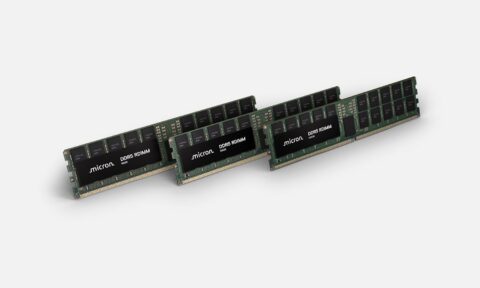
Memory Memory comes in standards like "DDR4" and "DDR3." DDR3 is an older standard, so if you're building a new PC right now, you'll be buying DDR4. There's also a difference between desktop memory and laptop memory — don't mix them up! The long ones are for desktops; the short ones are for laptops.
Storage Storage has a lot of standards, but these days you really just need to know "M.2" and "SATA." Both have finer subtypes — for M.2 you'll see things like "M.2 Type 2280," and for SATA you'll see "SATA3," etc. — so pay attention to those when you build.
PC Size (Form Factor) PCs themselves are also standardized by size. There are big ones like "ATX" all the way down to phone-sized boards. If you buy this carelessly, the parts might not even fit inside the case, so be careful here too.
You Can Buy Parts on Amazon or at a Store
[amazon_link asins='B07HCS1WLQ' template='Default' store='pianix3870-22' marketplace='JP' link_id='18b813fa7e30f006c2f6d115350e8378']
You can find every part you'd need for a self-build on Amazon. Of course, heading down to an electronics district and buying them in person is great too. And when you build for the first time, always buy new parts. Used parts from auction sites might not work, or could be worn out from age. Even if it's cheap, a part that doesn't work is just a chunk of metal — so for your first build, I strongly recommend going with new parts only.
From here, let's go over the parts you'll need.
CPU
The part that handles processing — what people call the PC's brain. If this is weak, everything else falls apart, so don't skimp on money here. This is where you should spend the most.
Main CPU Lineup
i9 The CPU for the wealthy. Top-tier performance, but also way too expensive — most people don't need to buy one. Best suited for video-editing pros, graphics pros, and gamers who absolutely need top-class performance.
i7 A high-performance CPU. If you're going to do 3D gaming or video editing, the i7 is the most recommended pick.
i5 A medium-to-high-performance CPU. It can handle most things. It can game. But people who want to do gaming or creative work comfortably might find it a little underwhelming. The price is also on the modest side, though, so this is often plenty for many users.
i3 A reasonably good performer. Positioned a step above the Pentium. Can handle most things as long as you're not doing creative work or running heavy 3D games.
Pentium A slightly higher-performing chip among the cheap CPUs. More than enough for YouTube, document writing, and browsing the web.
Celeron The cheapest CPU on the desktop side. Pick this if affordability is your top priority. It can do YouTube, document writing, and web browsing.
Memory
The more memory you have, the more things you can do at once. It's the part that does short-term storage — kind of like the brain's hippocampus. People often compare it to the size of a desk: the wider it is, the more documents (apps) you can lay out at once, so more is always better. These days, 8 GB is the bare minimum. If you're using Adobe-style graphics apps or doing video editing, 8 GB might be too little. If you can spare the budget, you'll want around 16 GB.
The current mainstream memory is 8 GB, going for around 7,000 yen (about 65 USD).
Storage (HDD / SSD)
Storage is where you keep your apps, photos, and so on. It's the brain's long-term storage. The OS (Windows, etc.) also lives here. There are two types of storage — HDDs and SSDs — and SSDs have longer lifespans, are faster, and cost more. If you're building your own, I basically recommend buying an SSD. HDDs are vulnerable to shocks and slow, so they don't really cut it as a primary drive these days. However, the price per gigabyte is incredibly cheap, so if you're going to be doing video editing or running 3D games hard, the best setup is to use an SSD as the main drive plus an HDD as a sub-drive — and put your big video files and infrequently used data on the HDD.
A 500 GB SSD runs about 15,000 yen (around 140 USD). A 3,000 GB (3 TB) HDD can be had for around 10,000 yen (about 90 USD).
Motherboard
A PC has a part called the motherboard that all the other parts plug into. They come in plenty of sizes, from large to small. The bigger ones can fit more parts and are easier to upgrade later, so I recommend going larger. (Sizes are standardized as form factors — ATX, microATX, and so on.) When you buy a motherboard, always buy one that supports the CPU you want.
Motherboards run the gamut, but most are priced from roughly 10,000 to 30,000 yen (about 90 to 280 USD). Pricier gaming-grade motherboards quietly come with all kinds of extra performance features.
Power Supply
Sometimes one comes bundled with the case. Performance (wattage) varies wildly, but if you're aiming for a high-performance PC that can handle 3D gaming, you'll need a reasonably good PSU. Cheap out here and the system will shut off under heavy load. A PSU with good reviews on Amazon and the like will generally be fine. Even better if it has a Platinum or Gold certification — the peace of mind is just different.
OS (Windows etc.)
The OS is the base software. Without it, your PC is just a chunk of metal that lets you stare at a black screen. The fact that you can even view this blog is thanks to the OS. I recommend "Windows 10 Home" — the boxed retail version goes for about 14,000 yen (around 130 USD). There's also a cheaper "DSP" version, but with the DSP version you have to install the bundled hardware part into the PC or you're violating the license agreement, so be careful.
The OS is a quietly painful expense, but you can buy it cheaper on Amazon.
GPU
You'll need one if you're going to play heavy 3D games like FPS titles. (Some Adobe apps also tap into it.) If all you're doing is YouTube and document writing, there's no need to bother with a GPU. (The CPU's integrated graphics will handle it.) Adding a GPU sends the budget skyward, so I recommend digging into YouTube and review sites to find out what kind of GPU your target game needs. Currently, the well-known GPUs are the RTX 2080 Ti, RTX 2080, RTX 2070, GTX 1080 Ti, GTX 1080, GTX 1070 Ti, and GTX 1070. As for how to look it up: just search something like "(game name) GTX1080" and you're good. The more powerful the GPU, the more electricity it uses, so keep an eye on the power supply at the same time.
Slap on a GPU and most games will run. But if you want to run a game at 4K, 60 fps, on the highest graphics settings, depending on the game you might need an ultra-high-end GPU like the RTX 2080 Ti.
Case
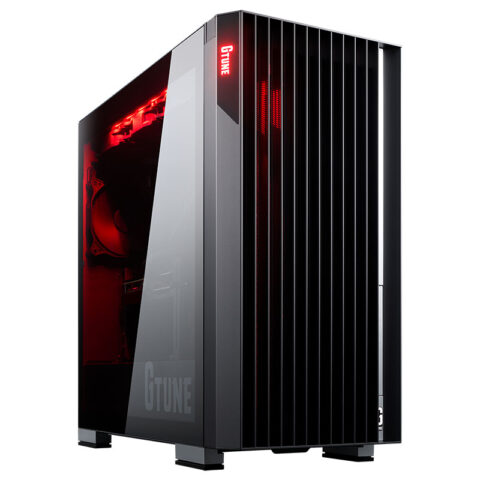
The case can really be anything. Pricier cases come with all sorts of clever gimmicks. Buy one whose form factor matches the motherboard you want. For example, if you buy an ATX (large) motherboard and a microATX (small) case, the motherboard isn't going to fit, so be careful. (For what it's worth, the opposite direction is fine.)
There's also the ultimate budget-saving move of going caseless, but if a piece of metal happens to touch the board, it can short out and break the parts — so I really don't recommend it. (The author broke a build this way.)
For the case, match it to the motherboard's form factor, and to avoid the situation where the GPU doesn't fit either, always check that there's enough space for the GPU.
Monitor, Keyboard, and Mouse
Check whether your monitor's connector and your PC's connector match. For example, if your PC only has HDMI out but your monitor doesn't have an HDMI input, things get complicated. You can buy an adapter to solve it, but depending on your setup, even that may not be enough.
Which Parts to Buy: Talk It Over with "What You Want to Do" and "Your Wallet"
Bigger covers smaller, so more performance means you can do more — but if all you're doing is YouTube and document writing, building an overkill PC just wastes money. Try to build a PC that matches "what you actually want to do." Conversely, if you want to play heavy games comfortably and you build a low-spec, cheap PC, things will stutter or just won't launch — so reading the performance you need is important. If there's a game you want to play, I recommend watching gameplay videos with the CPU and GPU you're considering before you buy.
Continued in the intermediate edition.