Re-check the connection
The first thing to do is check the connectors and cables.
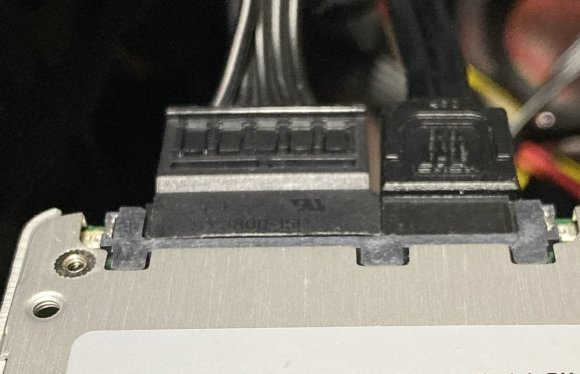
SATA connection → Make sure the SATA cable and the power cable are firmly seated all the way down.
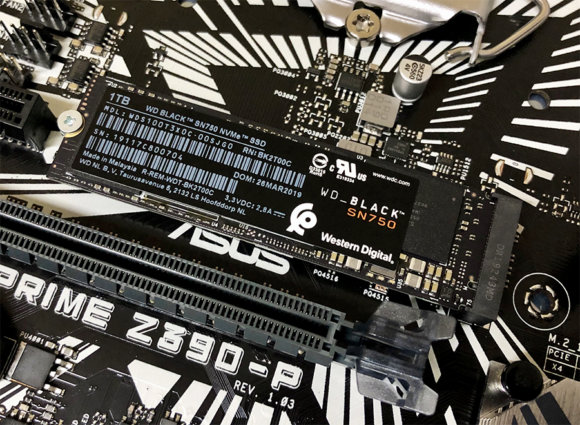
PCIe (M.2) / mSATA connection → Make sure the connector is properly inserted.
Check the motherboard's specifications
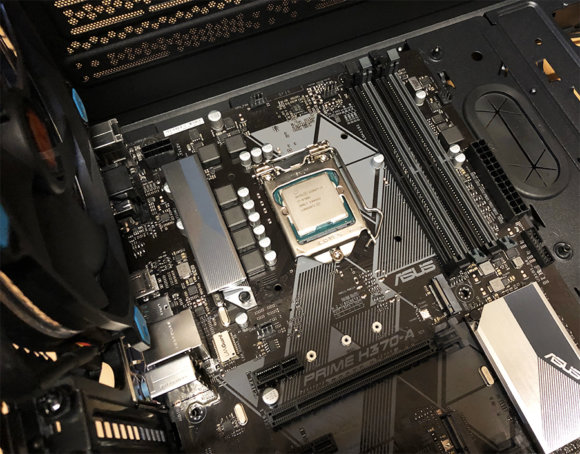
Depending on the motherboard, some ports become disabled when you connect certain storage devices. (For example, using an M.2 slot may disable some of the SATA ports.) When the cause is the motherboard's specification, changing the connector location can sometimes make the drive work. For details, please check your motherboard's manual.
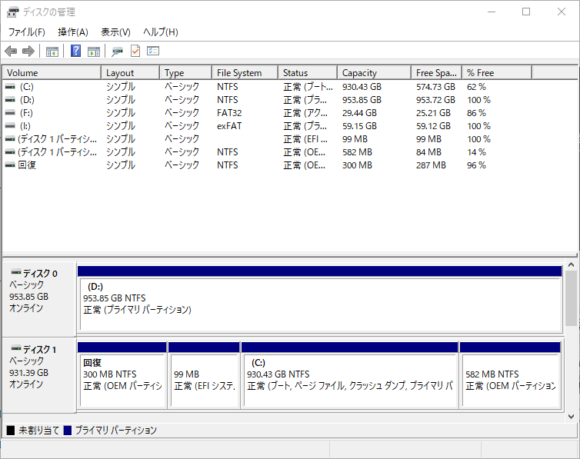
Check "Disk Management"
If there is no problem with how the new SSD/HDD is physically connected, there is a chance it isn't being recognized on the software side. For instance, on Windows, a new drive will not show up in Explorer until you format it and assign a drive letter. The procedure for formatting a drive and assigning a drive letter is as follows.
1. Right-click the "Start" button and select "Disk Management."
2. The "Initialize Disk" window will appear.
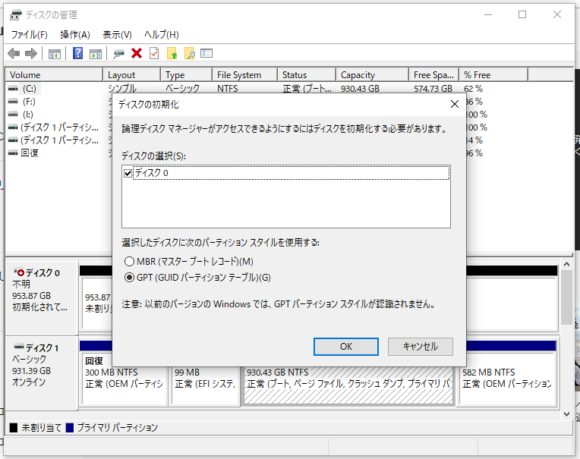
3. Select "OK," and the New Simple Volume Wizard will start.
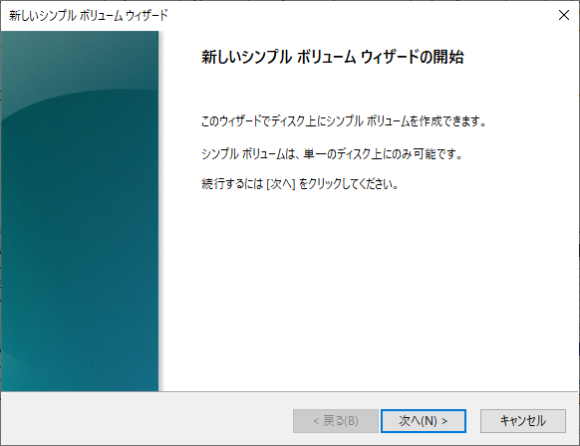
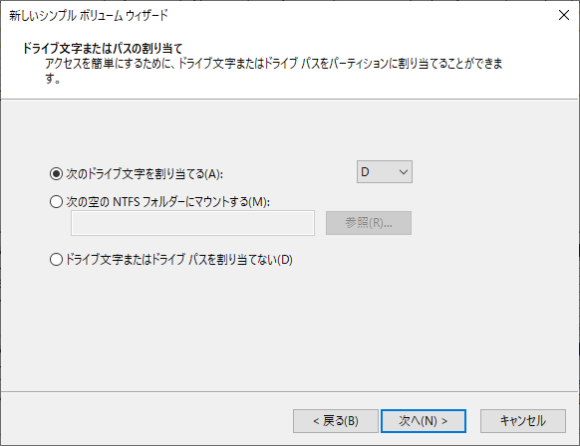
4. Click "Next," and on the next screen assign a drive letter. You can pick any letter that isn't already in use.
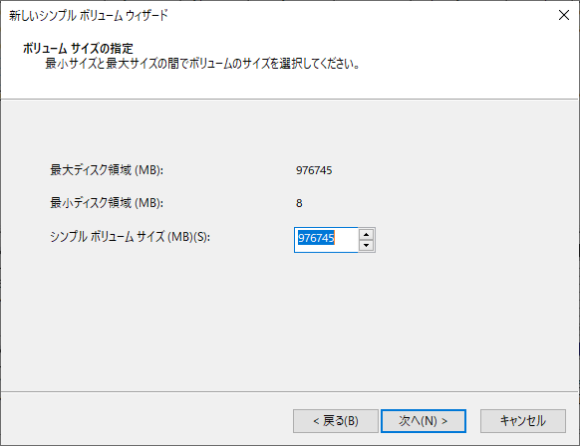
5. Specify the volume size. The maximum size is filled in by default, so just click "Next."
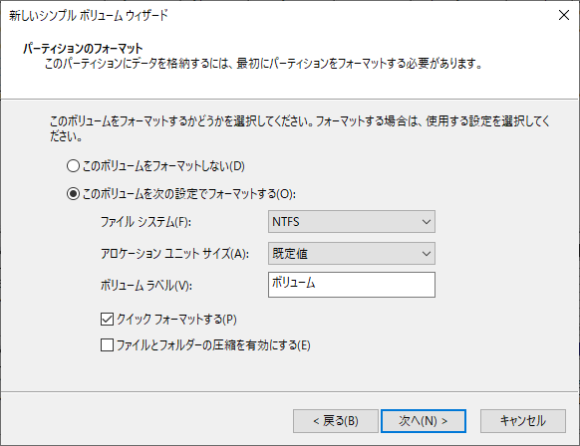
6. Configure the format settings. The defaults are usually fine. If you want to change the drive's display name, edit the Volume Label field to whatever you like. (If you leave it blank, it will be shown as "Local Disk.")
7. Once the formatting completes, the drive is ready to use.
If the problem persists, suspect a hardware failure
If you have tried the steps above and the drive still isn't recognized, the issue may be on the hardware side — the motherboard or the drive itself. Check whether any terminals look burnt and whether the drive is making unusual noises. In this case, you cannot fix the problem yourself, so you will need to ask the retailer for a return or replacement.