With telework and remote learning making us rely on our PCs more than ever, the importance of data management is being reconsidered. To avoid losing important data, regular backups are an indispensable habit. In this article, we'll walk through how to safely back up your important data.
That Day Comes Out of Nowhere!?

If you use a laptop, you're constantly living next door to risk — accidentally dropping it on the floor, spilling a drink on it, and so on. No matter how careful you are, breakage happens in an instant, and depending on the situation the data inside may be unrecoverable. There are even cases where a so-called "tough" business laptop has broken just from being dropped lightly from a height of about 1 meter. Operational mistakes — accidentally deleting or misplacing a file — are also a common way to lose data. Since trouble can never be eliminated completely, taking measures in advance is essential.
Recovering Data After Trouble Is Almost Impossible!
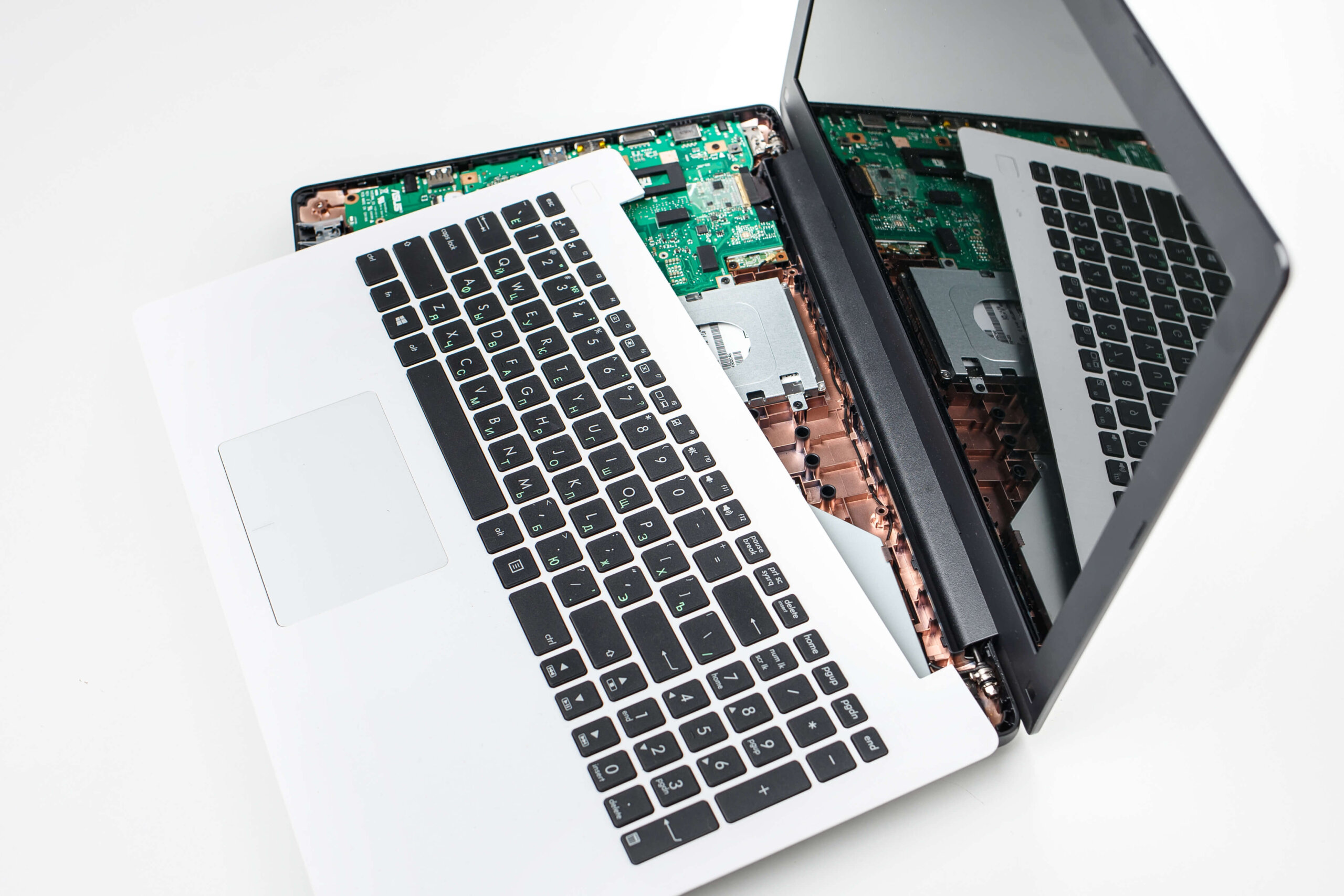
Recovering lost data is actually extremely difficult. There are specialist data-recovery services, but even when they manage to recover the data, the recovery fee can run into the millions of yen — an amount most individuals could never afford. If you simply deleted a file by mistake, recovery software can sometimes bring it back, but if the drive is physically damaged, that approach won't work.
Back Up Your Data While You Still Can!
In the end, the only way to protect important work data is to prepare for trouble in advance. The author has lost important data more times than I'd like to admit, and each time deeply regretted not preparing — so it's a good idea to keep a "stitch in time saves nine" mindset. With telework in particular, situations that wouldn't happen at the office — pets or children bursting into the room, for example — are common, so even more caution than before is required.
The "Pitfall" Lurking in the Cloud

What about backing up to cloud storage like Google Drive, DropBox, or OneDrive? Once your data is uploaded, the chance of losing it to an unexpected accident is essentially "zero." For small amounts of data, it's plenty safe. However, the cloud has one big pitfall: accidentally sharing an important file publicly. Cloud storage's easy file-sharing feature is very convenient, but if you don't handle it carefully, in the worst case you could lose the trust of clients. It's also often hard to tell which files are set to public, and free plans typically only offer a few GB of storage. On top of that, there's no feature to automatically and periodically back up every file on your PC, or to clone an HDD.
What About Backing Up With Windows' Built-in Tool?
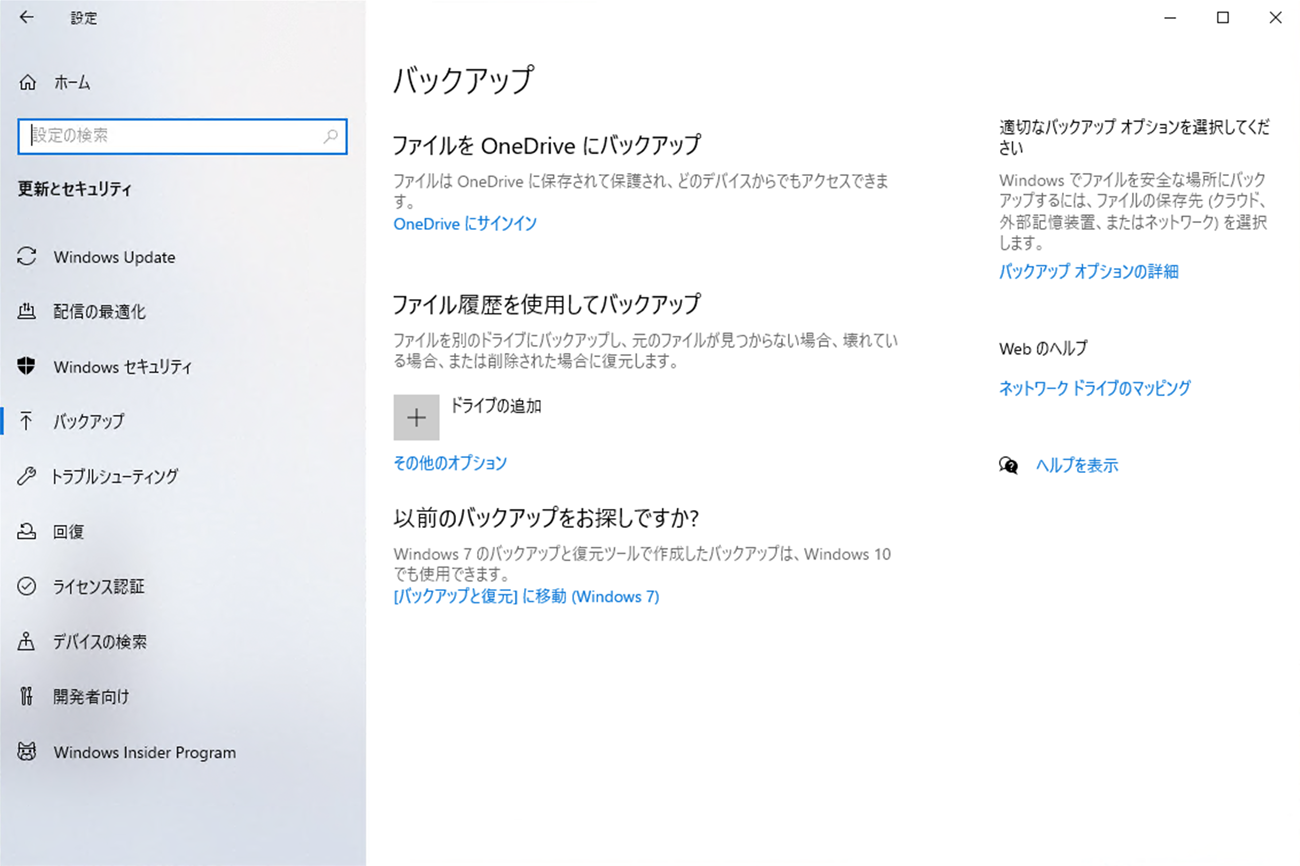
Windows has a built-in backup feature. By specifying the target drive in the settings, you can back up files, but you can't configure it as finely as a dedicated app. There's also no feature for migrating data or cloning an HDD — only the bare minimum settings are available.
What About a Method Using a Dedicated Backup Tool?
In the end, what's the best way to take backups so you're prepared when something goes wrong? I tried out a dedicated backup tool. This time I used "EaseUS Todo Backup" from EaseUS, a major maker of backup and file-recovery software.
It's specialized backup software that supports Windows 10, 8, 7 and so on. It runs on most PCs, from slightly older machines to the latest models.
In addition to data, it can back up your entire PC, individual partitions, and even Outlook emails.
The App's Home Screen
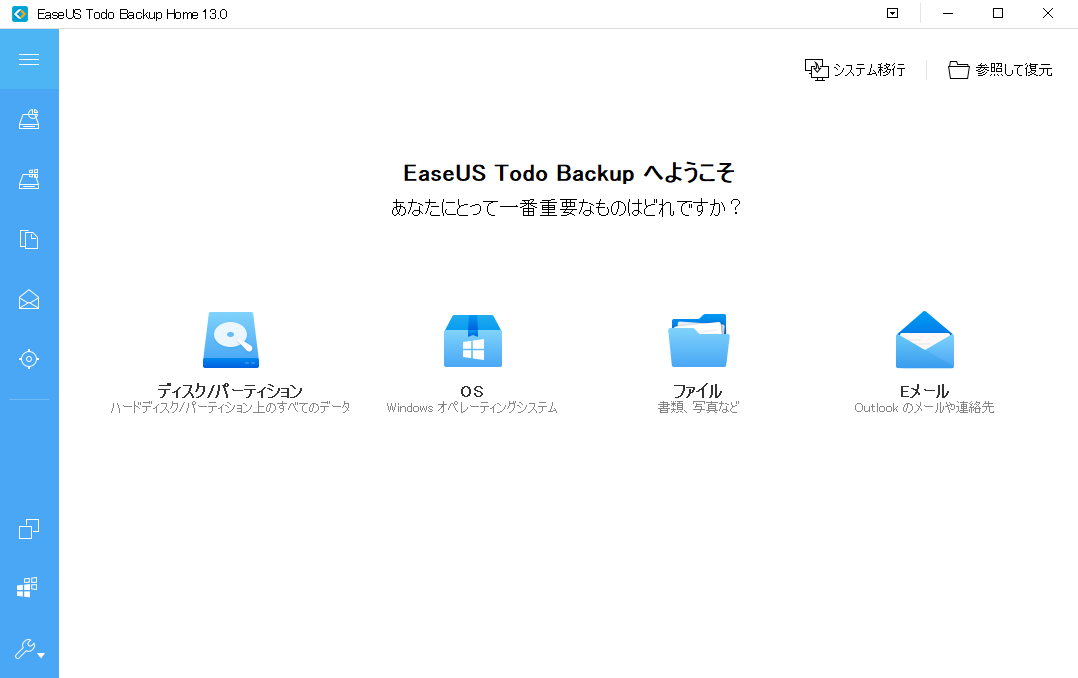
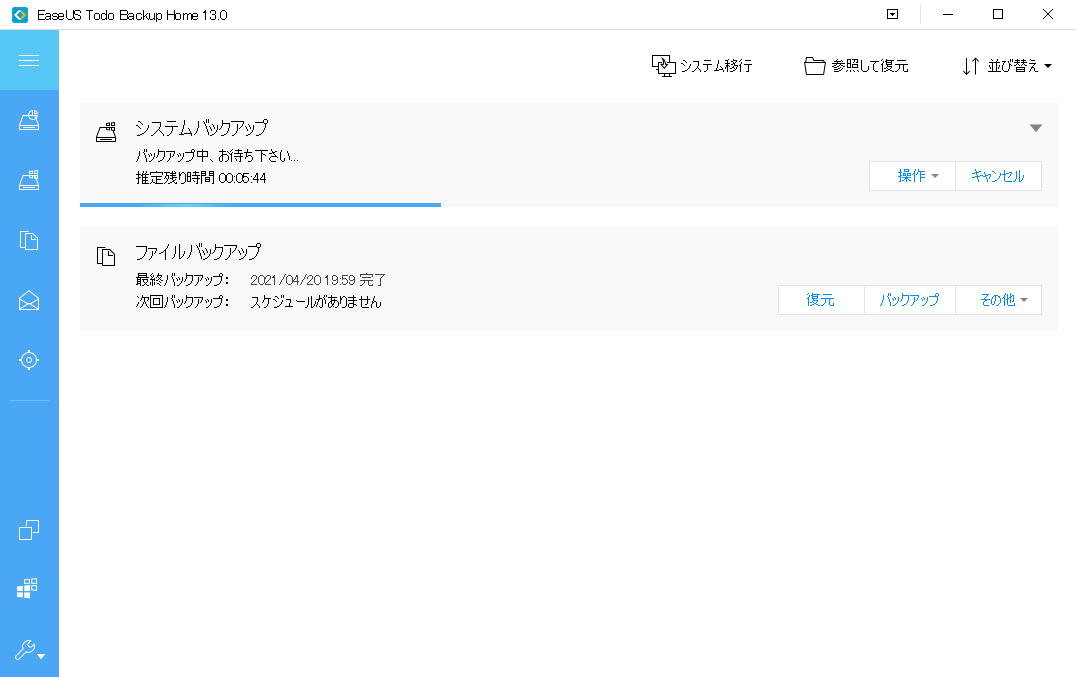
To back up everything on an external HDD or your C drive at once, you select the disk partition. As you add backup configurations, they show up as a list, making it easy to see when each one was last backed up and when the next backup will run.
In the settings, you can fine-tune the backup frequency and the backup method. For example, you can configure it to back up the entire PC every Friday at 17:00.

When you want to restore from a backup, press the "Restore" button. A list of restorable files appears, so just check the file you want and hit run, and the restore completes immediately.
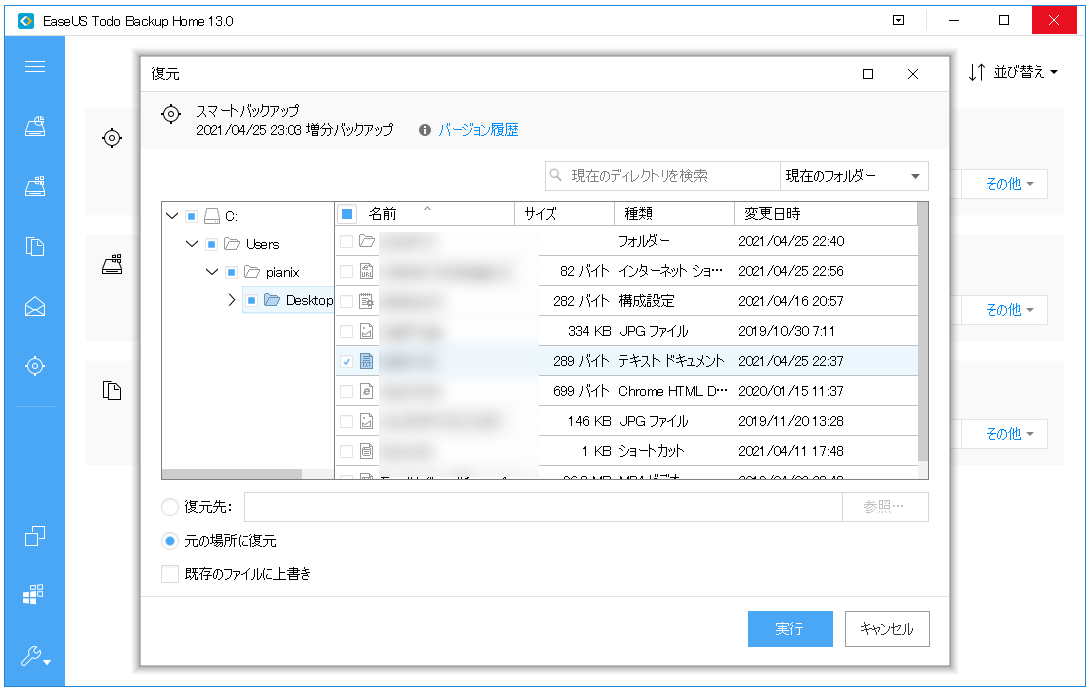
The interface is simple, and you can pull out only the files you need, which makes the whole process very smooth.
Stay Safe Anytime With Smart Backup!
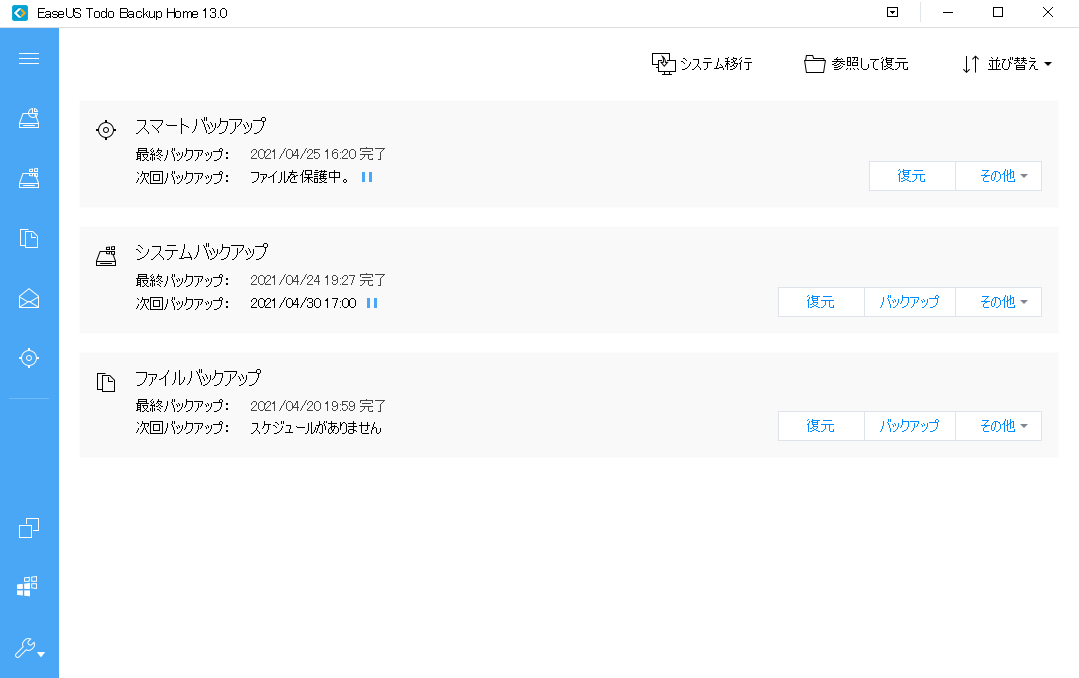
Among its many backup methods, the convenient one is Smart Backup. It runs a backup whenever a file is added or changed — so if you point it at an important documents folder and set the backup destination to an external HDD, you can keep your files safely stored. One caveat: it isn't a real-time backup, so a little care is still needed.
External HDD Backup Is Supported Too!

It's easy to forget, but backing up your external HDD is important too. External HDDs get carried around a lot and have a high risk of failure, so you'll want to back them up regularly. Setup takes pretty much one click, and the official site explains it in detail in "How to back up an external HDD." Incidentally, long ago the author knocked over a friend's external HDD, broke it spectacularly, and ended up paying to replace it — it left a real trauma.
Perfect for Migrating From HDD to SSD

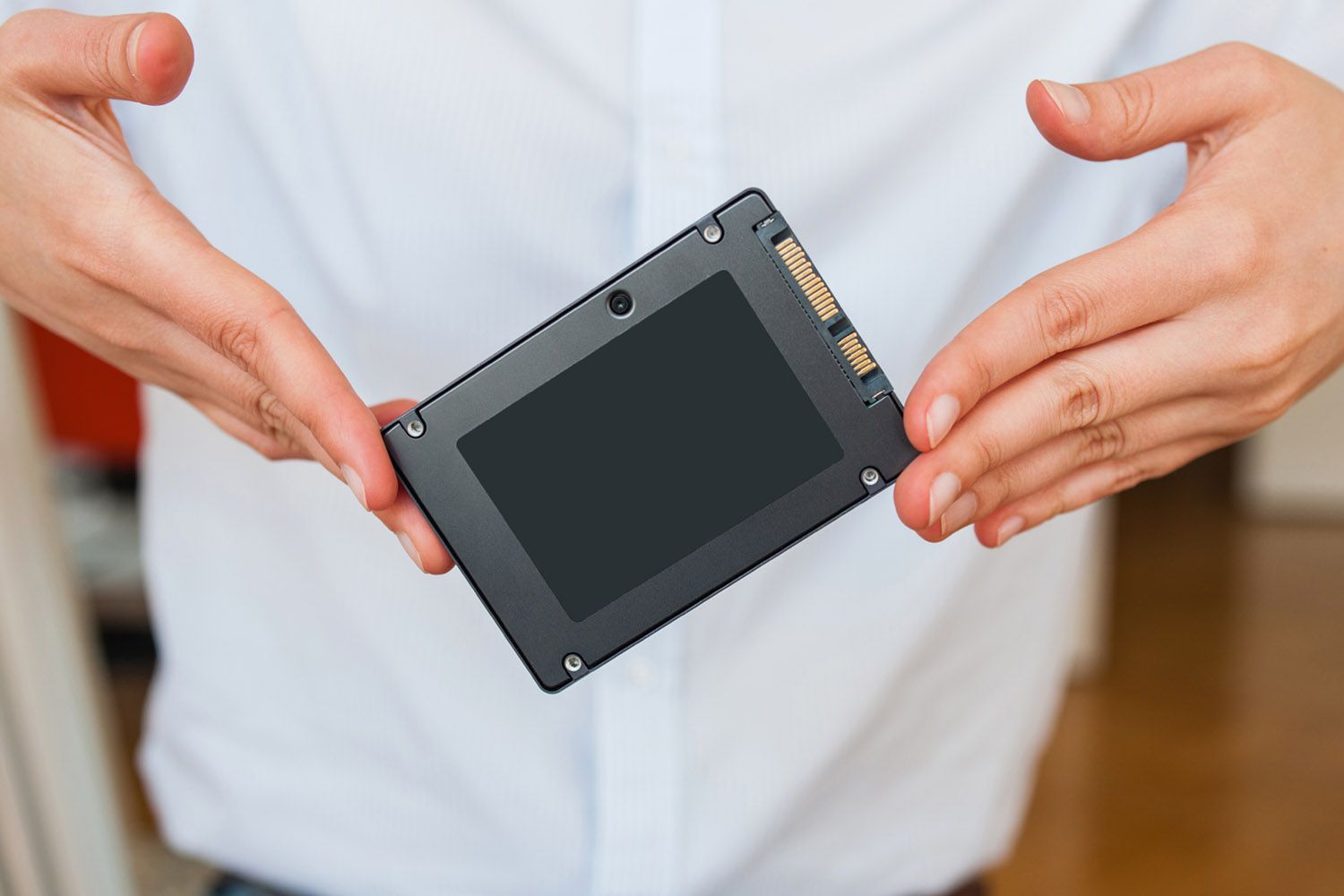
Compared to HDDs, SSDs are "newer," "faster," "lighter," "more shock-resistant," and "more expensive (per GB)." Because SSDs are overwhelmingly faster, you get a big benefit: your PC boots and apps run more smoothly. They're a must for creators and gamers. If you want a faster boot or to reduce power consumption, the SSD really shines.
Swapping from an HDD to an SSD is something you can do yourself. Incidentally, the author has trauma around HDDs, so I've been using this SSD ever since.
So Small Yet So Powerful — the SSD

Migrating from an old HDD to an SSD normally means installing the OS, moving files around, and lots of other annoyances — but if you use the cloning approach, you can move with almost no manual work. The official article "SSD swap: cloning an HDD with the OS to an SSD completely" explains in detail how to migrate from an HDD to an SSD using the app.
Clone an Entire HDD/SSD
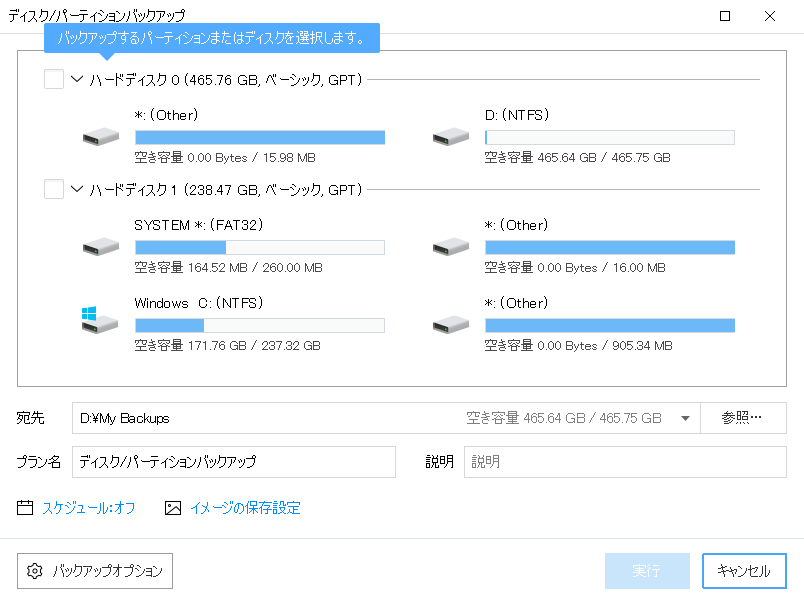
There's also a feature to clone an entire HDD or SSD as-is. It comes in handy in all sorts of cases — an old HDD nearing the end of its life, an HDD you've upgraded for more capacity, and so on. The cloning method is explained in detail in "How to clone an HDD."
A Safety Net for Trouble, a Companion for Upgrades
I'd recommend it as a backup app for everyone, from beginners to power users. The EaseUS Todo Backup introduced here also has a free version, so please give it a try.