There are quite a few situations where you'd want to show your iPhone or iPad screen on a PC for a presentation demo, or where you'd like to record the screen on your computer.
On a Mac you can mirror easily with QuickTime, but Windows PCs don't have that feature built in, so here's a way to pull it off using a piece of software.
Lonely Screen is easy to use and recommended
Using Lonely Screen, which displays your screen on a Windows PC, you can mirror your iPhone/iPad to a PC connected over USB.
Here's what it actually looks like when you mirror it↓

It's showing up nicely on the big PC screen.
The image quality is great, almost no different from the actual device. It runs at 60fps so the display is buttery smooth, but it can stutter at times, so it might be a bit tough for situations where stuttering isn't acceptable. Also, since it uses the standard "Screen Mirroring" feature on iPhone/iPad, another nice point is that you don't have to install any extra app just for mirroring.
Trying out Lonely Screen
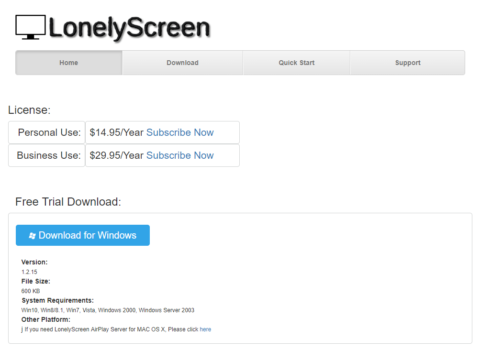
Download the installer from the official site on your PC. You can download it by clicking "Download for Windows" on the site.
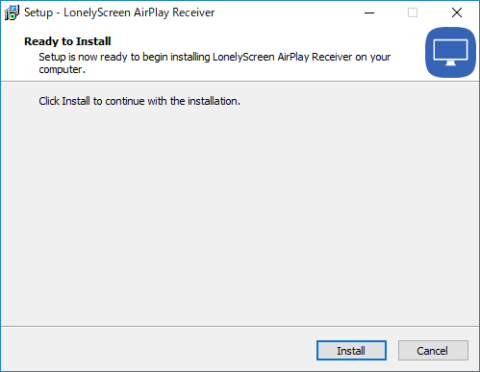
Run the installer, click the "Install" button, and the installation is complete.
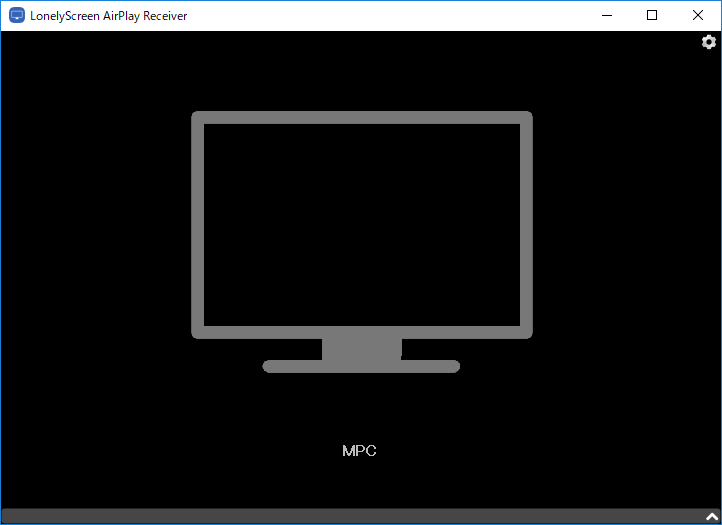
Launch Lonely Screen, and once you see a screen like this, you're ready to mirror.
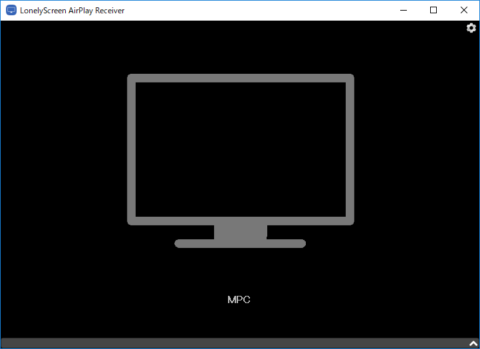
On your iPhone or similar, open Screen Mirroring and tap your PC name to connect. Note that right after installation iOS sometimes failed to recognize it, so you may want to restart the PC once.
Recording the mirrored screen
Lonely Screen comes with a recording feature, so you can record the screen with a single click. iOS now has a built-in recording feature too, but this might come in handy when your iPhone is low on storage, or when you want to edit on the PC right away.
Here's a video I actually recorded using the recording feature↓
It looks like it records at around 25fps. Of course you can record games too. Looks like it could be useful for capturing commentary videos and the like. The recording format is mp4, so you can play it back with the standard video app or VLC.