The Windows 7 end-of-support date — January 14, 2020 — is finally approaching, but you may still have a Windows 7 PC at the office. This page covers what happens when Windows 7 support ends and what you should do about it.
What Happens When Support Ends?

When Windows 7 support ends, the "security updates" delivered until now will stop. Security updates are programs that fix vulnerabilities* in Windows — they protect your PC from threats such as unauthorized access by malicious users and information leaks. Normally these are installed automatically by Windows Update, keeping your PC "immunized" against known vulnerabilities. Once support ends, vulnerabilities will no longer be patched.
* A vulnerability refers to an information-security flaw in a computer's OS or software, caused by a program bug or a design mistake.
Source: Ministry of Internal Affairs and Communications - Cybersecurity for Citizens (Japan)
What Happens If You Keep Using It?
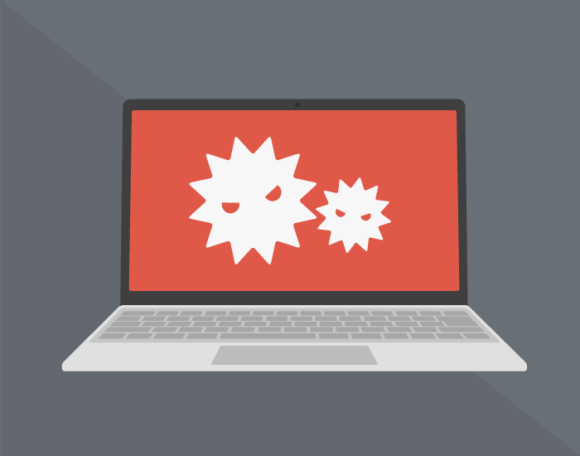
If you keep using your everyday Windows 7 PC without upgrading, you run risks such as the following:
- Credit card information and personal information being stolen
- Files being leaked or corrupted due to virus infection
- Your PC being used as a stepping stone for unauthorized access to other PCs
- Apps becoming unusable as they drop support
- Email being intercepted, or having viruses attached to it
There are other risks as well, and you will no longer be able to use your PC safely. For a company, this can lead to damage to corporate image and loss of trust from business partners.
Is Security Software Enough?

No, it isn't. OS-level vulnerabilities cannot be addressed by off-the-shelf security software. Even if security software can remove a virus, you may be re-infected. Also, as the OS reaches end of support, it is likely that security software products themselves will progressively drop Windows 7 from their supported list. Continuing to use it for a long time will be difficult.
Security Updates Are Quietly Doing Important Work
You can see what kinds of security fixes are actually being delivered through your everyday Windows Update at the sites below.
Microsoft Security Update Guide
https://msrc.microsoft.com/update-guide
IPA (Information-technology Promotion Agency, Japan): Security Alerts
https://www.ipa.go.jp/security/security-alert/index.html
Looking at these alone, you can confirm that various vulnerabilities are reported and fixed every month. For example, according to Microsoft's page, fixes for vulnerabilities related to Windows 7 (Service Pack 1) from January through September 12, 2019 (as of this writing) reached 498 in total — roughly 2 fixes per day. Once security updates stop being delivered after end of support, vulnerabilities discovered in the future will go unpatched, and your PC will no longer be protected from them. The ordinary Windows Update you barely think about is actually doing important work to keep your PC safe.
How Should You Upgrade?
Before end of support, there are two options: buy a new PC with Windows 10, or upgrade your current PC to Windows 10. If you have room in your budget, buying a new Windows 10 PC outright is the surest path. You also get the benefit of the manufacturer's warranty and support.

Amazon.co.jp でチェック
Dell デスクトップパソコン Inspiron 3471 Core i3 ブラック 20Q31/Win10/4GB/1TB HDD
For example, if you currently use a desktop, you can keep peripherals such as the monitor and just replace the main unit. (All-in-one desktops are not compatible with this approach.) This lets you migrate to Windows 10 while keeping costs down.

Notebook PCs come in everything from low-priced models to premium ones, but in either case we recommend buying from a reliable maker such as Dell, HP, ASUS, NEC, or FUJITSU.
Key Points to Keep in Mind When Buying a Windows 10 Desktop or Notebook PC
- A CPU such as Core i7, i5, or i3 will handle most things
- For memory, at least 4GB is more comfortable (8GB is normally plenty)
- For storage capacity (HDD/SSD), 128GB or more is usually fine (if you store a lot of files, 500GB to 1TB or more gives you peace of mind)
- If you want to play 3D games hard, a dedicated "gaming PC" is recommended
- If you need Office, check whether it is bundled
If you are upgrading your current PC to Windows 10, you can buy a Windows 10 install package at a consumer-electronics retailer, on Amazon, etc. You can also buy it from Microsoft's official site.

Amazon.co.jp でチェック
【新パッケージ】Windows 10 Home 日本語版/May 2019 Update適用/パッケージ版
Caution: Be careful when buying from Amazon Marketplace (sellers other than Amazon itself), Yahoo! Auctions, Mercari, or other used-goods sources — there are counterfeits and items whose licenses are already unusable.
With this method, you will need to check in advance that the PC you are upgrading meets the Windows 10 system requirements. You will also need to perform the install yourself, so any trouble that arises will be yours to handle.
How to Check Whether Your PC Is Windows 7
Here are three methods. If even one of them applies, your PC is running Windows 7.
1. Shortly after powering on, a black screen displays "Windows is starting" (Windows を起動しています).
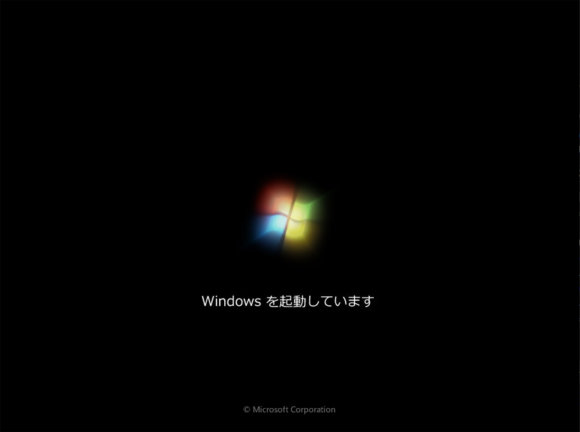
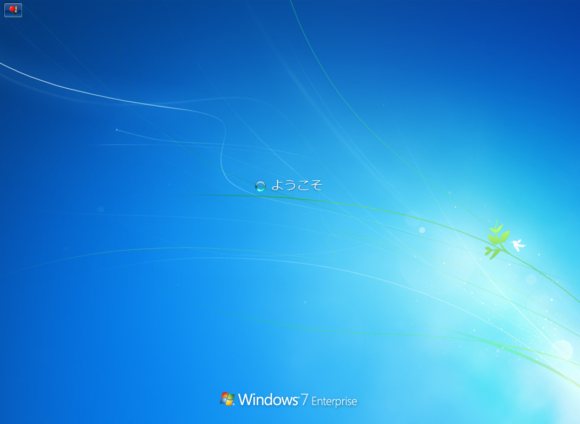
2. At startup, "Windows 7 XXXX (version name)" is shown below the "Welcome" text.
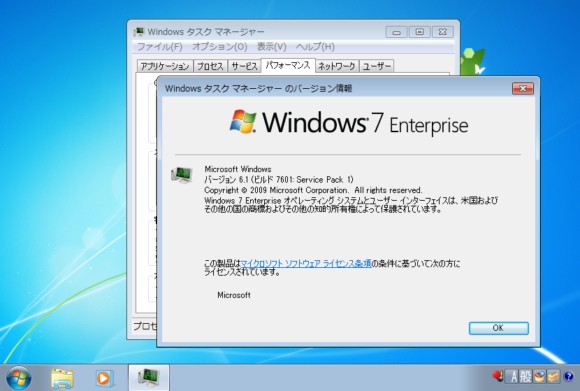
3. Right-click the taskbar, open "Task Manager," click "Help (H)," and open "About" — the screen shows "Windows 7 XXXX (version name)."
If your PC turns out to be Windows 7, please consider upgrading as soon as possible.