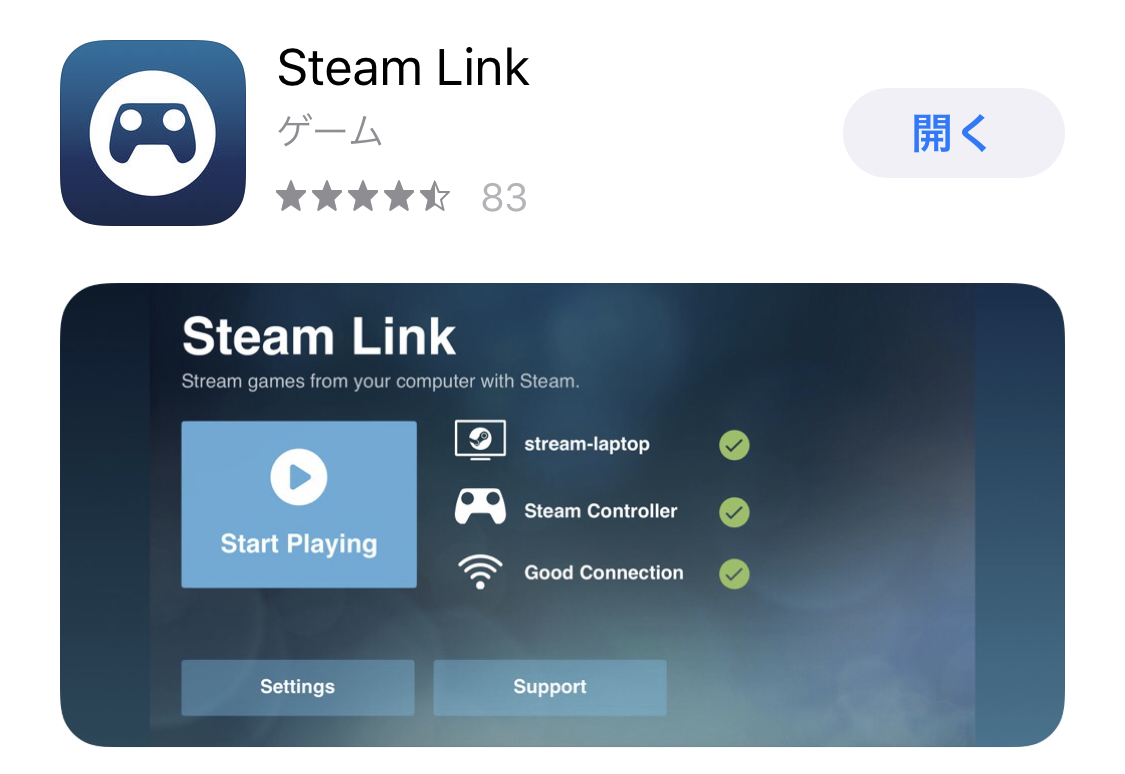
"Steam," the game distribution platform, has released "Steam Link" for devices like iPhone, iPad, and Android, letting you play your Steam games remotely. So I gave it a try. Test environment: iPhone X, PC built in 2012.
What You Need
To use Steam Link, you'll need a smartphone (or similar device) plus a PC with Steam installed. The PC has to be powered on and connected to the internet.
Download the Steam Link App
Just download and install it from the Apple Store or Google Play Store.
Steam Link Initial Setup
On the PC side, all you need to do is launch the Steam app. When you start the Steam Link app, you'll see a screen like this.

Tap "Get Started." Next, a controller pairing screen appears, so if you have a Steam Controller or any controller compatible with your smartphone, pair it here.
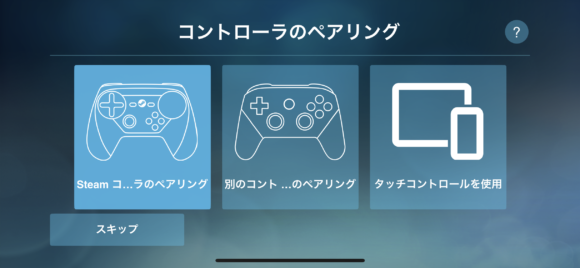
For this test, we're not using either due to budget reasons, so we'll go with touch controls.
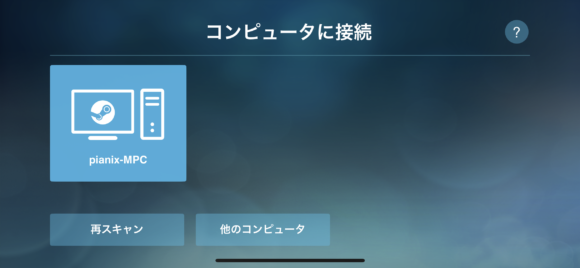
On the "Connect to Computer" screen, select the PC where Steam is installed.
If you see "No computer found," check whether Steam is running on the PC, whether you're connected to the internet, and whether your smartphone is connected to your home Wi-Fi. They need to be on the same network.
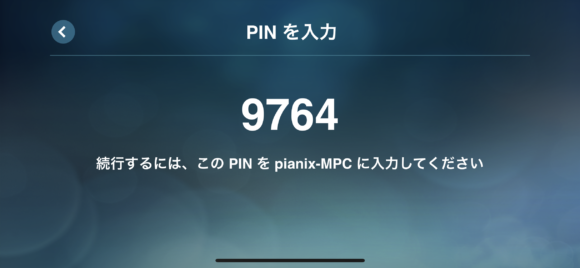
Next, you'll be prompted to enter a PIN. Enter the displayed PIN into the Steam app on your PC.
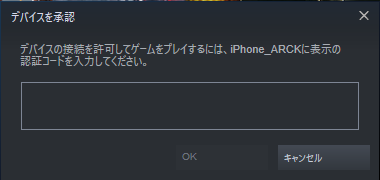
Once entered, the connection is complete. The network test will begin next.
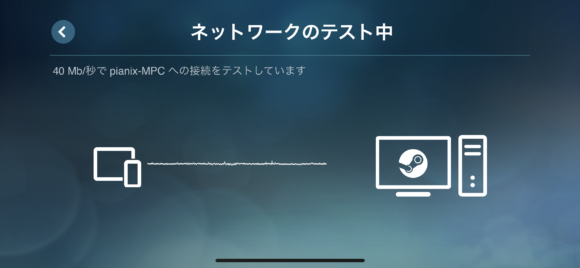
Once the test finishes, you can connect to the PC. Sometimes, when the test completes and you're about to connect, a screen like this appears.
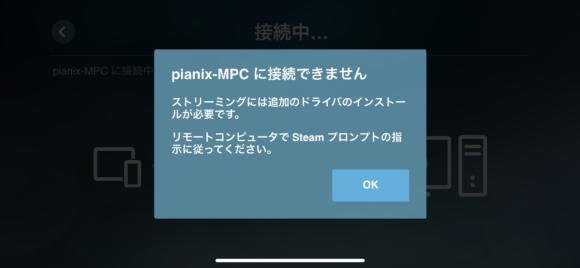
In that case, you'll need to go back to the PC and install the sound driver. A screen like the one below will be showing — just click the install button and it finishes installing right away.
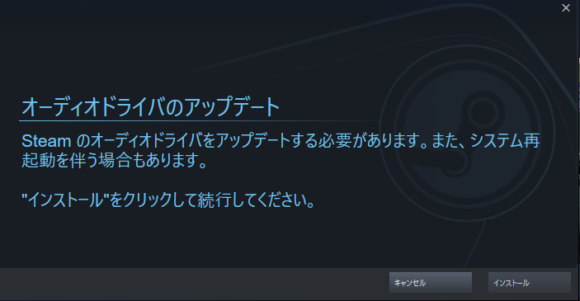
Open the PC's sound settings, and if "Steam Streaming Microphone" is listed, you're good to go.
Playing Remotely
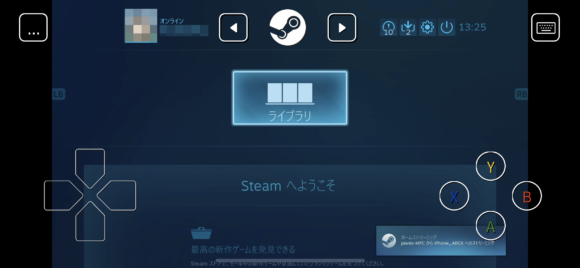
When you connect, a screen like this appears. It seems to switch to Steam Big Picture mode automatically.
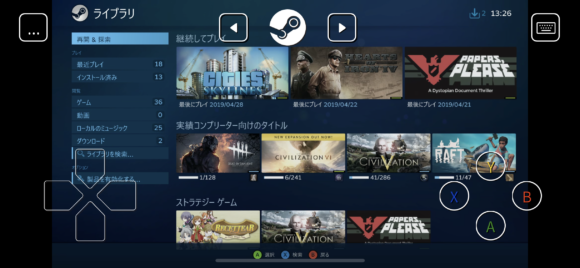
Open the library and it looks like this. You launch games from here.

Here's what it looks like when I tried launching a game. The one I used for testing was "METAL GEAR SOLID V GROUND ZEROES." From what I played over Wi-Fi, the image quality looks great. Latency is reasonably well controlled, too.
Control Settings
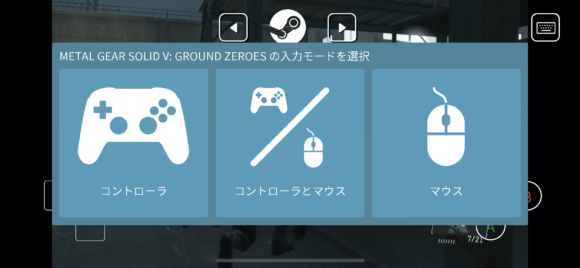
You can change the control method during gameplay. If the game supports a controller, a controller is the way to go.
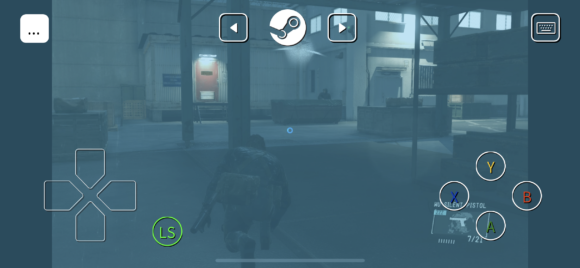
For touch controls, you can also freely lay out the position and type of buttons.
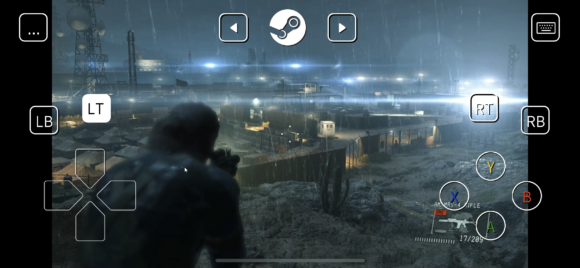
You can place buttons like "RT (right trigger)" to suit the game.
Also, depending on the game, the button types seem to be set automatically — for example, in "Civilization VI," the B button was changed to Enter, like this.
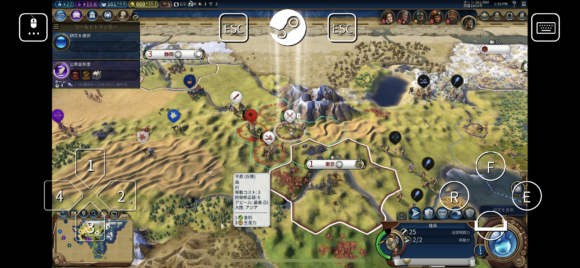
It seems the buttons you can configure differ from game to game. With some games, the touch controls were tough to use and not really practical.
I Also Tried It Over Mobile Data (LTE)
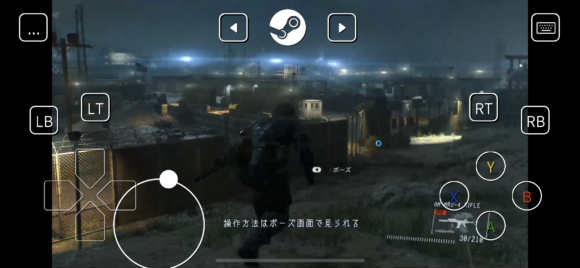
I tried playing over a mobile data connection, and it worked without any problems. That said, due to the speed, the image quality drops a bit.
Things to Watch Out For with Steam Link
Here are some points to keep in mind when using the Steam Link app.
It Can Drop Back to Windows
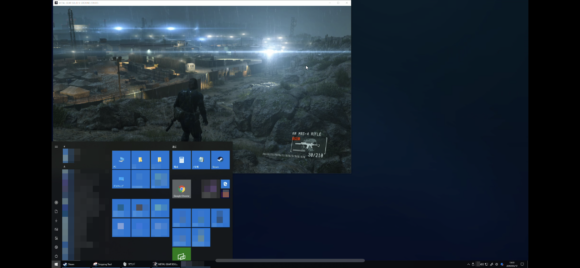
Because of other apps and such, the screen sometimes ends up on the Windows desktop. In that case, tapping the game screen will get you back to normal. Also, if your PC is playing audio from another app, that sound will come through Steam Link too, so be careful.
Watch Your Data When Using Mobile Data!
Since data is constantly being exchanged in both directions, you need to watch out for your data cap. If you're on a plan with a small data allowance, you'll need to be even more careful.
Some Games Are Almost Impossible to Play
PC games that were designed around mouse and keyboard input can be hard to operate from a phone. In some cases, playing them is nearly impossible, so keep that in mind.
Summary
The image and sound quality are very good, and as long as your connection is solid the latency isn't bothersome, so I think you can enjoy games comfortably. However, depending on the game, the controls can make it tough to play, so some caution is warranted.