
In iOS 27, Apple has built in a system that automatically shows subtitles while people watch videos in supported apps. According to Apple's official user guide, subtitles may appear on their own when the iPhone is muted, when the viewer skips back a few seconds, or when a video is in another language. Each of these conditions can be switched on or off individually under "Automatic Subtitles" in the Settings app.
Subtitles Appear in Three Situations: Muted, Skipping Back, or a Different Language
Apple's iPhone User Guide page, "Display subtitles and captions on iPhone" (linked here in its Japanese edition), lists three situations in which subtitles may appear automatically when viewing a video in a supported app: when the iPhone is muted, when the viewer skips back a few seconds, and when the video is in another language.
Apple says this includes automatically showing generated subtitles for videos in Photos and Messages. In other words, even videos people shot themselves, which originally have no subtitles, may show subtitles when the conditions are met. Apple does not name the other supported apps individually.
Three Switches Under "Automatic Subtitles" Control When Subtitles Appear
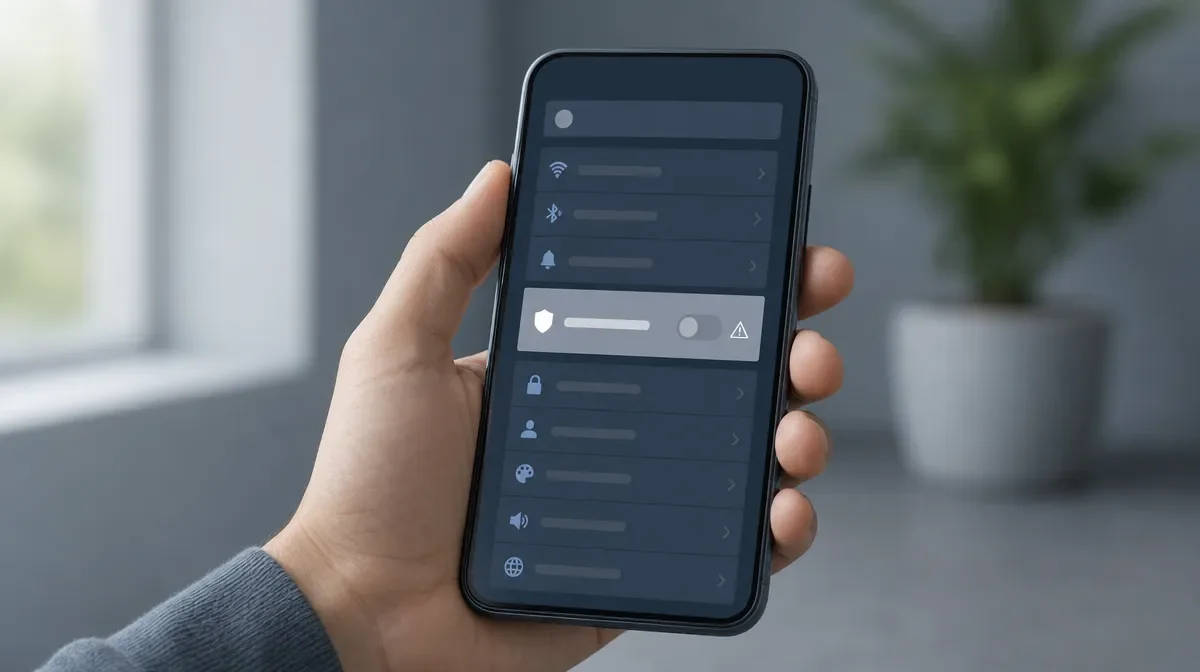
The settings are located in the Settings app under Accessibility > Subtitles & Captioning > Automatic Subtitles. There, three switches correspond to the three conditions.
| Setting | What it does |
|---|---|
| "When Languages Don't Match" | Automatically shows subtitles in the preferred language when a video is in a different language |
| "Show When Muted" | Automatically turns on subtitles when the volume is muted |
| "Show on Skip Back" | Temporarily turns on subtitles when skipping back in a video |
The guide describes each setting as a step to turn it on. Put the other way, turning off only the switches for unwanted conditions stops subtitles from appearing automatically in those cases. Because the three settings are independent, users can, for example, keep subtitles only for when they skip back.
Generated Subtitles Start in English on iPhone 15 Pro and Later
Separately from automatic display, iOS 27 also offers subtitles generated for videos that have none, as well as viewing subtitles in multiple languages. Apple lists the supported models as follows.
- iPhone 15 Pro / iPhone 15 Pro Max
- iPhone 16 models and later
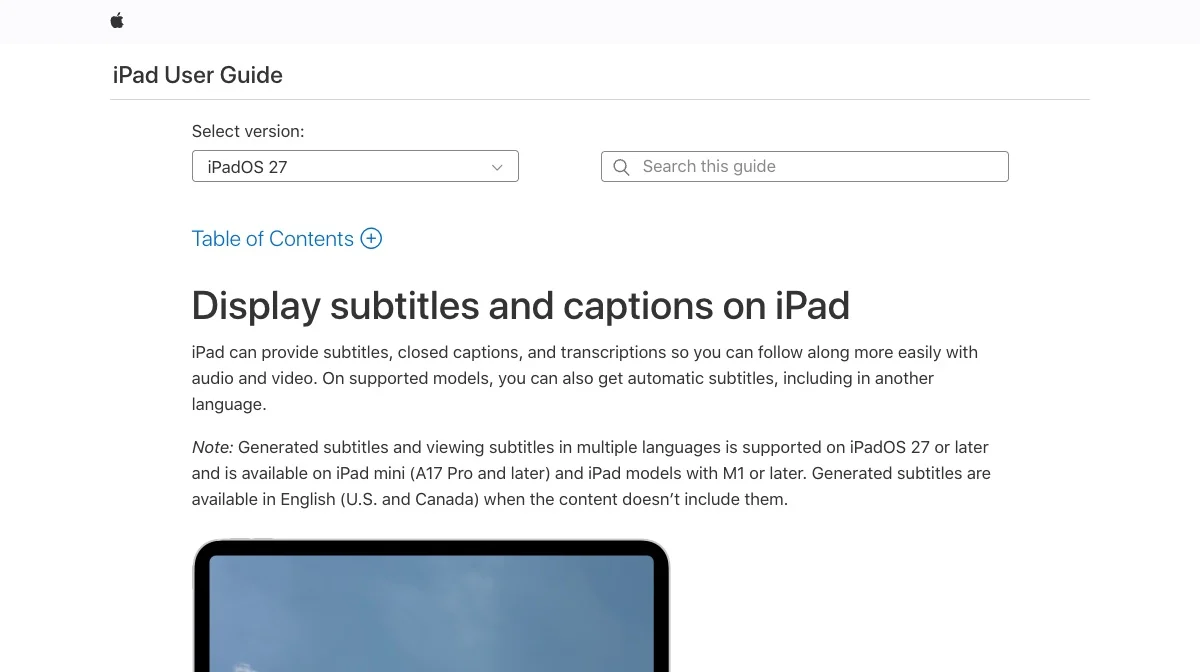
Apple says generated subtitles are available in English (U.S. and Canada) when the content doesn't include them. The iPad User Guide page "Display subtitles and captions on iPad" describes the same three settings; on iPad, the features cover iPad mini (A17 Pro and later) and iPad models with M1 or later running iPadOS 27 or later.
Why Users in Japan Should Also Check the Settings
As of this writing, generated subtitles are for English, and Apple has not said when generated subtitles will support Japanese. Still, the three automatic triggers also apply to videos that already have subtitles. For example, muting the iPhone on a train in Japan and playing a subtitled video may cause subtitles to appear automatically.
The feature is handy for people who want subtitles shown all the time, while others may dislike text covering the picture. Either way, the three settings under "Automatic Subtitles" show how the behavior works.
Our Take
Having the device decide when audio was likely missed, such as when muted or after skipping back, and showing subtitles then is a practical design not only for people who are deaf or hard of hearing but also for anyone watching video where sound can't be played. However, because subtitles appear without any action once the conditions are met, users unaware of the system may feel that subtitles are "popping up on their own." That said, the settings are organized into three switches, so keeping only the needed conditions is not difficult. If generated subtitles expand to Japanese, more people are likely to revisit these settings.
Summary
In iOS 27, subtitles appear automatically in videos in supported apps under three conditions: when muted, after skipping back, and when languages don't match. The settings are grouped under Accessibility > Subtitles & Captioning > Automatic Subtitles, and each condition can be turned off. Generated subtitles are offered on iPhone 15 Pro and later, starting with English, and support for Japanese awaits a future announcement.