For meetings, YouTube videos, and more, there are plenty of times you'll want to record what's on your PC screen. There are all kinds of capture tools out there — Bandicam, the OS-bundled options, and so on — but this time I actually tried out "FonePaw Screen Recorder" to see how it feels in use. It works on both Windows and Mac, supports simultaneous webcam recording, and includes screen capture and audio recorder features, so its biggest appeal is being able to handle anything recording-related in a single app.
Where to Download the App
You can download it from the official site or via the buttons below.
For installation steps, see the official install guide. *The trial version has limitations like a 3-minute cap, but those go away once you buy it.
Actually Using It
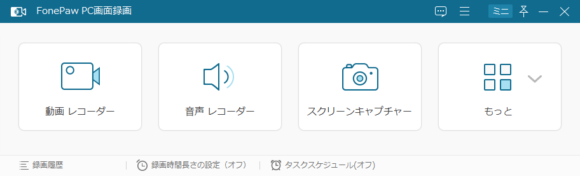
When you open the main screen, you'll see shortcut buttons laid out for you, and from this screen you can do screen recording, mic audio recording, screen captures, and more.
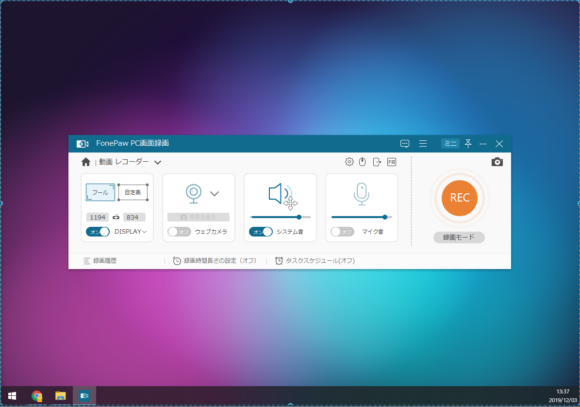
Pressing "Video Recorder" opens the recording menu. All recording-related settings can be managed in one place here, and you can also adjust webcam and mic audio volumes from this screen. The UI is kept simple, so even first-time users shouldn't have trouble figuring it out.
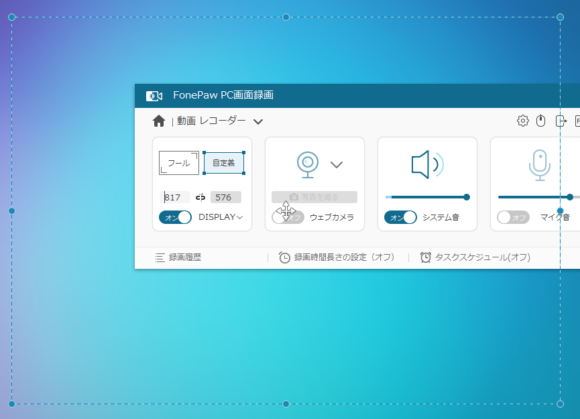
The recording area can be set freely, and you can also target a specific window. Full-screen recording is supported as well. Press the "REC" button and a countdown begins, after which recording starts. (You can toggle the countdown in the settings.)
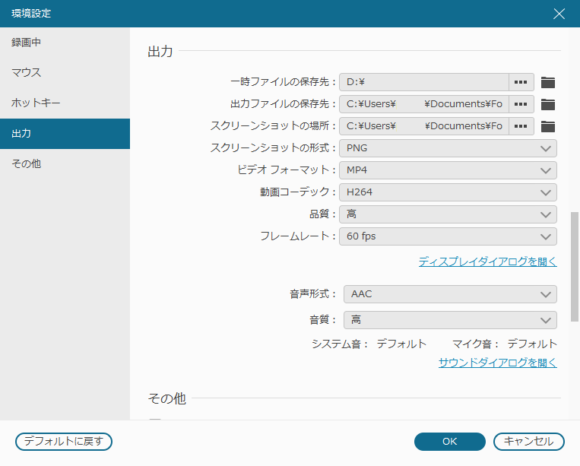
In the settings screen, you can set the save destination, recording file format, fps, image quality, and so on. The recording format supports a variety of options like mp4, avi, and gif, and the quality ranges from lowest to uncompressed. Since the main file formats are available, the files can be loaded directly into major video editors like AviUtl. (*Provided the format is supported.)
Some PCs may not be able to select certain video formats, so before buying I'd recommend confirming with the trial version that you can save in the format you want.
Light and Easy to Use
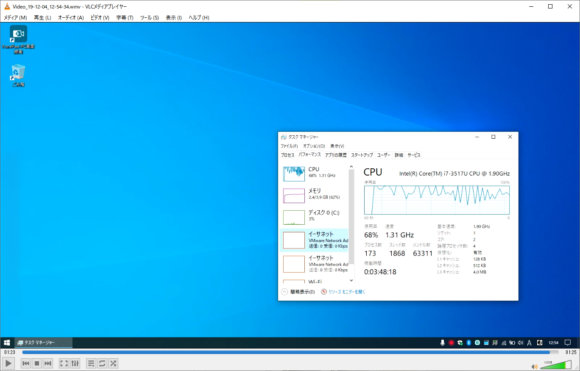
According to this page it's "light to run," so I tried installing it on a several-year-old laptop and recording with it. It did slow the machine down a bit, sure, but for something like a meeting video it captured without any problems. With a more recent CPU, I think you could even record on tablets like the Surface. Other configurable options include the pre-recording countdown and whether to record the mouse cursor.

You can also make the mouse cursor stand out like this, which makes it handy for things like presentation video shoots.
Webcam Simultaneous Recording Is Supported Too
FonePaw Screen Recorder supports webcam recording as well, so you can record meetings or capture how you look while playing a game.
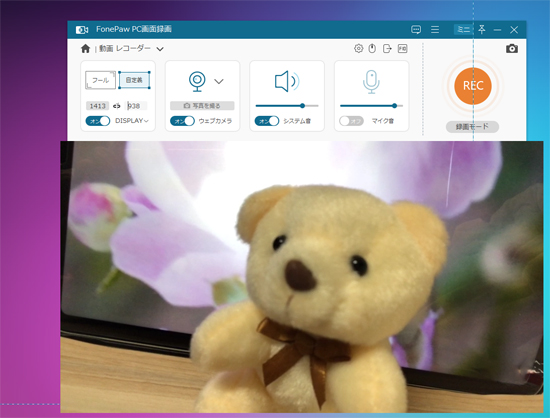
If a webcam is connected, turning the webcam item on will pop the webcam feed up on top of your screen.
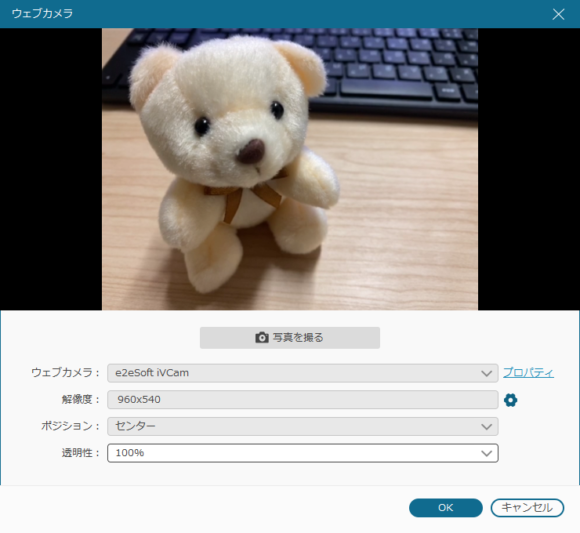
The webcam window can be freely resized, so you can record it at whatever size you prefer. The webcam window can also be moved around even while recording is in progress.
Recommended for Game Commentary Too
The video is uploaded as-is from the saved file.
Because simultaneous webcam recording is possible, you can record yourself in the middle of playing a game — the kind of shot you often see in game commentary videos. The webcam feed is always shown on top, so by placing it over the game screen, you can easily put together a game commentary video.
You Can Trim After Recording, Too
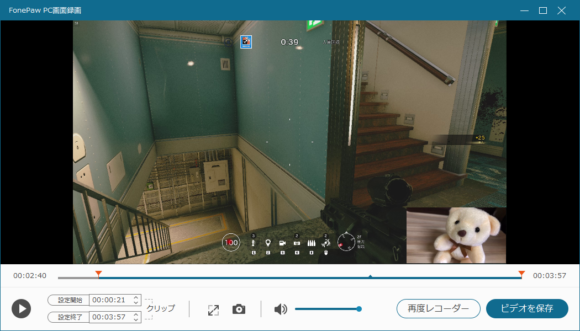
The recorded file can be trimmed before saving. (Paid version only.) You can cut out unwanted parts like right after recording starts before saving, which makes your later editing work easier.
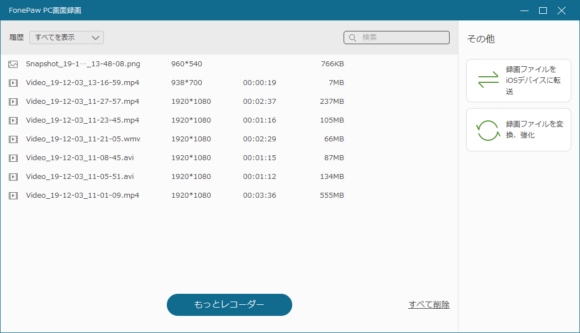
Past recordings can be checked from "Recording History." You can see things like the video size and length, which is handy when you want to quickly check a file you just finished recording. Being able to play them back in your usual video player as-is is also a nice touch.
I Tried the Mic Recorder
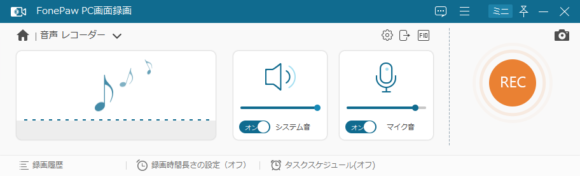
With the mic recorder feature, you can record system audio along with mic audio at the same time. Other apps often only do mic audio, so this is a great feature to have.
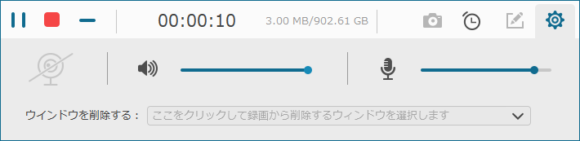
You can use it for things like recording meetings or capturing audio only for use in videos. The audio save format can also be set from the settings screen. It supports the main extensions like aac, mp3, and wma, so the bonus is you don't have to convert it when loading into other software.
I Tried Taking Screenshots
You can also use the screenshot feature to take screenshots of the screen.
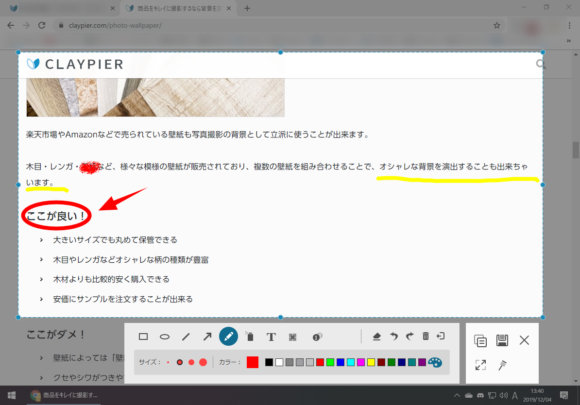
It's not just a plain capture either — you can freely add text or draw illustrations on the captured area. The editing features are well-rounded, and you can pretty much do all your basic touch-ups within this software, which saves you the trouble of going to Paint or PowerPoint to edit. Comes in handy when you want to put together presentation materials quickly.
If You Want to Consolidate Your Capture Software, This Is the One!

I came away with the impression that it's relatively light to run even on older PCs, the UI is simple and easy to read, and it's full of features. It's shareware, but if you buy a perpetual license, you can consolidate all your recording-related needs into this one app, which makes management easier. Free capture software sometimes uses its own proprietary codec that needs conversion, or has stability issues, so if buying a paid app saves you the hassle and time, I think going paid is a solid option.
Product page: https://www.fonepaw.com/screen-recorder/



















![Newsed Phone Opens Store for Used iPhones With 100% Battery Capacity [PR]](https://claypier.com/wp-content/uploads/2026/07/newsedphone-battery-100-iphone-480x236.png)


![[Limited Time] Christmas Campaign Giving Away Software Worth 50,000 Yen Total](https://claypier.com/wp-content/uploads/2020/12/A2345-480x311.jpg)
![[Limited Time] WonderFox DVD Ripper Pro Paid Version Available for Free Download!](https://claypier.com/wp-content/uploads/2020/07/clp-480x288.png)