When you swap an HDD for an SSD, or feel like reorganizing your disk partitions, partition management is something that comes up every now and then while you tinker with your PC. Especially with prebuilt PCs from major makers, I bet some of you like to customize them in your own way after buying them.
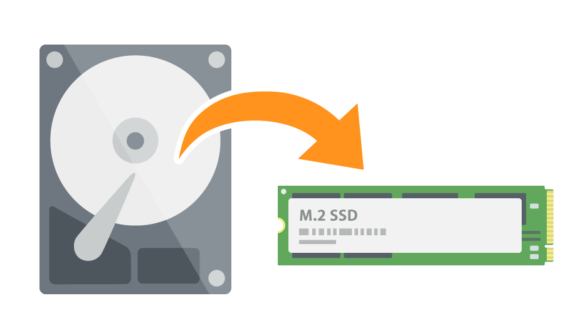
I myself recently bought a PC and swapped the HDD out for an SSD. When you swap drives, the new one is of course completely empty, so you need to clone everything from the original disk. That is exactly when a partition management tool comes in handy.
On this page, I picked up MiniTool's "MiniTool Partition Wizard." It is a tool that really pays off when you buy something like an SSD.
Downloading the Free Version
MiniTool Partition Wizard has a version you can use for free. You can download it from the official site or from the button below.
The free version comes with some feature limitations, but with the Pro version you can use every function. A trial of the Pro version is also available from the official site.
What the Home Screen Looks Like
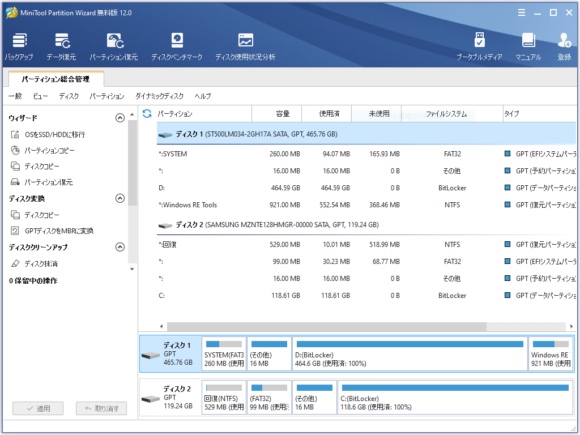
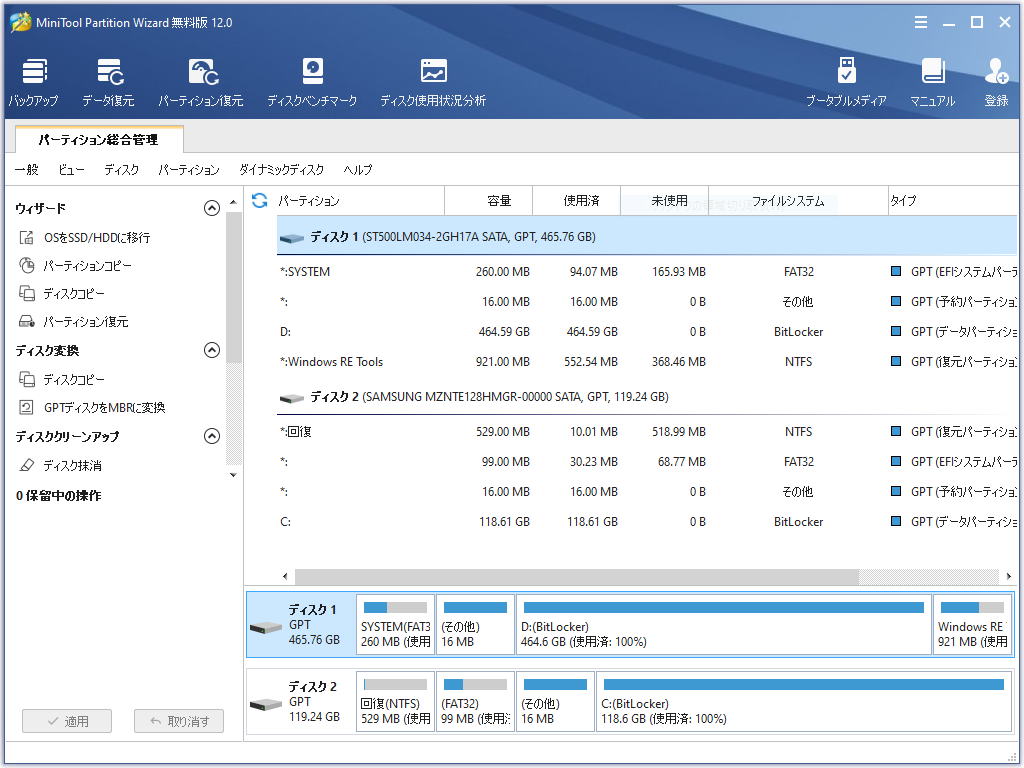
Once you install it and open the home screen, you see a list of disks and partitions. From the menu on the left, you can do things like copy a disk or restore a partition. If you press the Manual button, you get a walkthrough of the basic operations, so even beginners will be fine.
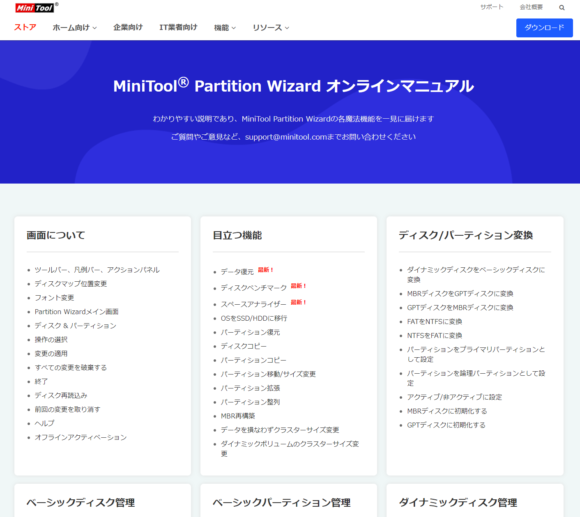
https://www.partitionwizard.com/help/ has a pretty thorough manual, which is reassuring.
Smooth Partition Management
Copying a Disk
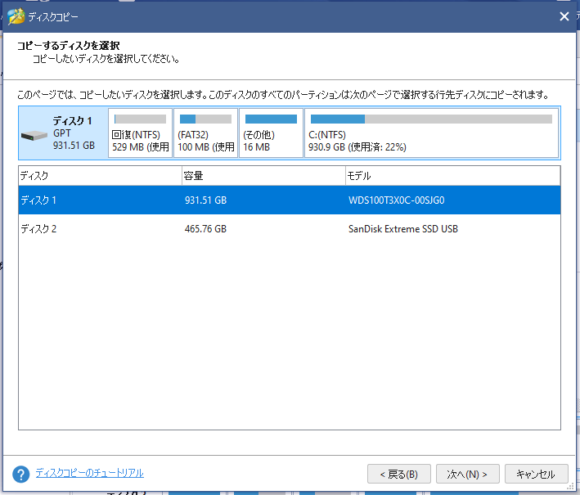
You can copy data between disks like SSDs and HDDs. It also works with USB-connected HDDs, so it is a good choice when you want to back up an entire USB HDD. Of course, you can also use it when replacing an internal HDD.
Splitting a Partition
With partition splitting, you can create a new partition on a disk. You can also split partitions with the standard Windows tool, but with this tool the size selection is visual and easy to grasp, and on top of that you can split a partition without erasing any of the existing data, which is the key point.
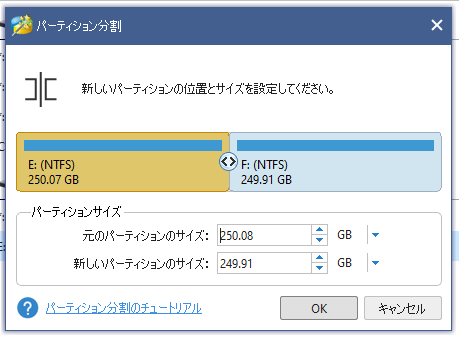
I tried creating a new partition on a 500 GB disk as a test. Once you decide on the size, press OK and then the "Apply" button shown on the home screen, and you are done.
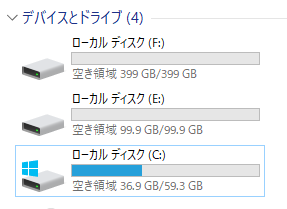
When the process finishes, you have a new partition added like this. Drive letter assignment and mounting seem to be done automatically as well. On the flip side, if you want to remove a partition and use the disk space more freely, you can perform a partition merge and combine two partitions into one in no time.
A Handy HDD-to-SSD Migration Tool
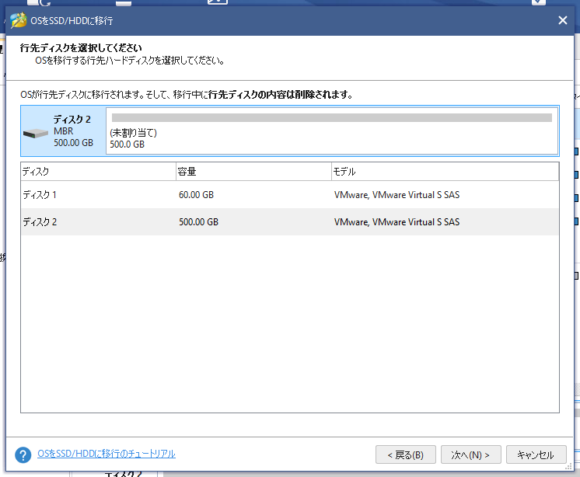
This is a recommended feature for when you have added something like an SSD to your PC. There is a function that lets you move all the data from your original HDD over to the new SSD in one go. (Pro version only)
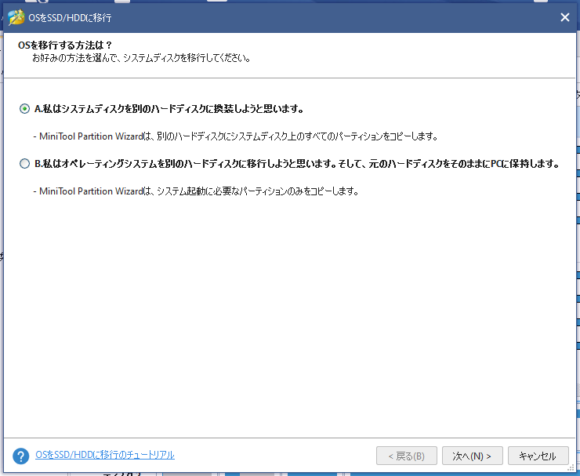
If you want to move all data, choose A. Normally I think you will end up choosing A, but depending on the partition layout you would choose B.
A Feature to Search for Heavy Files on Your Disk
The feature that searches for and shows you the heavy files inside your disk is quietly useful. You can find and delete unnecessary files that have been eating up your disk without you realizing — game files you no longer play, virtual machine files you no longer use, and so on.
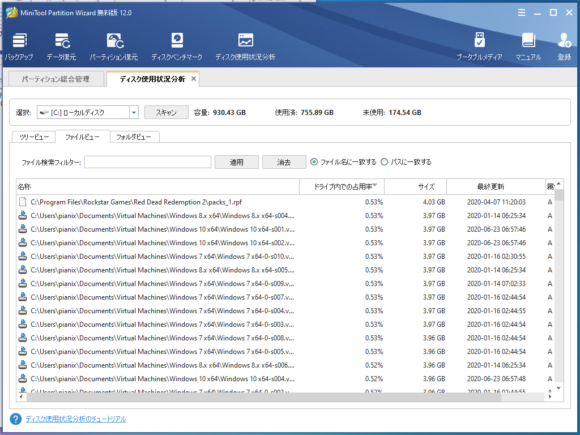
The search speed is reasonably fast too, so I did not find myself just waiting around. Honestly, I think it is even worth installing just for this. If your drive's free space has been bothering you, give it a try.
Disk Benchmarking Too
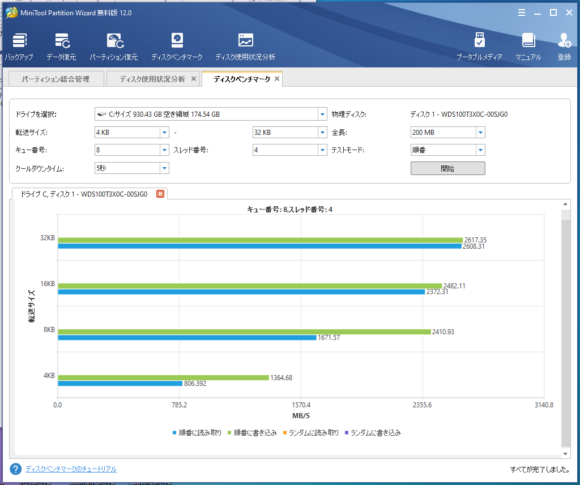
The disk benchmark feature lets you measure both write and read speeds. It also measures random write/read, and you can tweak fine-grained parameters, so it is also a great pick for reviewers. (Like CLAYPIER...)
Securely Wipe Confidential Data with the Erase Feature!
When you dispose of a disk you no longer use, you actually need to be careful. With HDDs especially, if you just format the disk and then sell it, there is a chance a third party could read your files using file recovery software. This tool also comes with a disk erase utility.
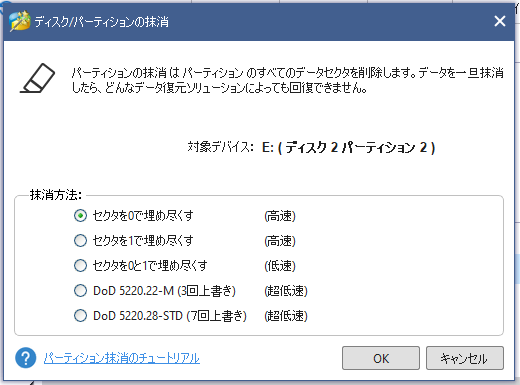
Once the data is erased, no data recovery solution can bring it back — so since it can never be recovered, be careful not to wipe the wrong drive by mistake. You can choose from five erase methods, and the further down the list you go, the safer they are (at the cost of taking insanely long). For personal use, the top three or so are recommended. If you are at a company handling things like confidential data, one of the bottom two would be the right call. As a side note, at the data centers of major IT companies, when they get rid of disks they no longer need, I have heard they physically pulverize them for safety, so if possible the safest route is to erase the data with this tool and then smash the disk into pieces.
A Companion for When You Are in Trouble!
On top of partition management, there are all sorts of other functions bundled in, which makes it a great deal — so if you are looking for a management tool, please give it a try.