When you want to save the photos and videos you've taken on your smartphone over to your PC, FonePaw DoTrans comes in pretty handy — and I gave it a try.
This single app can manage both Android and iPhone, so it's a great pick for people who carry two phones, anyone switching devices, or iPhone users who feel iTunes is just a pain to use.
Where to download the app
You can download it from the official site, or from the button below.
For installation steps, check the official installation guide. If you're going to use it with an iPhone or iPad, you'll need to install iTunes on your PC first.
Supported devices
- iPhone / iPod Touch running iOS, and iPad running iPadOS.
- Android devices running Android 2.3 – 9.0 (Samsung, Xperia, Google, HTC, HUAWEI, Xiaomi, etc.)
※This is a partial excerpt from the official site. For the full compatibility list, please see the official site.
Let's actually use FonePaw DoTrans
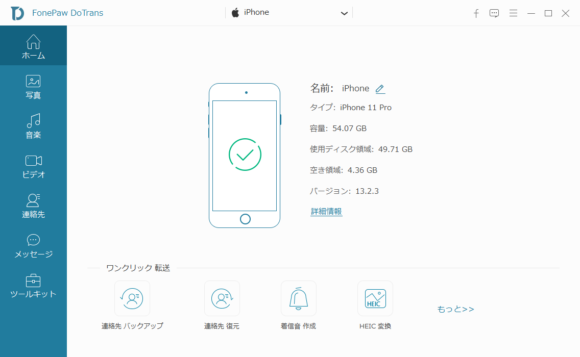
When you connect a smartphone like an iPhone, DoTrans automatically detects it and shows the device information on the home screen. You can also connect multiple Android and iPhone devices at the same time, and I confirmed it even worked with the latest iPad Pro (3rd generation) running iPadOS.
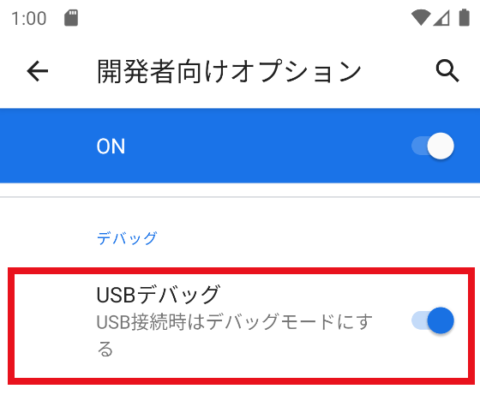
For Android, you'll need to enable USB debugging before connecting.
How to connect Android
Here are the steps to enable USB debugging:
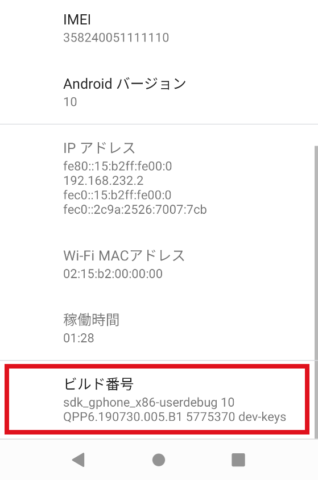
1. Open Settings and tap "About phone." If you don't see "About phone," tap "System" first, then "About phone."
2. Tap the "Build number" item seven times. When you see "You are now a developer!" you're good to go.
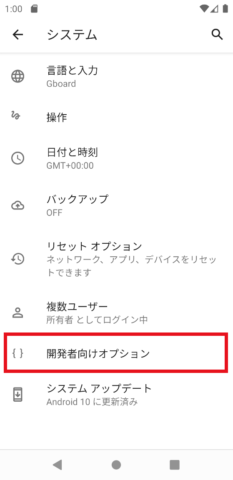
3. From "System," tap "Developer options."
4. If "USB debugging" is turned on, the setup is complete.
Powerful image backup from your phone
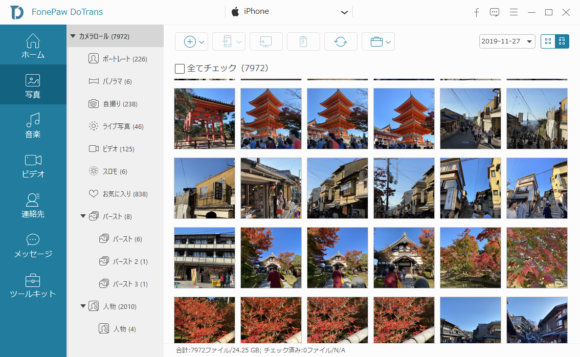
When you open the "Pictures" tab, you can view, add, and delete images. If you want to back up all your images to your PC, just tick "Select all" and then press the  button — that's it.
Backing up to your PC saves storage on your phone, and even if your phone breaks, your data stays on your PC. So if you have important photos, I'd recommend taking regular backups.
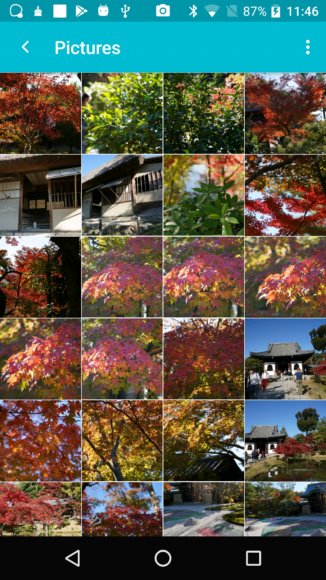
You can also push images the other way — from PC to phone — and they show up properly in the device's library. You can delete from the PC side too, which is handy for clearing out batches of photos you no longer want.
※On iOS and iPadOS, some changes may not apply due to Apple's restrictions.
Easily transfer large files to your PC
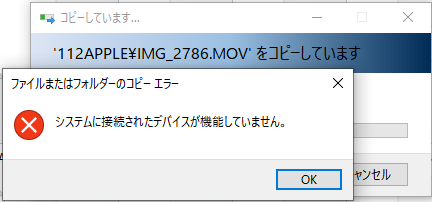
If you've ever tried to send video files over USB straight from File Explorer on your PC without using an app, you've probably hit the dreaded "A device attached to the system is not functioning." error and had the transfer grind to a halt.
When I tried DoTrans, even large video files copied over smoothly without any issues. Honestly, just being able to copy reliably is a relief in itself. Even if you shoot a ton of 4K video, you shouldn't run into transfer trouble anymore.
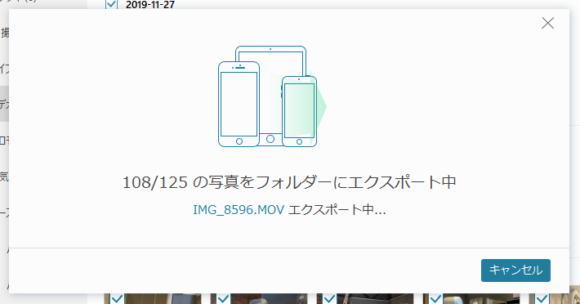
Saving large videos to online storage like iCloud eats up your quota, and uploads and downloads can take ages — so for big files, copying directly over USB is the easiest way. (Related article: Two ways to transfer files from an Android phone to your phone or PC)
HEIC image conversion is surprisingly useful
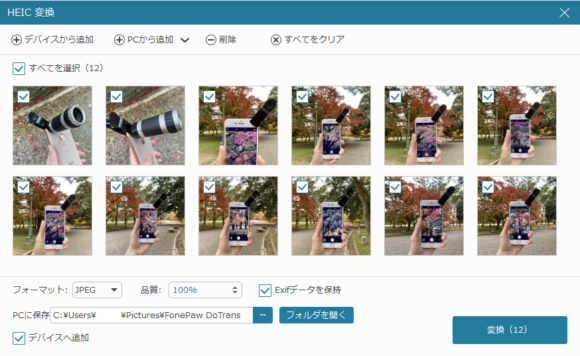
Photos taken with the iPhone's camera default to HEIC format. Normally they get auto-converted to JPG when you transfer them to a PC, but if you upload them directly to iCloud, they often stay in HEIC. When that happens, you can use the bundled "HEIC Converter" tool in DoTrans to convert HEIC images to JPG.
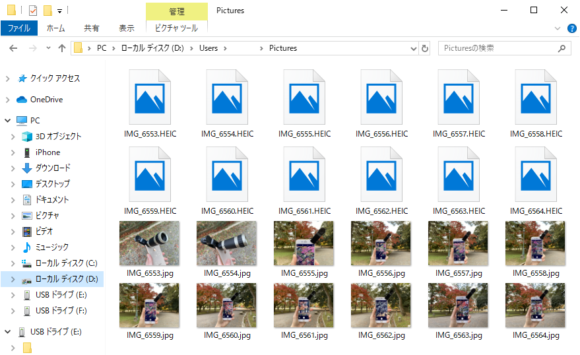
After conversion, you get regular JPG images. You can also specify the compression rate during conversion to keep file sizes small.
Music files transfer directly to your PC, too
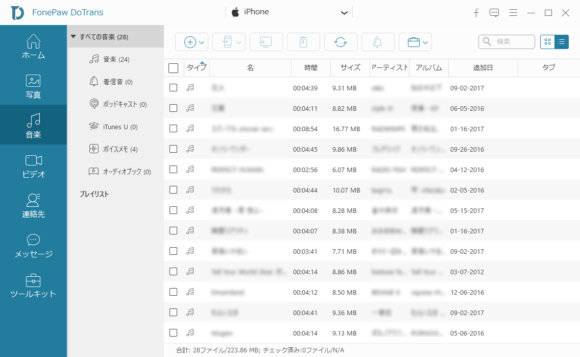
On iPhone or iPad, you can move downloaded music or voice memos recorded with the voice recorder over to your PC. The transferred files come out in m4a format, so you can play them directly in free software like VLC media player.
Video files are auto-converted
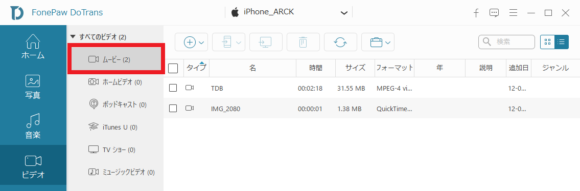
Sending videos from your PC works the same way as images — just pick the files you want to add. Click "Movies" in the "Video" menu, then press the  button to add a video. Even if the format doesn't match, DoTrans automatically converts it to a supported format, so you won't get stuck wrestling with conversion tools.
In recent iOS versions, the "Videos" app has been replaced by the "TV" app, so transferred videos end up in the TV app under "Library" → "Downloaded."
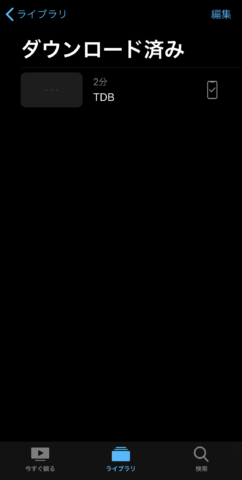
It really comes in handy when you want to carry individual videos with you.
If you want one tool to back up everything on your phone, this is it
What's appealing is that even with multiple devices, this single app handles them all. iPhone users in particular — many of you are probably tired of dealing with iTunes, right? Apple's devices come with tighter restrictions, so the feature set on iPhone is a touch smaller than on Android, but being able to back up files easily is still really attractive.
When switching from Android to iPhone, you can connect both devices and use it as a data migration app (Steps for migrating data when switching from Android to iPhone — external site), so it's reassuring to have on hand. It's a relatively new app, and we can expect plenty of updates going forward, so picking it up now isn't likely to be a bad call.
Product page: https://www.fonepaw.com/dotrans/
Related articles:
https://www.fonepaw.com/dotrans/
https://www.fonepaw.com/tutorials/transfer-data-from-android-to-iphone.html