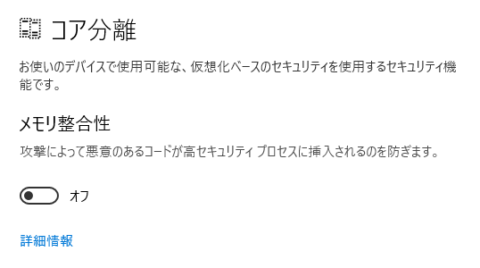
On certain Windows 10 (1803) environments, turning on the "Memory Integrity" feature can cause the system to fail to boot.
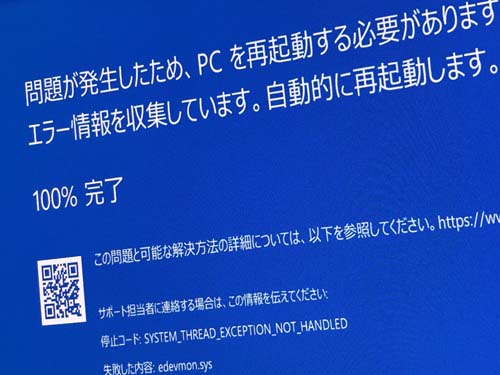
This feature is intended to improve device security, but in some environments enabling it triggers a Blue Screen with the stop code "SYSTEM_THEREAD_EXCEPTION_NOT_HANDLER."
Cause
If the Blue Screen shows "What failed: edevmon.sys," the cause is "ESET Smart Security."
edevmon.sys is a system file belonging to ESET Smart Security, so it is safe in itself, but it may not be compatible with this Windows feature.
At this point, ESET and the Memory Integrity feature cannot coexist.
Solution
The problem is solved by turning the Memory Integrity feature off.
If a Blue Screen has already occurred and the PC will no longer boot, try the steps below.
- Turn the device on and repeatedly press the [F8] key before the Windows logo appears.
- When the recovery options appear, click "Start in Safe Mode."
- Press the Start button and type "regedit."
- In Registry Editor, navigate to \HKEY_LOCAL_MACHINE\SYSTEM\CurrentControlSet\Control\DeviceGuard\Scenarios\HypervisorEnforcedCodeIntegrity.
- Change the value of Enabled to "0."

Restart and boot normally.
This turns Memory Integrity off and allows the system to boot.