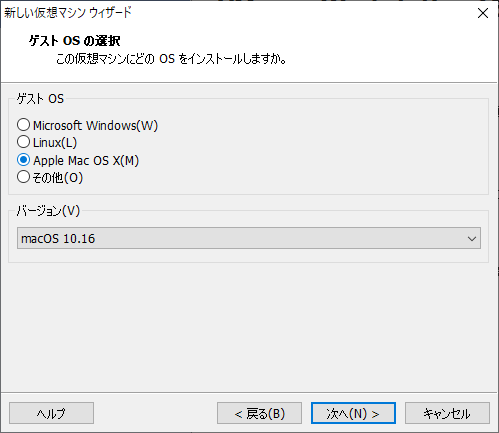
This article walks through how to enable macOS as a guest OS in VMware Player 15.5, since it isn't selectable during install by default.
VMware Player has been bumped to version 15.5, and as a result the previous unlocker v302 no longer works, so we'll use a patched build of the unlocker.
Try this if you see the message "VMware Workstation Pro cannot run on Windows" and 15.5 is the only version available to you.
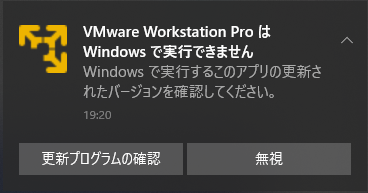
※ If an older version of VMware Player is available to you, you can also stay on that and unlock it using unlocker v302.
Files to Download
unlocker.zip (the 15.5-compatible build) https://mega.nz/#!3uZxwAwZ!p5pjlvtre6bfVgr7L1U2DHgFM78wcJDFMG_ZdIIQci0
com.vmware.fusion.zip.tar (needed to extract darwin.iso) [link removed: original URL was https://softwareupdate.vmware.com/cds/vmw-desktop/fusion/11.5.0/14634996/core/com.vmware.fusion.zip.tar — Broadcom retired this download path after the VMware acquisition]
Installation Steps
- Download all of the files above.
- Unzip unlocker.zip and run "win-install.cmd" with administrator privileges.
- The tool download fails partway through, but the patch itself is applied correctly.
- Open com.vmware.fusion.zip.tar with 7-Zip or a similar tool, and copy /payload/VMware Fusion.app/Contents/Library/isoimages/darwin.iso and darwinPre15.iso into the VMware folder.
- Launch VMware Player. If "macOS" is selectable on the New Virtual Machine screen, you're good to go.