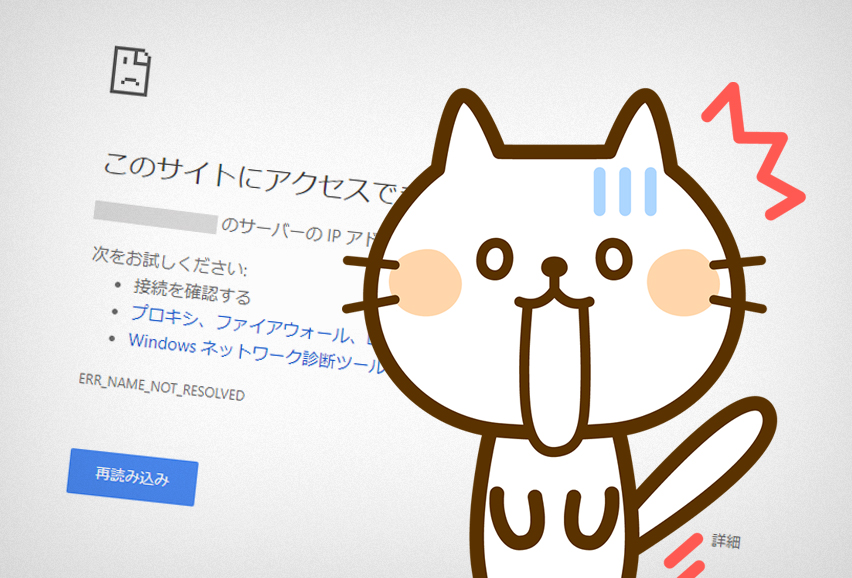
When you take a quick look at a website you run yourself and notice "Hey! The page isn't showing up anymore!" — that kind of thing happens more often than you'd think. There are all kinds of reasons you can't access it, but let's narrow the cause down by process of elimination.
1. Figure out whether the problem is on the web server side or the client side
First, check whether you can open sites like YouTube or Facebook normally. While you're at it, hit Ctrl+F5 to reload so the cache doesn't get in the way.
- If other sites open normally, the problem is likely on the web server side.
- If other sites also fail to open, the problem is likely on the client side.
Just in case, also check whether the site opens from another PC or smartphone, or over a different connection (LTE on your phone, etc.).
If it turns out to be a client-side issue, your Wi-Fi router might just be acting up, or it could be your security software or a browser plugin.
2. Check the browser's error message
Browsers like Chrome show an error code on the error page, so just looking at it will let you roughly narrow down the cause.
Examples of errors you might see:
| Error message | Error code | One possible cause |
|---|---|---|
| This page isn't working | HTTP ERROR 500 | There's a bug in a file on the server (php, htaccess, etc.), or the permission settings are wrong. |
| ERR_EMPTY_RESPONSE | Apache or nginx isn't starting correctly, or the permission settings are wrong. | |
| ERR_NAME_NOT_RESOLVED | The URL is wrong, or the domain settings are wrong. | |
| This site can't be reached | ERROR_CONNECTION_RESET | The server's firewall settings are wrong. |
| ERR_CONNECTION_REFUSED | The server is down, or the URL is wrong. The SSL certificate may have expired. | |
| ERR_CONNECTION_TIMED_OUT | The server is down, or the domain settings are wrong. |
3. Check whether an outage has been announced
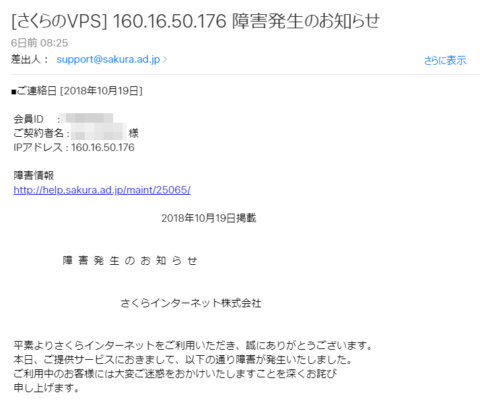
If you're using something like a rental (shared) server, it's possible the service itself is having an outage. Check the provider's official site to see if there's an announcement. A reputable provider will let you know by email or similar.
Your contracted ISP (internet line) can also have outages, so check services like Downdetector (external site) to see whether there's a known outage going on.
4. Check the server's settings
Based on the browser's error message, investigate the possible causes one by one (refer to the table above). For example, if it's a 500 error, focus your investigation on the php files in your public directory.
If the cause is still unclear, please try the steps below.
Check the contract status, operating status, and used capacity of the server, and from the control panel confirm that the settings for php, perl, the database, and so on are correct. If you've set up a custom domain, try accessing the site once by IP address or via the provider's initial domain. If it opens that way, there may be something wrong with the custom domain settings.
For a VPS
Please check whether daemons like Apache are starting correctly, whether the firewall settings are correct, whether permissions are set appropriately, and whether you have any wrong directives in httpd.conf or php.ini. If you've installed security tools like mod_security or fail2ban, check their logs too (especially if you're seeing 403 errors). Also, if you have SELinux enabled, try turning it off once with "setenforce 0". If the site starts opening normally after that, SELinux is the cause. In that case, the directory's label may be wrong, or http-related rules may have been turned off, so fix them. For HTTPS sites, check whether the certificate's expiration date and the SSL settings are correct.
If it still won't run, sometimes the fastest route is to roll the whole system back to a working version from backup, or — though I wouldn't really recommend it — rebuild it from scratch.


















![[For Site Owners] How to Block Risqué AdSense Ads Like "Unicorn"](https://claypier.com/wp-content/uploads/2020/12/AdobeStock_291769572_Editorial_Use_Only-480x320.jpeg)