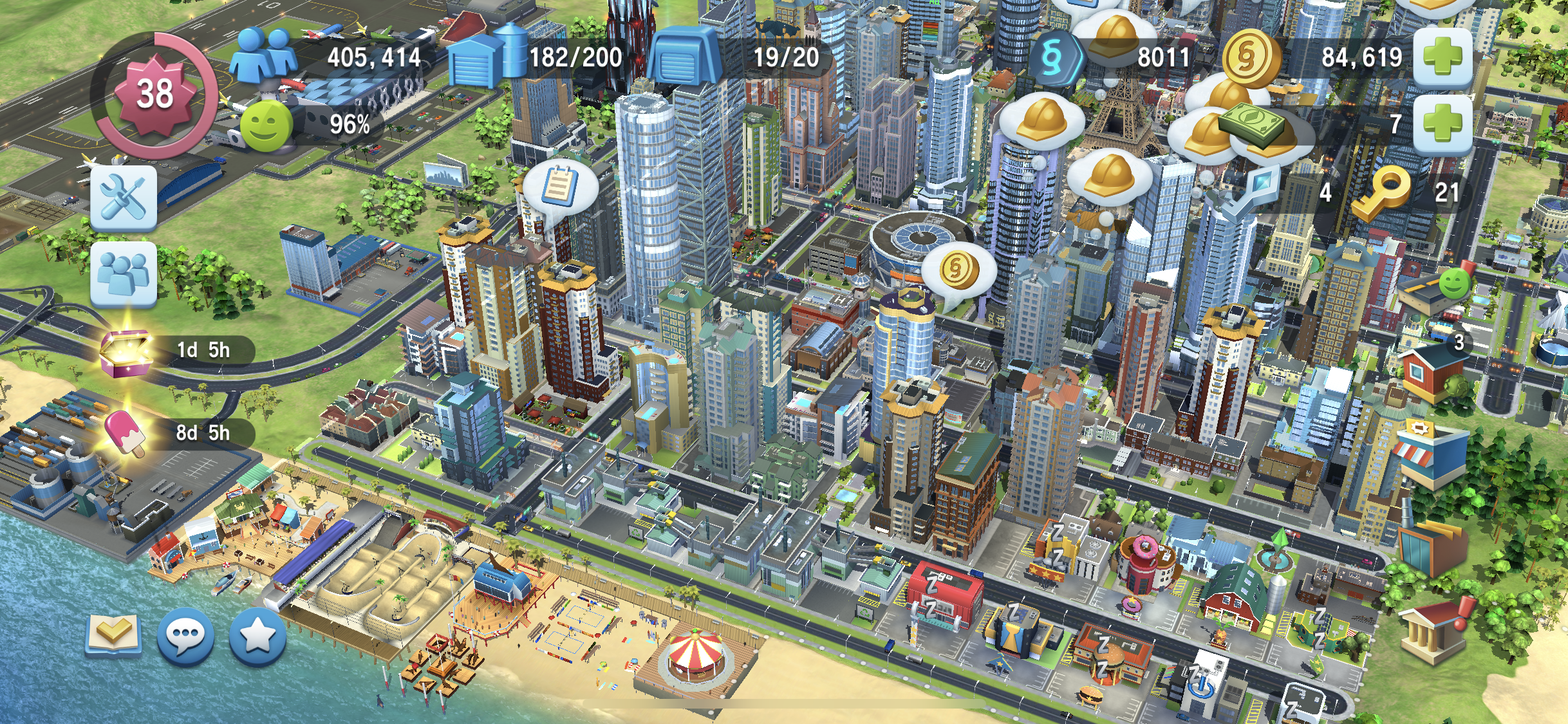

Here's a guide on how to play "SimCity BuildIt", which is normally available on Android and iOS, on your PC as well.
In this article I'll walk through how to do it using the dedicated Android emulator "NOXPlayer".

Installing the Android Emulator "NOXPlayer"

(C) bignox.com
This time we'll be using "NOXPlayer", an emulator that lets you play Android smartphone games on your PC.
Go ahead and download it from the official site.
Once the Android emulator launches successfully, you'll see a screen like this.
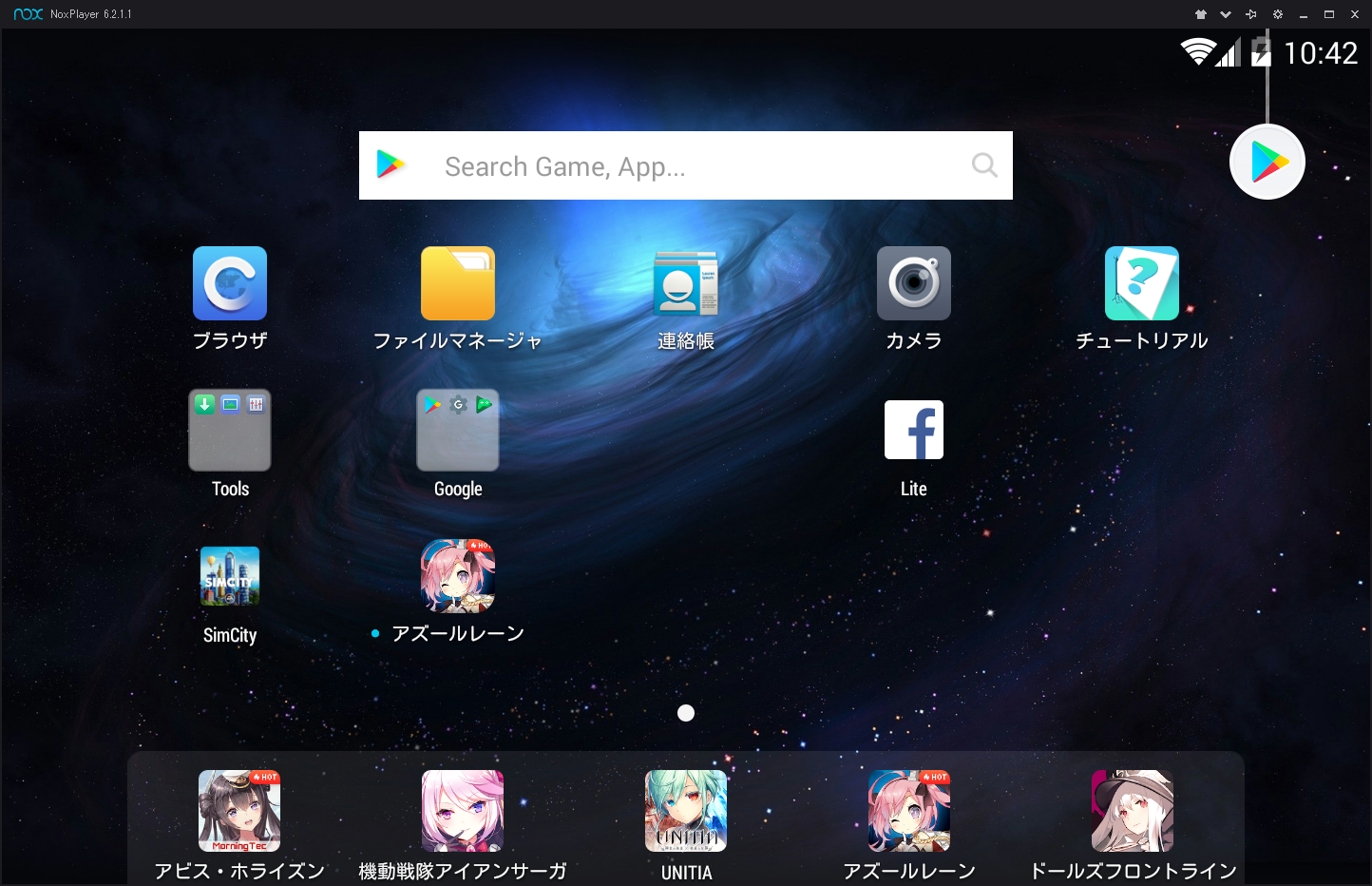
(C) bignox.com
That's all there is to setting up NOXPlayer.
Downloading "SimCity BuildIt" from the Play Store
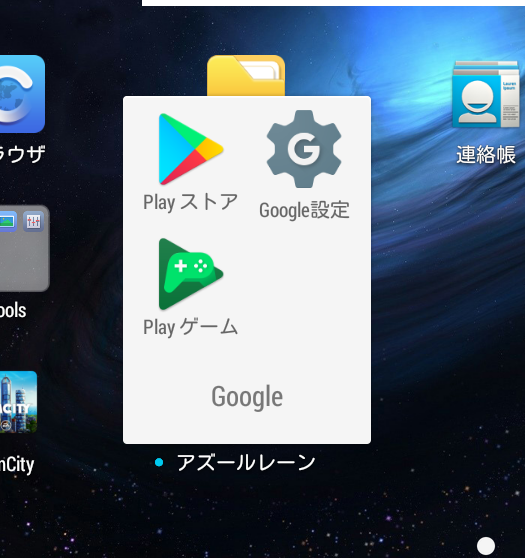
(C) bignox.com
On the Android home screen, you'll find "Play Store" inside the "Google" folder, so go ahead and tap it.
The first time, you'll need to sign in with a Google account, so log in with the one you have.
Once you've signed in, the store's home screen comes up, so search for "SimCity" and open its page.
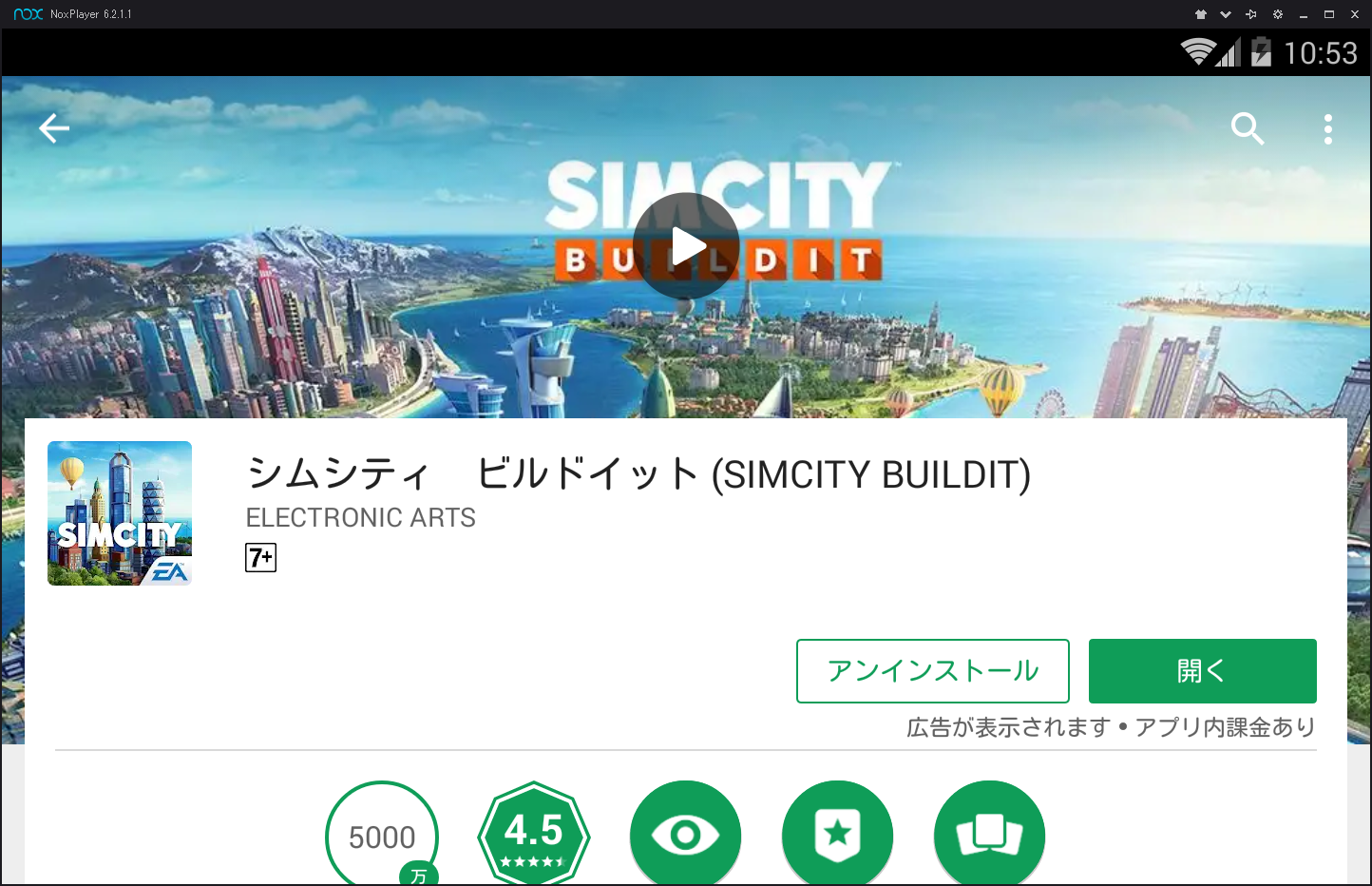
(C) Google / (C) Electronic Arts Inc.
Just like installing a regular app, tap the install button to install it.
Once installation finishes, you can play the same way you would on a smartphone.
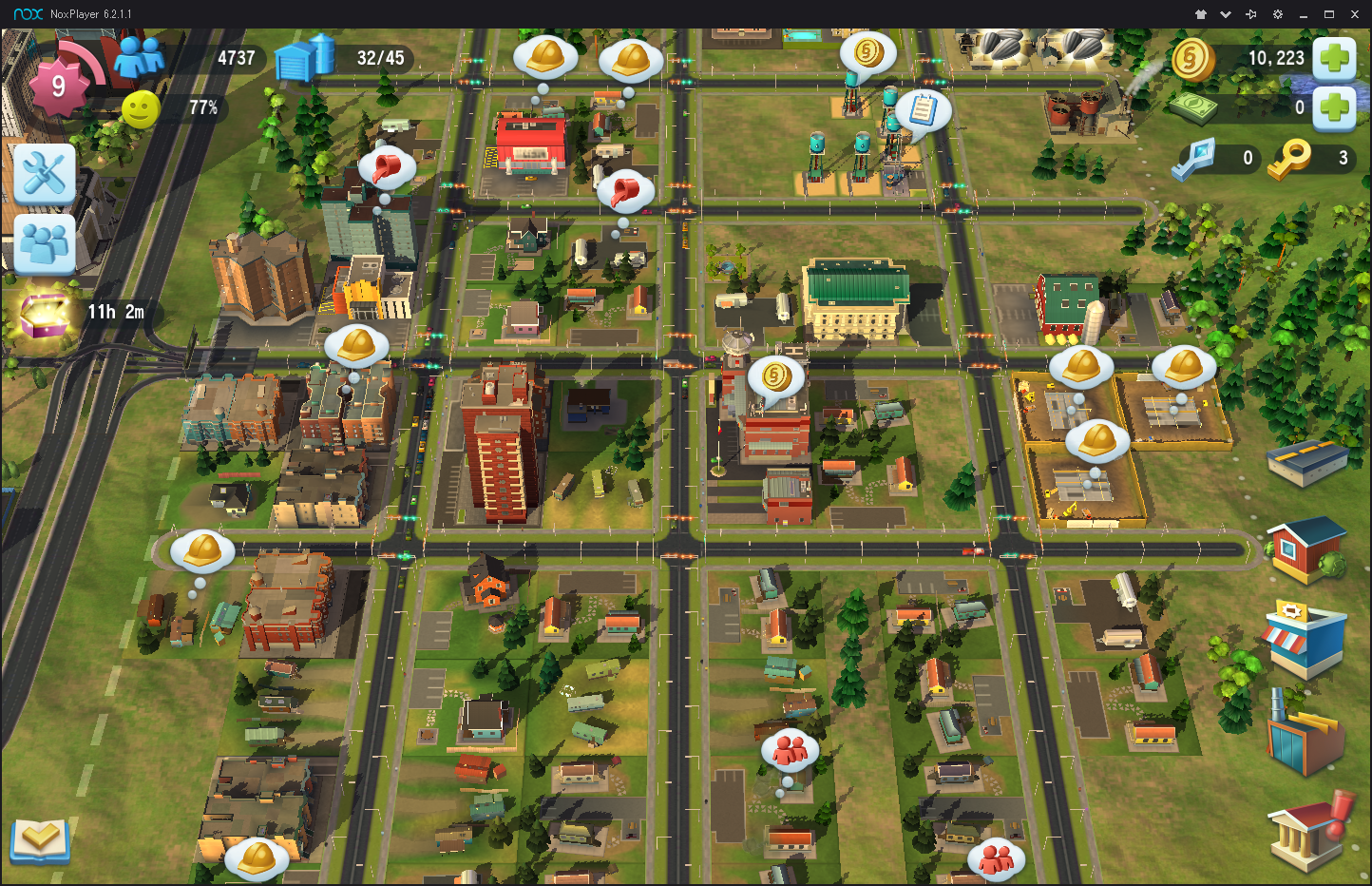
(C) Electronic Arts Inc.
Also, to guard against losing your data, I'd recommend linking your Facebook account or similar.
How to Make It Run Even More Smoothly

(C) bignox.com
NOXPlayer lets you customize things like the smartphone model name and performance settings.
If you press the gear icon in the top-left of the window, the settings screen opens.

(C) bignox.com
The system settings screen has options like CPU core count, memory size, resolution, and frame rate that you can configure.
Setting the CPU and memory option to "High" (or, if your PC has headroom to spare, picking "Custom" lets you change them to whatever spec you like) and switching the graphics rendering mode to "Speed Mode (DirectX)" gave me a smooth play experience.

(C) bignox.com