iPhone and iPad have a recovery mode called Recovery Mode. If you cannot unlock the passcode, you can put the device into Recovery Mode and reset it from iTunes to set it up again.
* This page explains Recovery Mode. Note that this is not DFU Mode.
Caution: If you reset the device using this method, all data on the device will be erased, so please be careful.
What you will need
- A Mac or PC with the latest version of iTunes installed
- A cable (a genuine one, or one that supports data transfer)
- The device you want to reset
Please charge both the PC and the device you want to reset sufficiently in advance.
Caution: If the power runs out during the reset, the data inside the device may become corrupted and unrecoverable.
Turning off the power
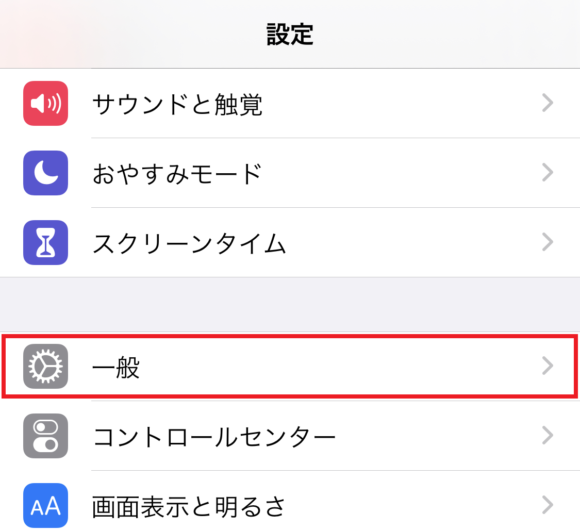
1. Open the Settings app and tap "General".
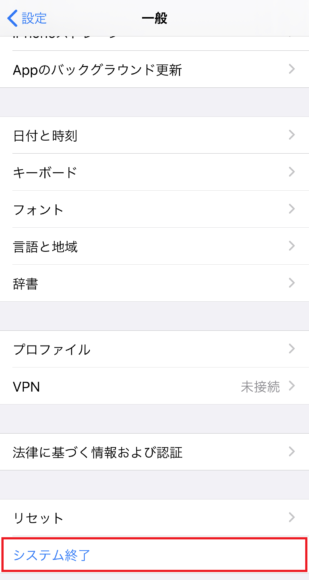
2. Scroll all the way to the bottom and tap "Shut Down".
3. When "slide to power off" appears, swipe from left to right.

The screen will go completely black and, after a few seconds, the power will turn off.
How to enter Recovery Mode
Common steps
1. With the power off, connect the device to your Mac (PC) using a USB cable.
Make sure to launch iTunes in advance.
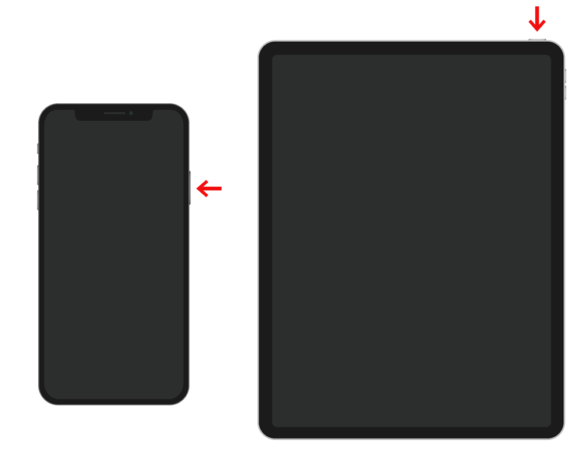
iPhone X and later, iPhone 8 / 8 Plus, iPad Pro
2. Immediately press and hold the "Side button" of the iPhone / iPad.
(Keep holding it even when the Apple logo appears.)
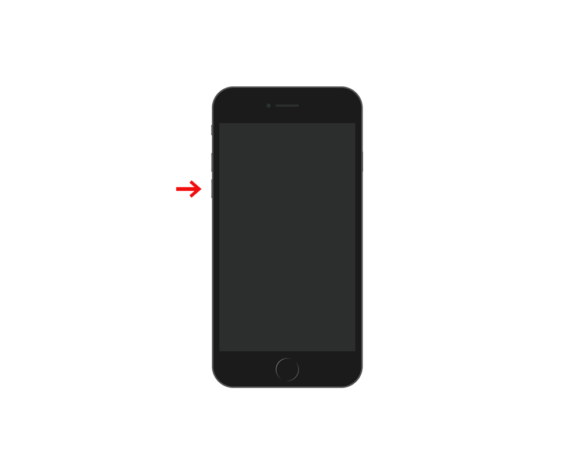
iPhone 7 / 7 Plus, iPod Touch 7th generation
2. Immediately press and hold the "Volume Down button" of the iPhone.
(Keep holding it even when the Apple logo appears.)
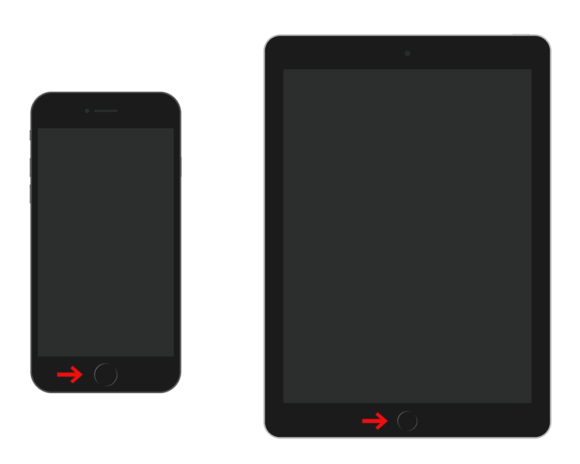
2. Immediately press and hold the "Home button" of the iPhone / iPad.
(Keep holding it even when the Apple logo appears.)
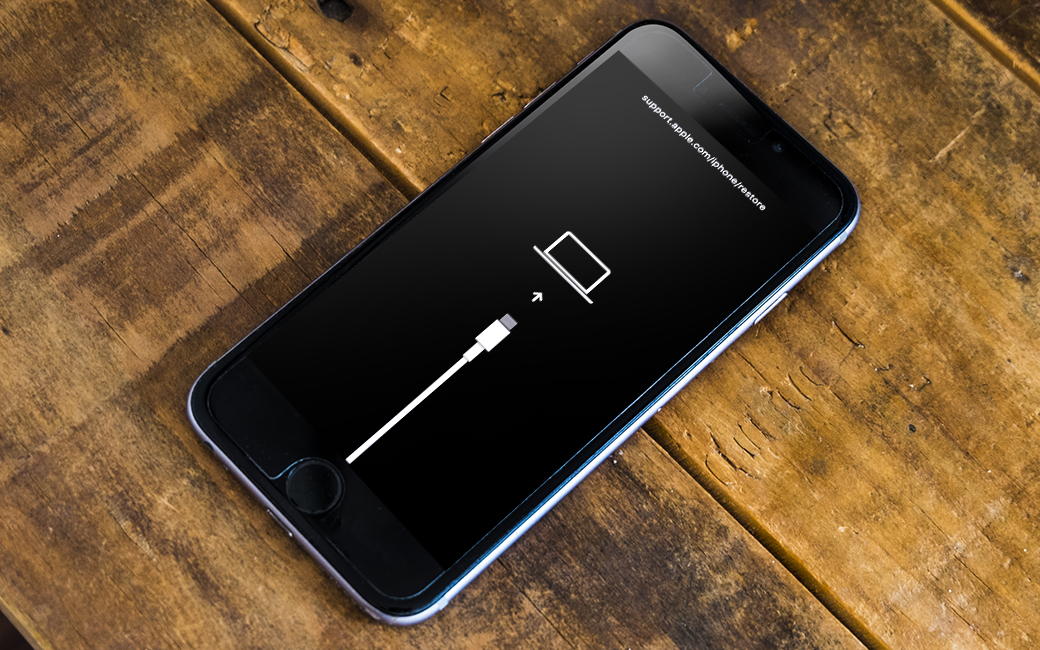
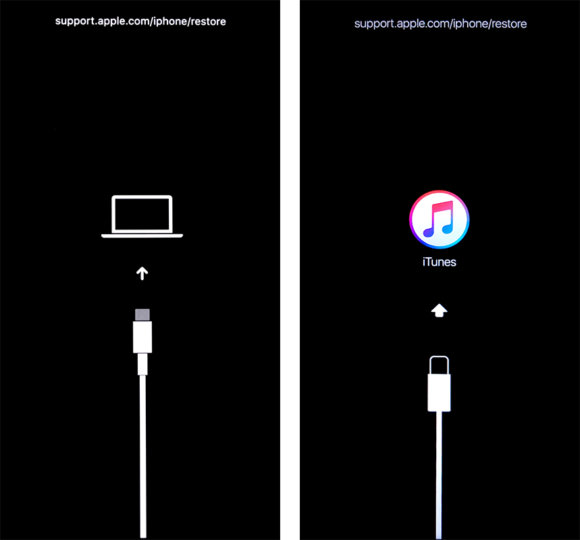
When Recovery Mode is successful
1. When a screen like the one below is shown, Recovery Mode is active.
Next, move on to the operation on the Mac (PC).
2. iTunes will display "There is a problem with the iPhone 'iPhone' that requires it to be updated or restored." (* in the case of iPhone), so to reset the device, select "Restore".
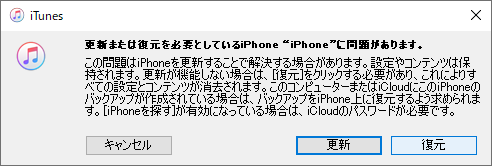
Caution: When you press Restore, all data inside the iPhone / iPad will be reset to the factory default state.
3. When the reset is finished, the initial setup screen of the iPhone / iPad will open.
After that, simply complete the initial setup as usual and you are done.