
When you play FPS games, did you know that turning off vertical sync (V-Sync) in the settings can reduce input lag? Some of you probably already play with V-Sync off in order to cut down on latency, but in Apex Legends, for some reason, turning V-Sync off caps the frame rate at 144 fps. By tweaking Steam's launch options you can lift this frame rate cap, so let's go ahead and set it up.
How to Unlock the Frame Rate Cap
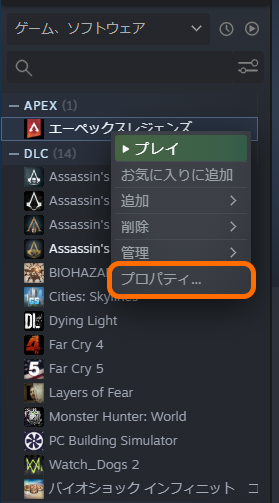
(1) Right-click Apex Legends in your Steam library and open Properties.
(2) Enter the following code into the launch options.
+FPS_Max Unlimited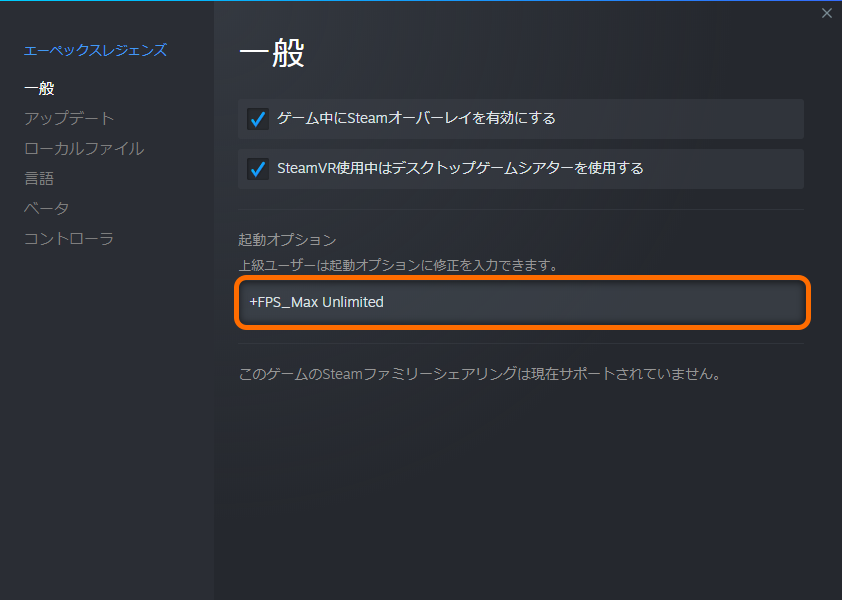
(3) Launch Apex, head to the firing range or somewhere similar, and check that the frame rate cap has been lifted. (To show the frame rate, go to Settings → Gameplay → Performance Display: On.)
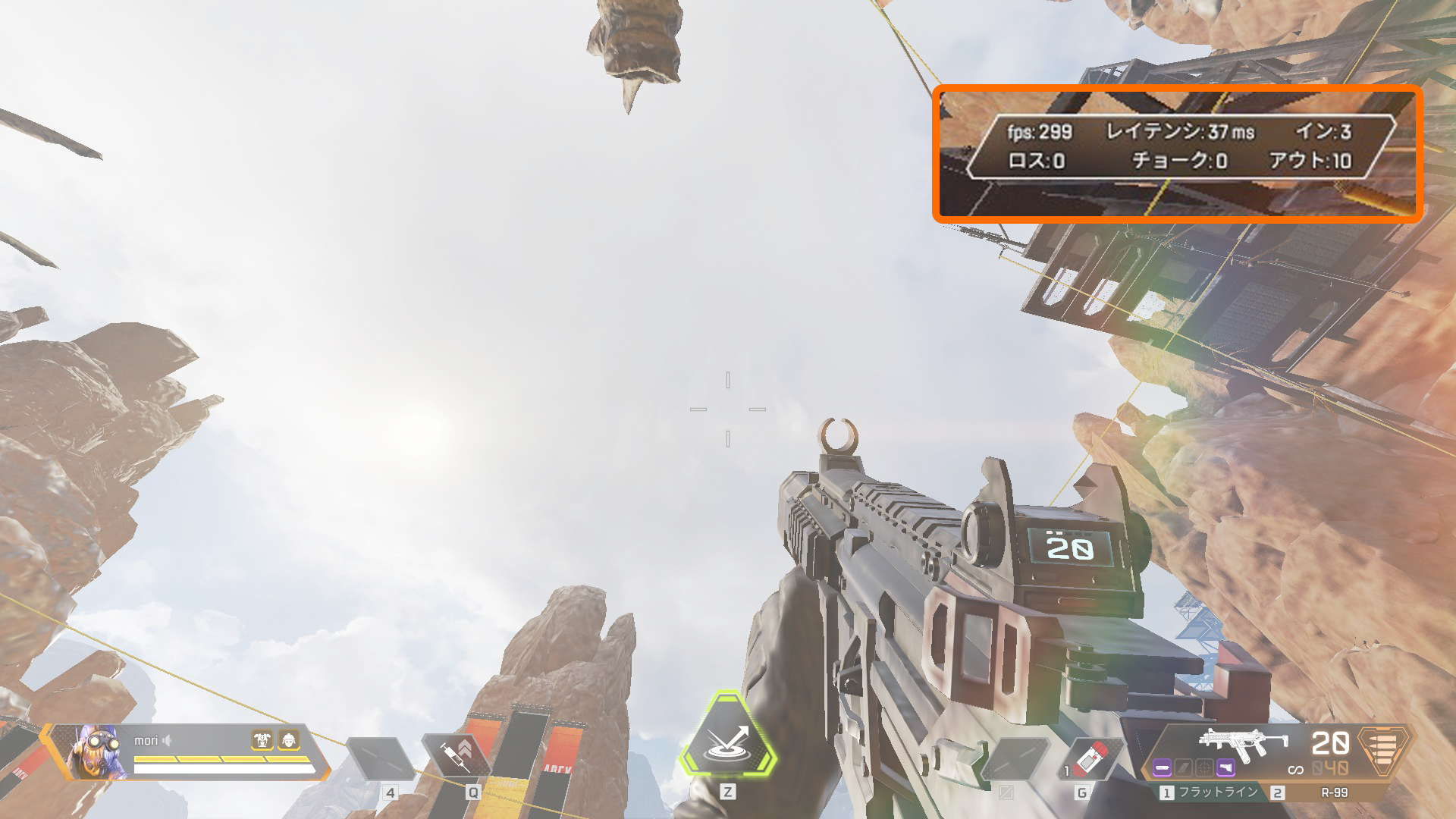
That completes the setup.
Once the frame rate goes up, the screen is clearly easier to follow and the game just feels more comfortable to play. Even if you are using a monitor that does not support displays above 144 fps, you can still feel the benefits of a higher frame rate, so please give it a try.