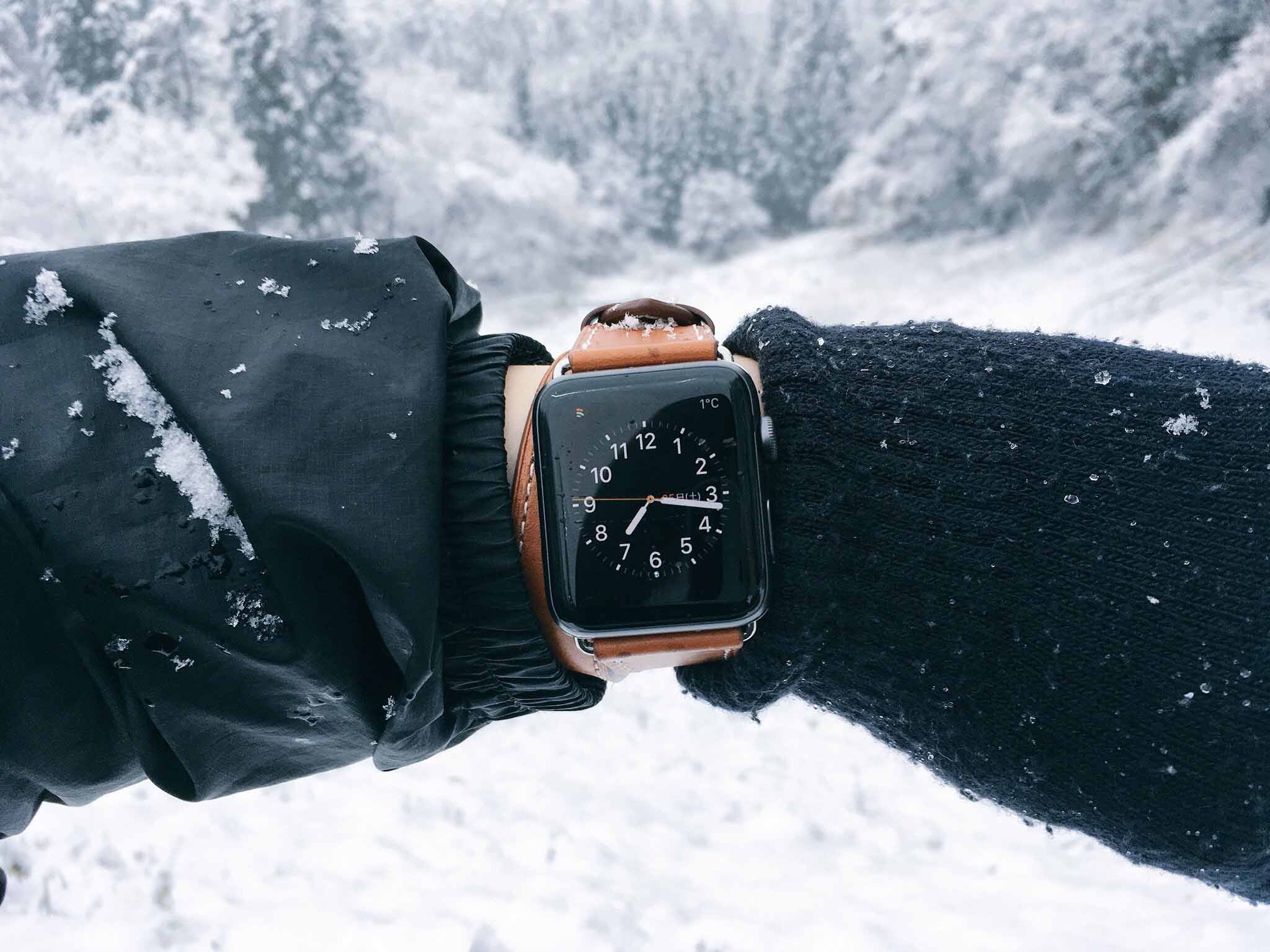
If you use an older Apple Watch like the Apple Watch Series 3, you may have run into a situation where you tried to update watchOS only to be told there isn't enough free space, and the update wouldn't go through. In my own case, when I tried to update to watchOS 7.1, the update required 2.2 GB of free space, but I only had 2 GB available—so the update failed. In this article, we'll go through what you should do when your Apple Watch can't be updated because of insufficient storage.
First, Check Your Storage
Let's start by checking how much storage you currently have.

You'll do most of the configuration not on the Apple Watch itself, but in the "Watch" app on your iPhone.
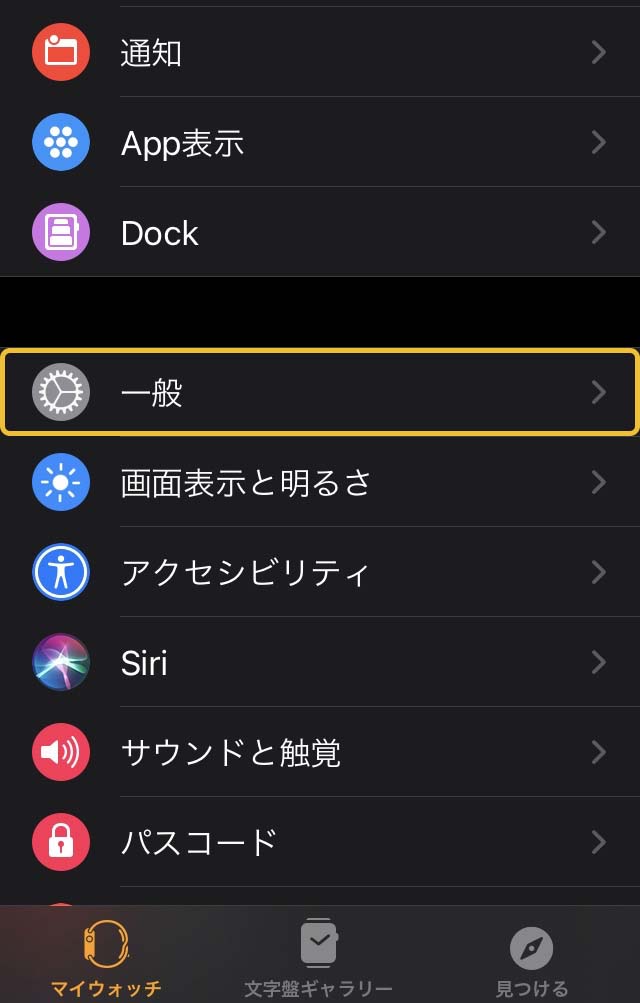
(1) Tap "General."
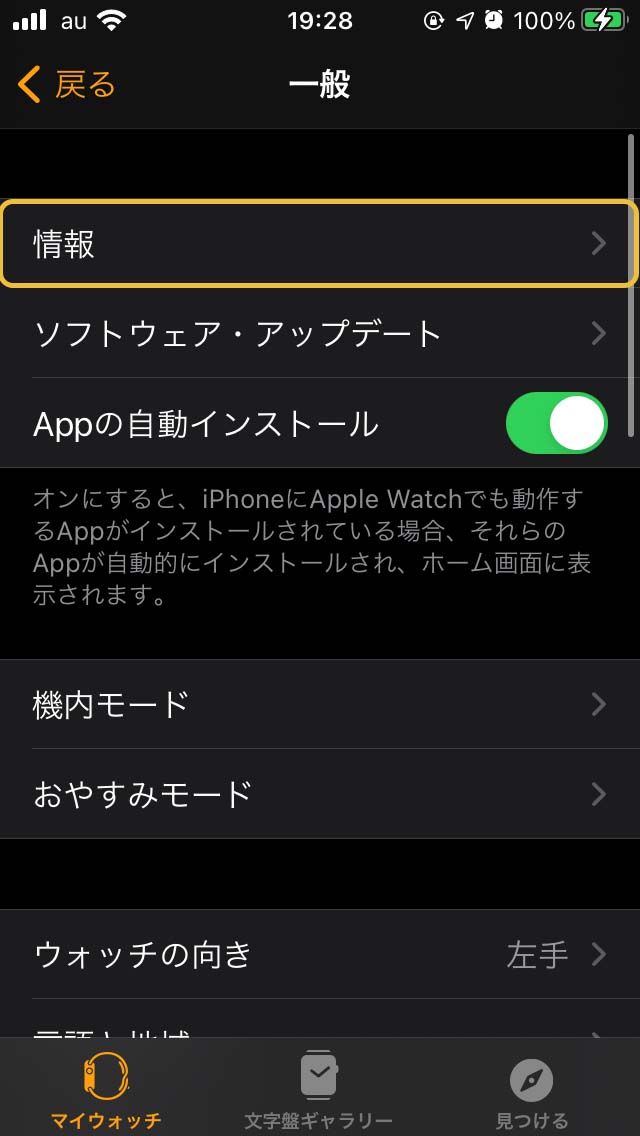
(2) Tap "About."
(3) The "Available" line shows your current free storage.
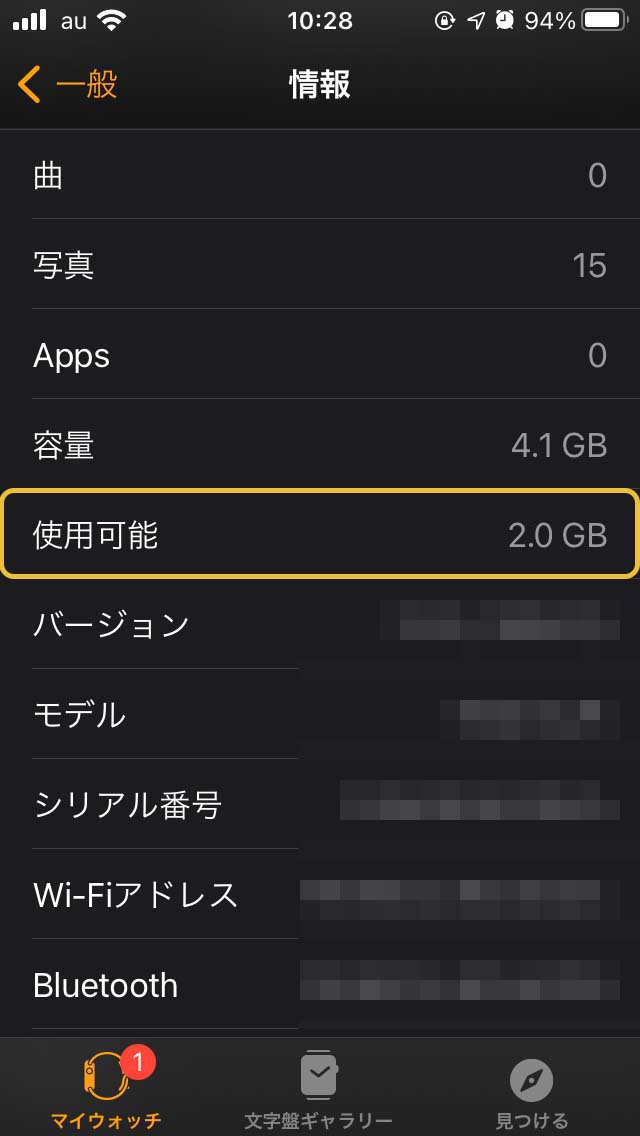
From here, we'll work on freeing up space.
Deleting Apps
(1) Scroll down on the Watch app's home screen. The list under "INSTALLED ON APPLE WATCH" shows the apps currently installed on your Apple Watch.
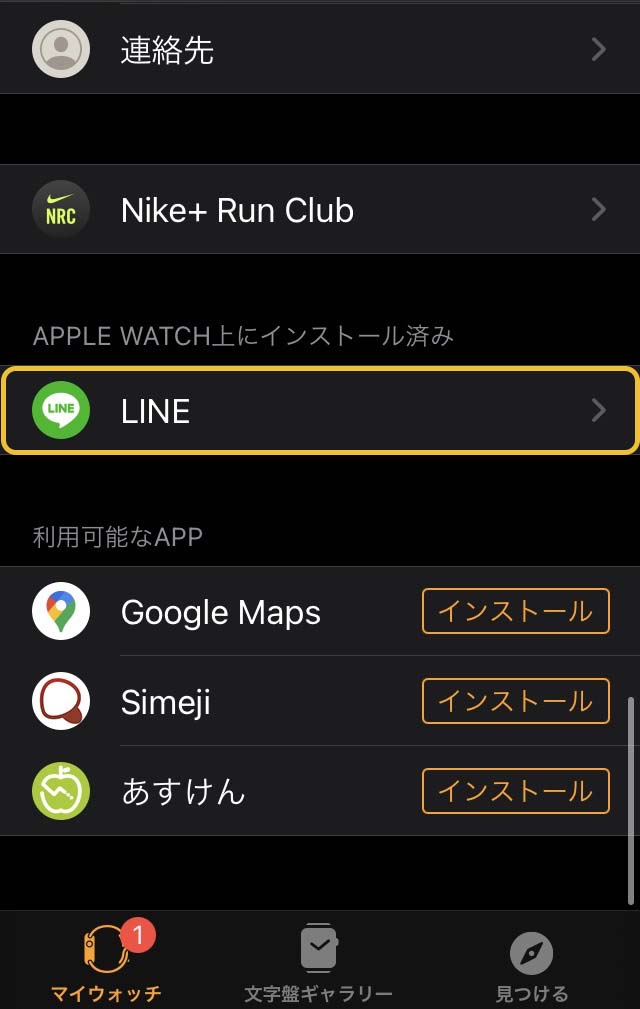
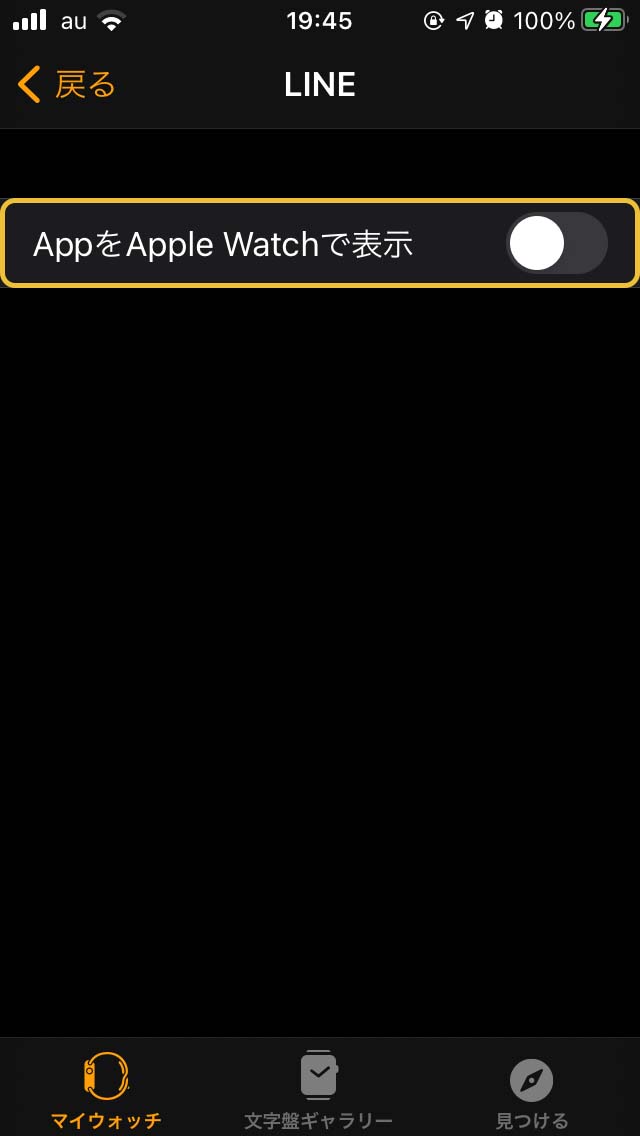
(2) Select the app you want to remove and turn off "Show App on Apple Watch."
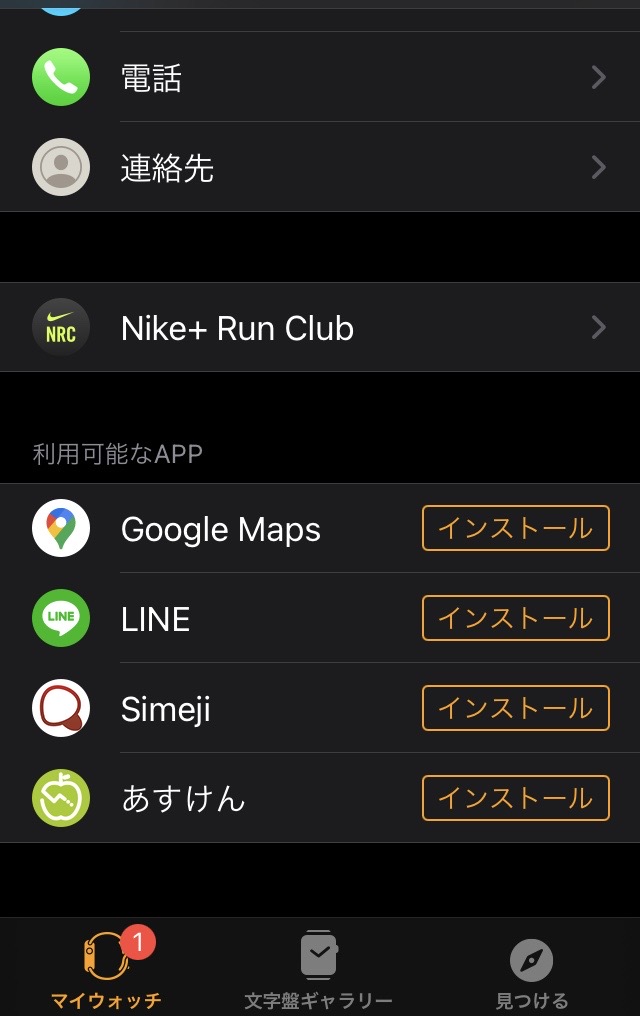
(3) Once it appears in the "AVAILABLE APPS" list, the app has been deleted.
Unsyncing Music and Deleting Albums
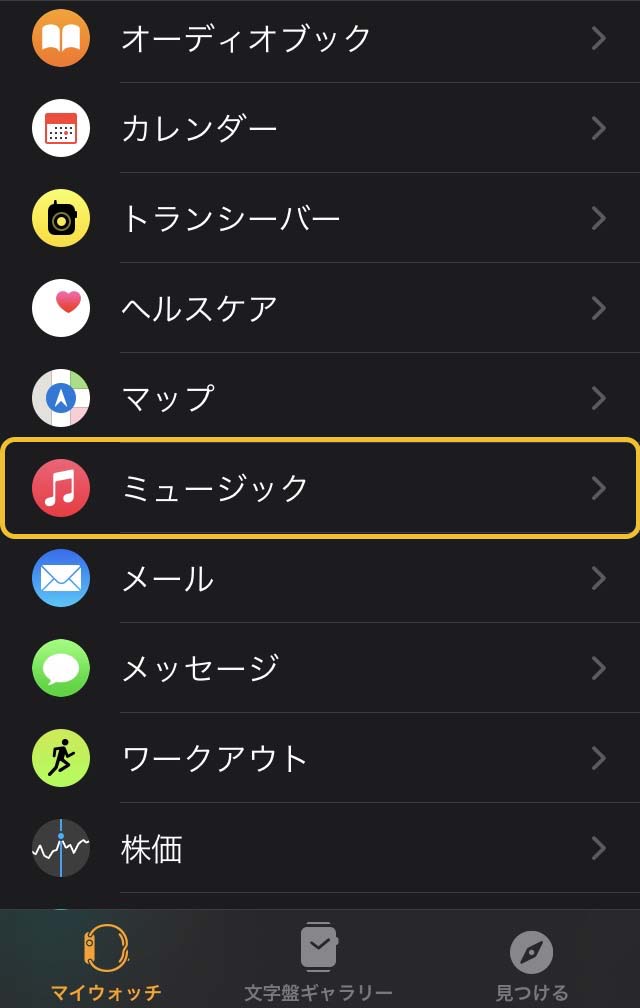
(1) Select "Music."
(2) Turn off "Recent Music."
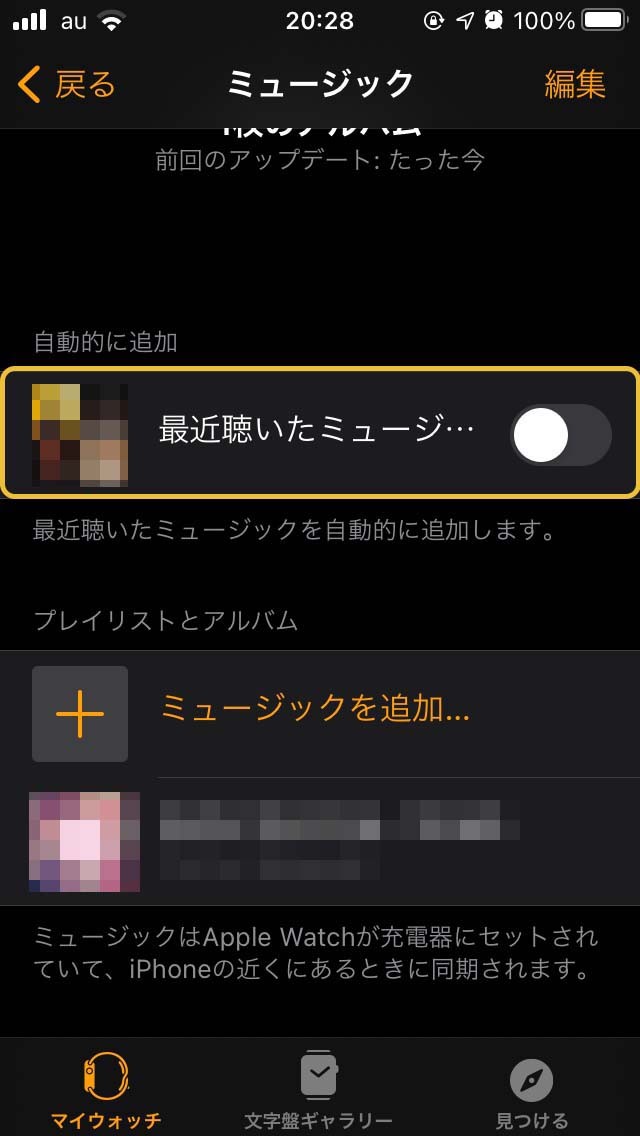
(3) Tap "Edit" in the upper right and delete the albums listed under "Playlists & Albums."
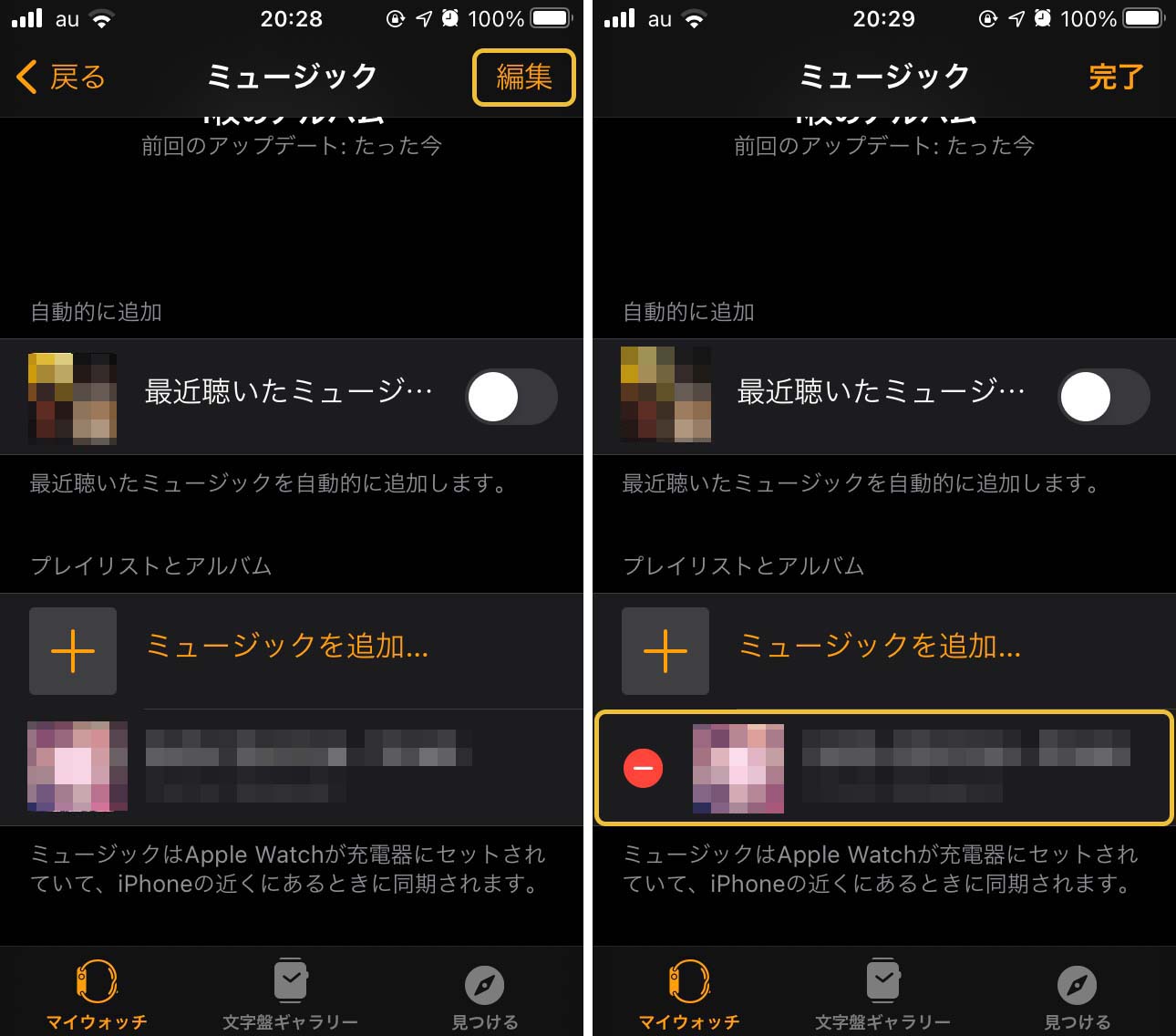
(4) Once your screen looks like the example, you're done.
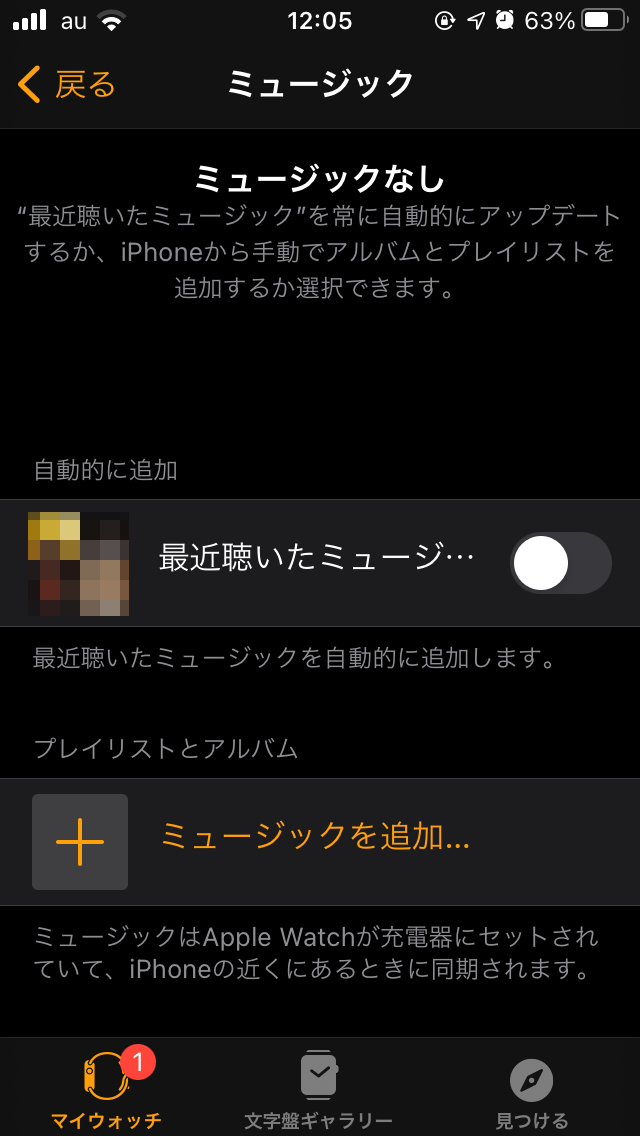
Deleting things here only removes the music from your Apple Watch—the songs stay on your iPhone.
Unsyncing Photos
(1) Select "Photos."
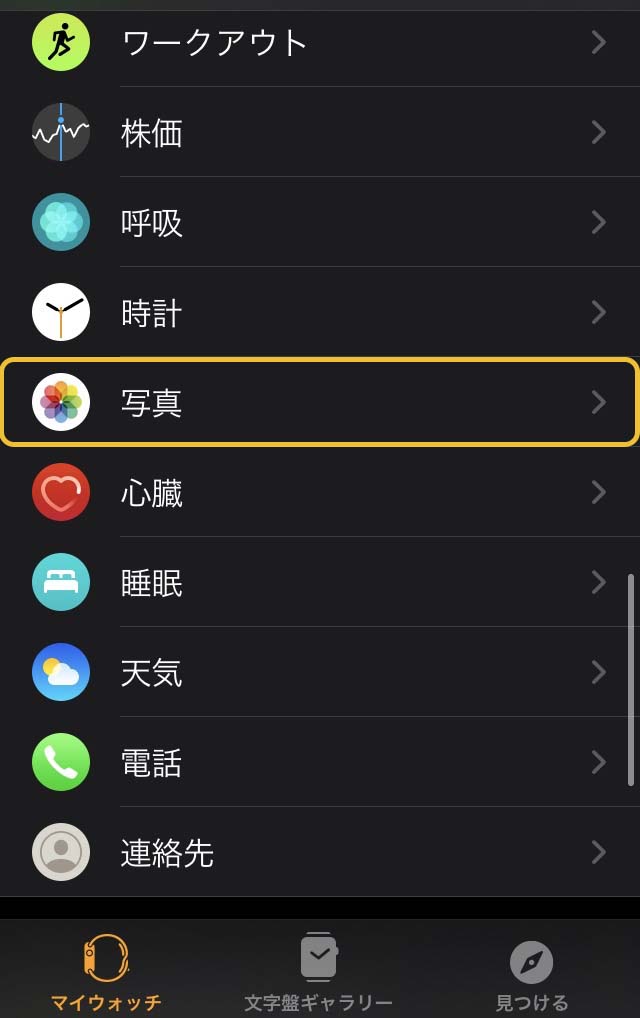
(2) Tap "Photos Synced Albums."
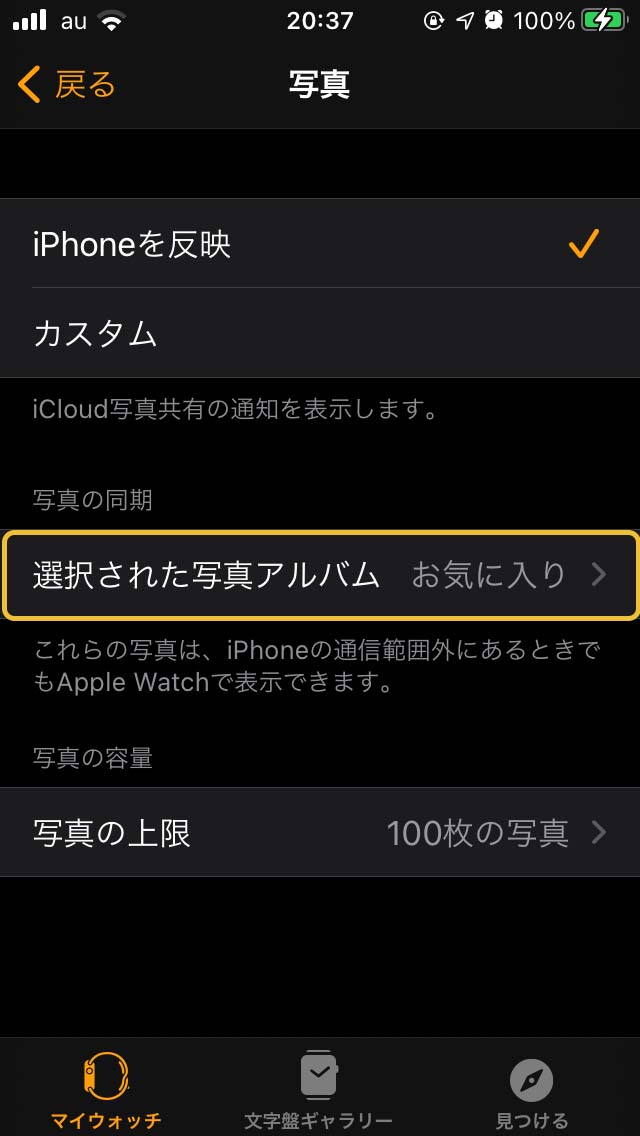
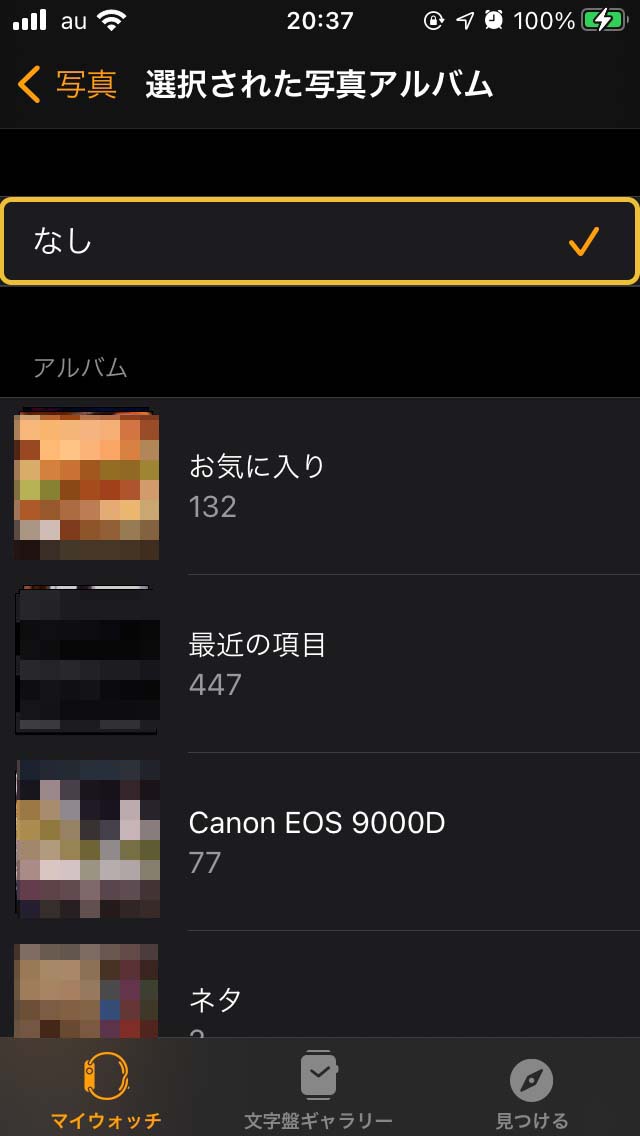
(3) Choose "None."
(4) Once your screen looks like the example, you're done.
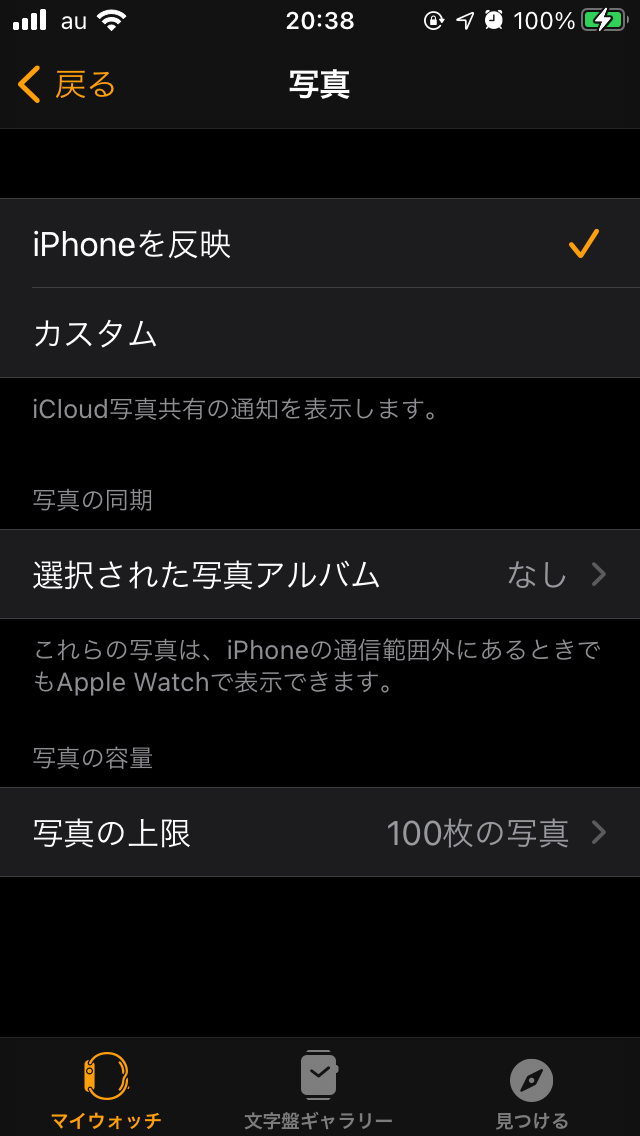
Deleting here only removes photos from your Apple Watch—they remain on your iPhone, so you can still view them on the iPhone as before.
Check Storage Again, and If It Hasn't Gone Down, Restart Your Apple Watch!
In my case, after deleting data I checked the storage to see how much had been freed up, and it was still showing the same number as before. When that happens, try restarting your Apple Watch.
(1) Press and hold the side button on the Apple Watch.
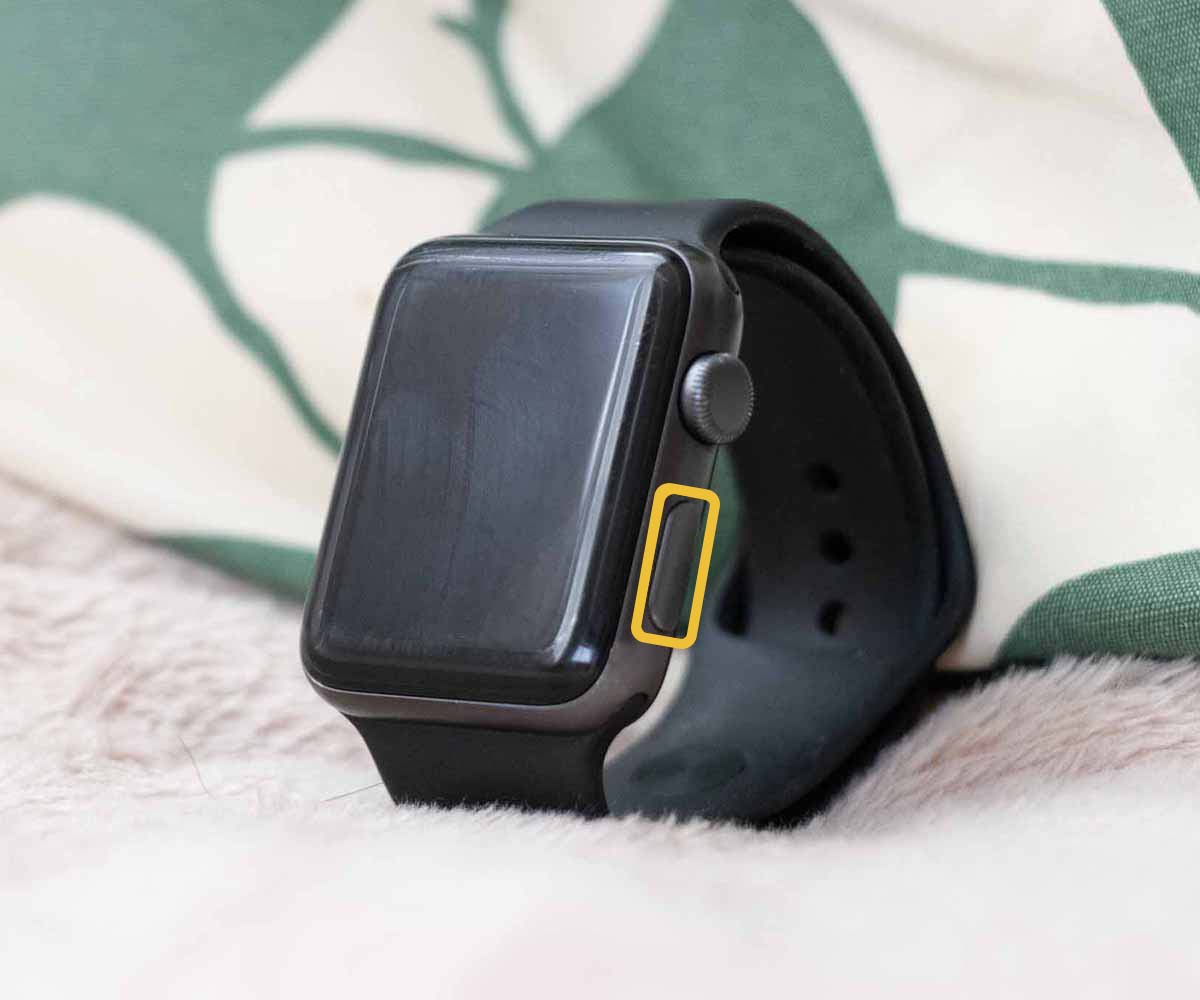
(2) Slide "Power Off" to the right.
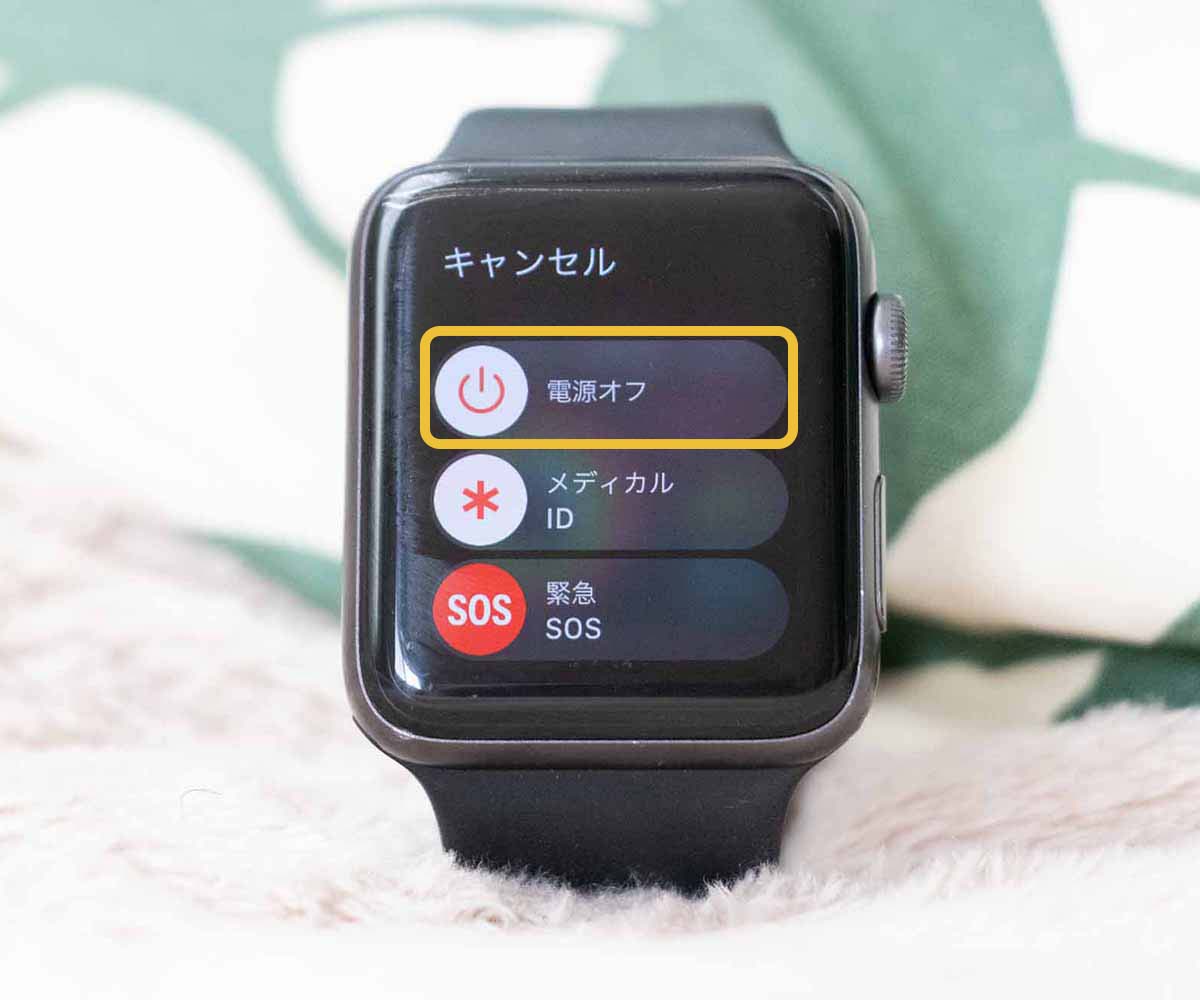
(3) Once the screen goes dark, press and hold the side button again.
(4) The Apple Watch is back up once the screen turns on again.
After the restart, I checked the storage again in the Watch app on my iPhone, and the available space had increased to 2.7 GB.
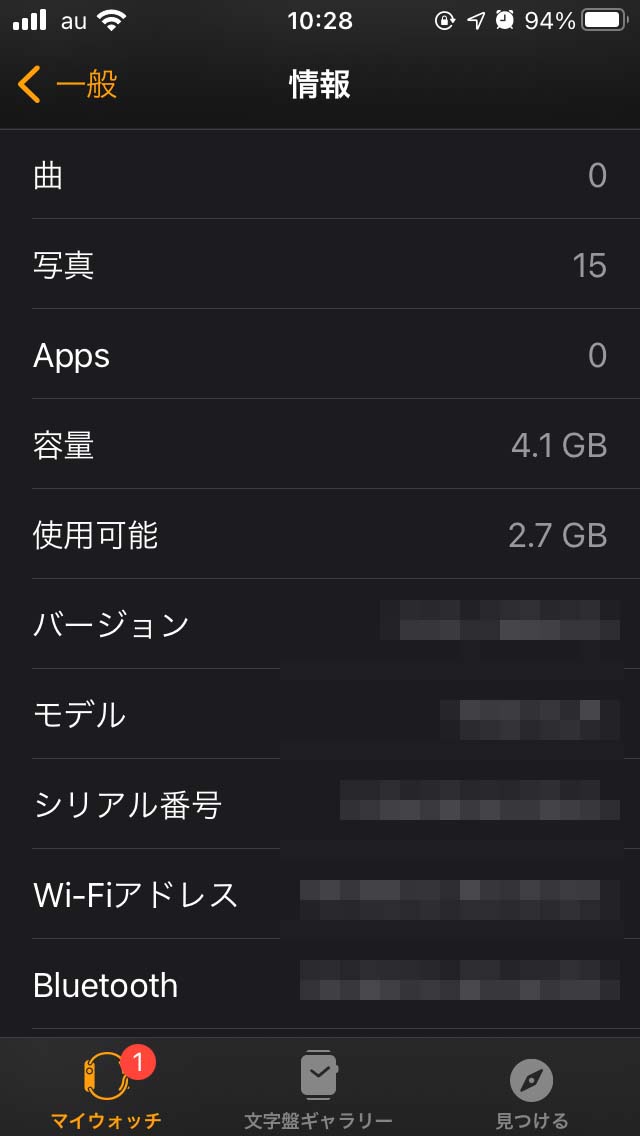
Now you can update watchOS!
Summary
Check your storage. Delete apps. Unsync and delete music. Unsync photos. If the available storage hasn't changed, restart the watch.
If you want to bring back the apps or photos you deleted, you can re-install them through the Watch app whenever you like. If you plan to keep using them after the update, don't forget to set them up again.