There are basically two ways to record gameplay footage: using a capture device, or using the recording feature built into the console itself. The latter is convenient, but it often comes with limits on recording time or drops in frame rate, so when you want to record gameplay seriously, going with a capture device is the standard approach.
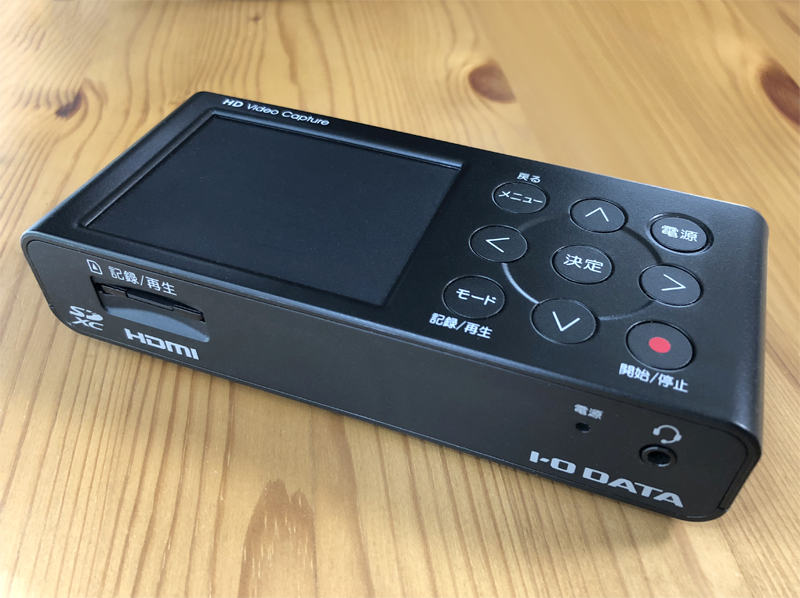
Capture devices come in all shapes and sizes — there are PCIe cards that go inside a PC, box-shaped units, cable-shaped ones, and so on. The capture device I'm using this time is the I-O DATA "GV-HDREC", which is a box-shaped unit. Even as a beginner, I was able to set it up without any trouble.
This is the "GV-HDREC" itself.
[amazon_link asins='B01NBKP6GC' template='Default' store='pianix3870-22' marketplace='JP' link_id='bfa2d9e941cd821711144076da59fe5c']
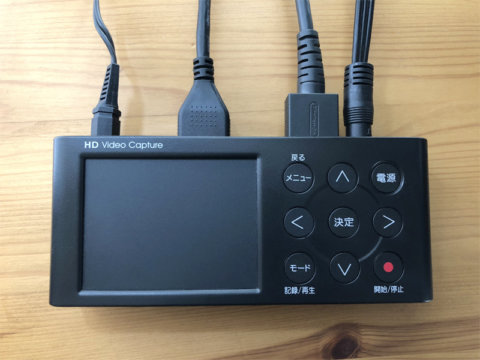
You can record onto an SD card, USB memory stick, or external HDD that you connect to the unit. The input terminals include HDMI and composite, so you can record from a Switch, a Wii, and even older Famicom titles. By the way, there's a recess on the left side of the body that looks like it should house an LCD screen, but no LCD is actually fitted, so don't get your hopes up. (It looks like they reused the case from another model to cut costs.)
Features
HDMI pass-through
The first thing that comes to mind with capture devices is display lag, but the GV-HDREC has an HDMI pass-through feature, so you can play games without worrying about latency. For fighting games or competitive titles where precise inputs matter, this is really useful.
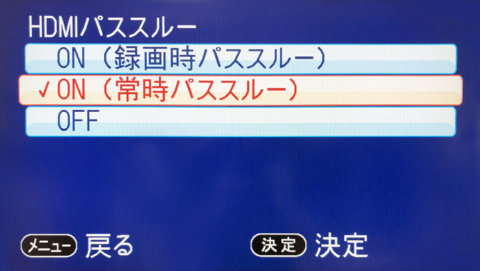
You can switch HDMI pass-through ON/OFF from the menu. For normal use, just leaving "Always pass-through" selected works fine.
Recording mode (quality settings)
Over HDMI, you can record at up to 1080p (1920x1080) 60fps. If you want to keep the file size down, you can also record at 720p 60fps.
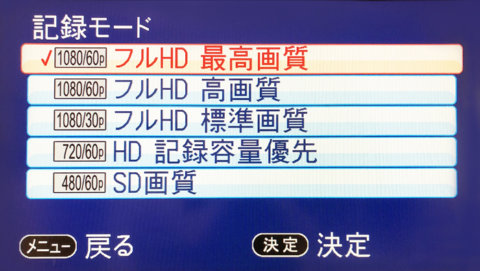
Note that with a composite connection, the recording is fixed to 480p/60fps SD quality.
Live commentary recording
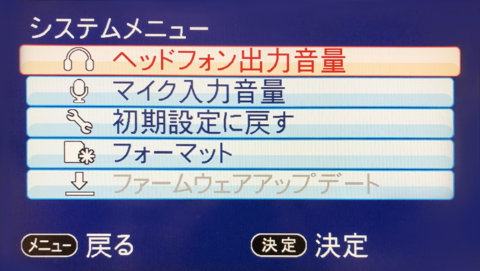
The unit also has a feature that lets you connect a headset and record your own commentary at the same time as the gameplay. If you're thinking about making commentary-style videos and want to capture audio alongside the footage, this comes in handy.
I actually tried recording various games
Here is the YouTube version. (YouTube re-compresses the video on its end.)