Microsoft Edge is the browser that comes bundled with Windows by default, but a new version of Edge built on the Chromium engine is now available for download.
Download and Installation
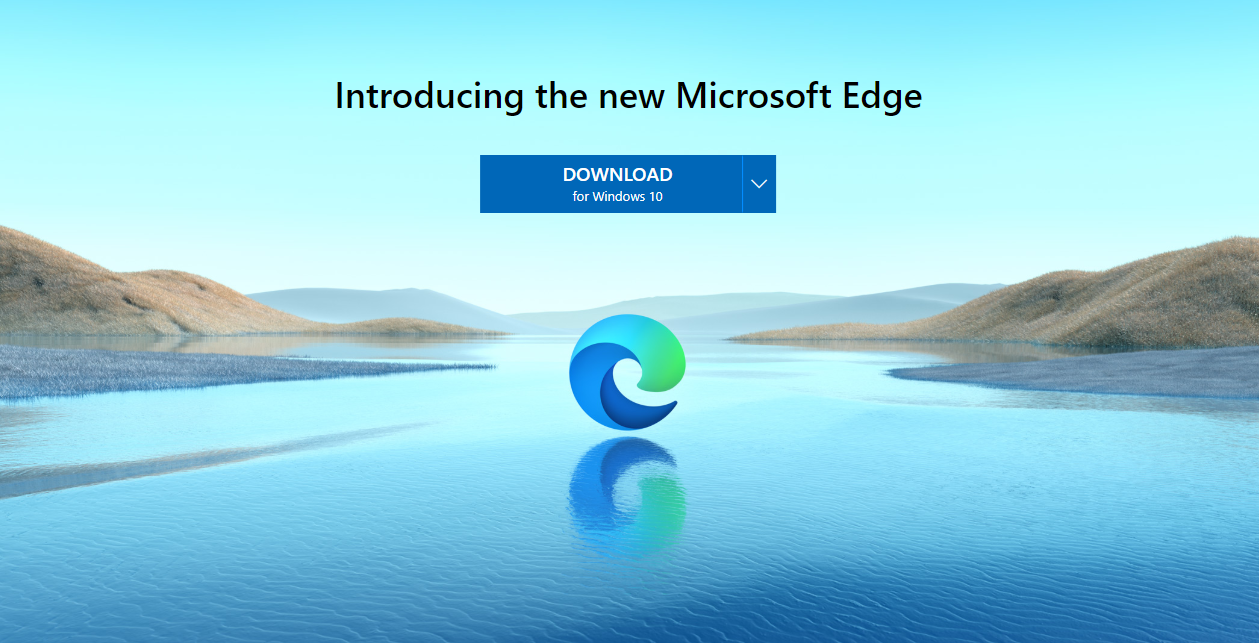
You can download the new Edge from Microsoft's official site.
https://www.microsoft.com/en-us/edge
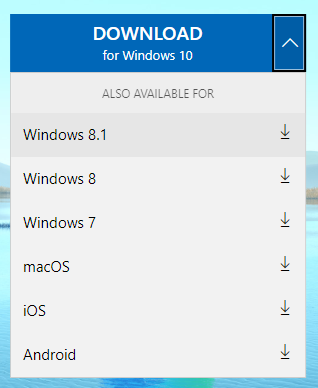
The page is in English, but Edge itself supports Japanese. The download options let you pick Windows 7, macOS, iOS, and other platforms as well.
After downloading, installation kicks off automatically. When you launch it, the initial setup begins. You can also import bookmarks from Google Chrome.
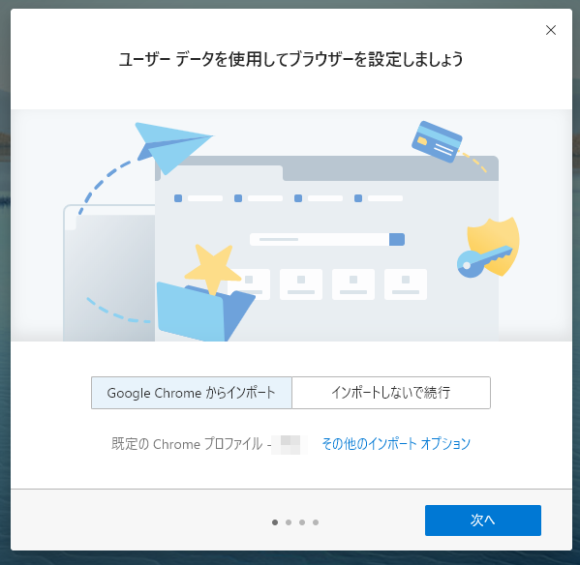
Just hit "Next" and everything gets imported automatically, which was super easy. Once all the setup is finished, it looks like this.
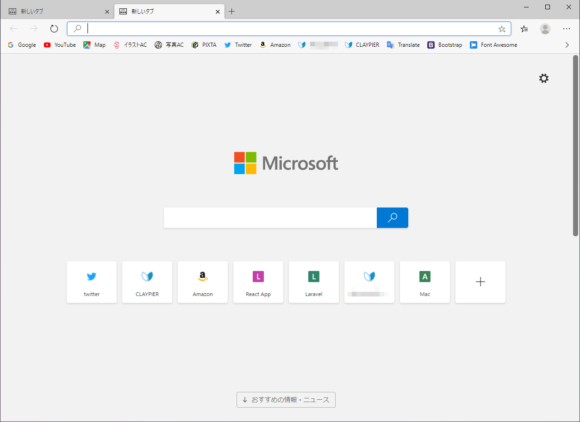
Being Chromium-based, the overall feel is similar to Google Chrome. If you normally use Chrome, you shouldn't have any trouble finding your way around.
The New Tab Page Is Customizable
In Edge, you can customize the page that appears when you open a new tab.
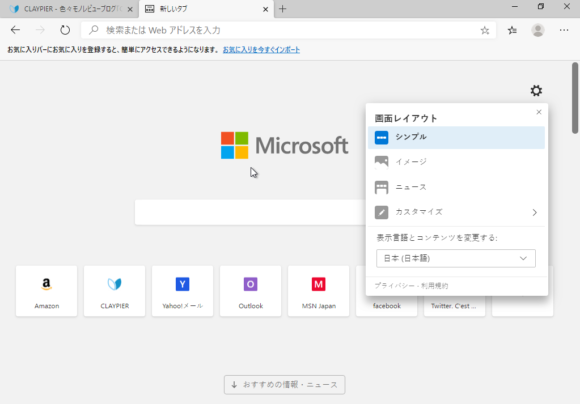
From the settings, you can switch it to a simple layout with just the search box,
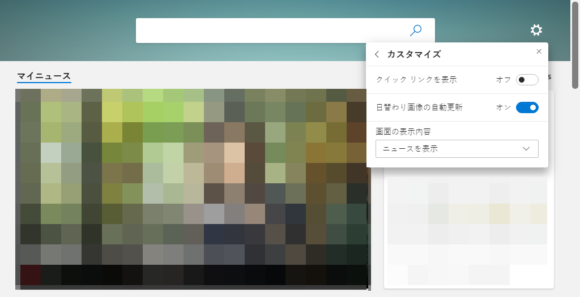
or have it display news. It's nice that you can change things up to suit your taste.
Installing It Removes the Old Edge
When you install the new Edge, the existing old Edge gets removed, so be careful if you're installing it on a PC used at a company or office.