Positioned as the high-spec model in the iPad lineup, can the "iPad Pro" really stand in for a laptop? In this article, I'll share my hands-on impressions from actually using the 11-inch iPad Pro.
iPad Pro 11-inch Specs
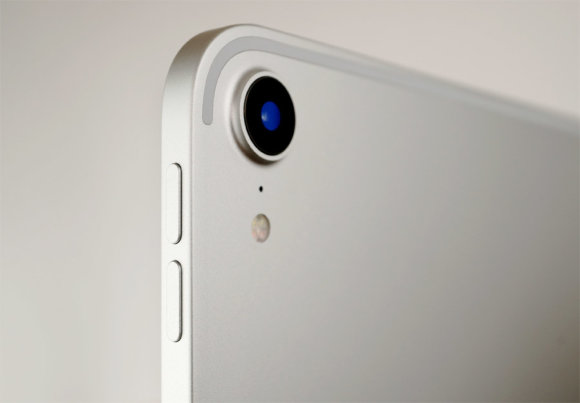
The current model was announced in 2018 and packs the A12X Bionic SoC along with 4GB of RAM. Here's a rundown of the overall specs.
- CPU (SoC): A12X Bionic (4 x 2.5GHz high-performance cores + 4 x 1.5GHz efficiency cores, 8 cores total)
- Memory: 4GB LPDDR4X (6GB on the 1TB model)
- Storage: 64GB, 256GB, 512GB, 1TB
- Display: 11-inch Liquid Retina display (multi-touch, 120Hz IPS LCD)
- Resolution: 2,388 x 1,668 pixels (264ppi)
- Battery: 7,812 mAh (29.45Wh)
- Size & weight: 247.6mm x 178.5mm x 5.9mm, 468g
Since it's a tablet, the light body is another advantage. Even the slim MacBook Air weighs about 1.25kg, so the iPad Pro is much easier to take with you on the go.

On the performance side, it features the A12X Bionic SoC, which is one of the higher-performing mobile SoCs around. In actual use, situations where performance becomes a bottleneck are pretty limited — Excel and Word run smoothly, of course, and you can even play FPS games like "Call of Duty Mobile" comfortably (per the author). In Geekbench 5 CPU benchmarks, while the single-core score trails the A13 Bionic in the iPhone 11 Pro, the higher core count gives the iPad Pro a favorable edge in multi-core results.
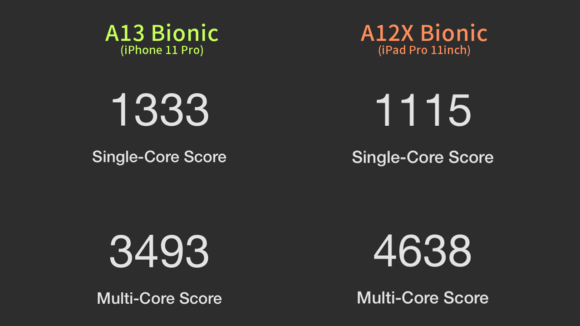
It's not unusual to see laptops in the same price range scoring under 900 in single-core, so I think it's putting up a pretty solid number. As a side note, the iPad Pro is reportedly higher-performing than 92% of laptops on the market (PC Watch).
Handwriting and Drawing with the Apple Pencil
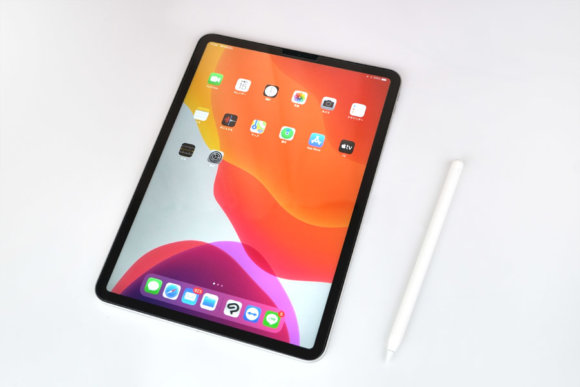
When it comes to the iPad Pro, the Apple Pencil's presence is hard to ignore. It's incredibly useful for sketching quick diagrams or handwriting corrections on documents. Even while drawing illustrations on the screen, you almost never feel any latency (per the author). By applying a paper-like protective film, you can even recreate the feel of writing on real paper.
There's a strong lineup of high-quality apps such as Clip Studio and Procreate, and many illustrators buy the iPad Pro specifically for drawing.

When you actually draw with it, it feels like a portable display tablet. Latency is essentially nonexistent, so the strokes flow smoothly. The wildest part is that you can draw while lying around in a kotatsu or in bed. With a regular display tablet, you also need a PC to go with it, which can be a hassle — but this works on its own and is portable too, making it a great option for people who draw.
For Writing Text, You'll Probably Want a Keyboard
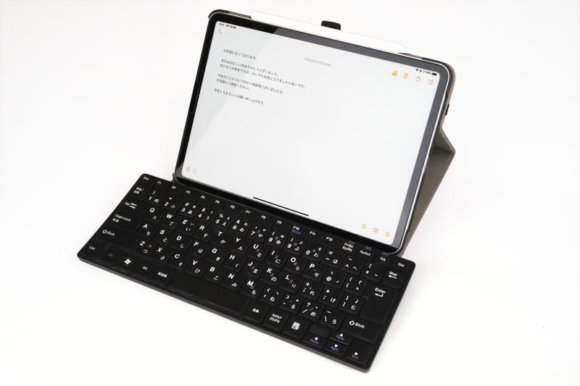
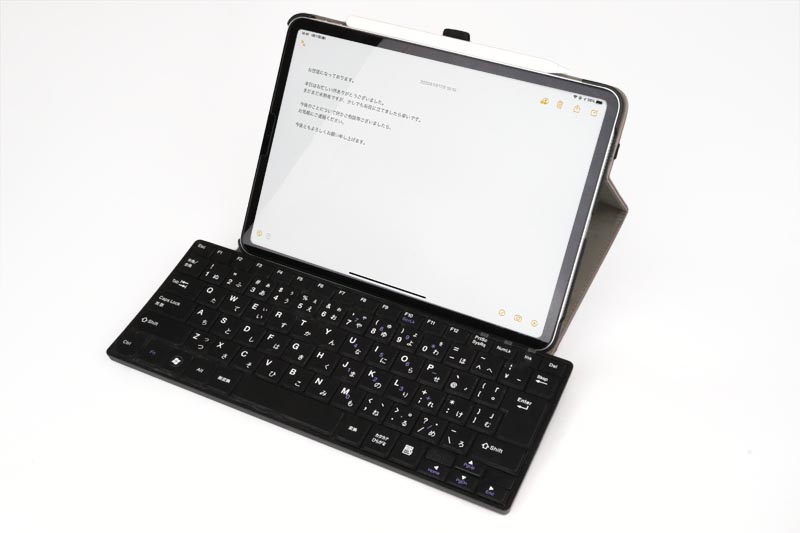
Just like a smartphone, you can type on the iPad's on-screen keyboard without an external one — but without tactile feedback and with frequent mistaps, I found it a bit inconvenient when writing large amounts of text. Especially on the 11-inch model, opening the keyboard takes up a sizable chunk of the screen, so for blogging or writing documents I think a separate keyboard is essential.
If writing is your main focus, you might want to pick a case with a built-in keyboard when shopping.
The downside is that they're a bit pricey and add weight. If you go that far, you might just be happier buying a regular MacBook Air instead.
When You Need Windows, Use Remote Desktop
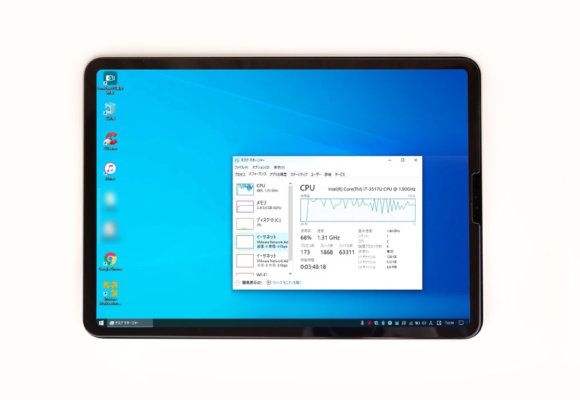
Naturally, Windows or Mac-only apps won't run on the iPad, but by using remote desktop apps like TeamViewer or Splashtop, you can use PC apps as well. That said, remote desktop has its pros and cons, so be careful.
Pros
- You can operate data on your PC even while out and about
- You can use apps built for PCs
- No data is left on the tablet, which is safer
Cons
- An internet connection is required
- Slow connection speeds make response sluggish or degrade image quality
- The screen display is compressed, making it unsuitable for handling photos and the like
- The destination PC must be powered on to be usable
For example, it comes in handy when you need to open a Windows-only file while you're out, or when you want to use a company-internal app.
Add the Right Apps and It's Plenty Capable for Development
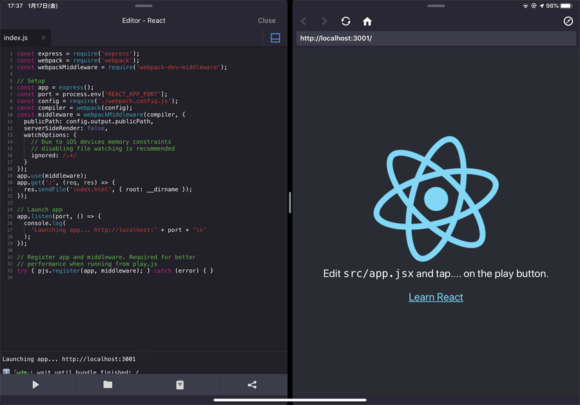
With an app called "play.js," you can develop and preview React on the iPad, so you can do some coding in your spare time.
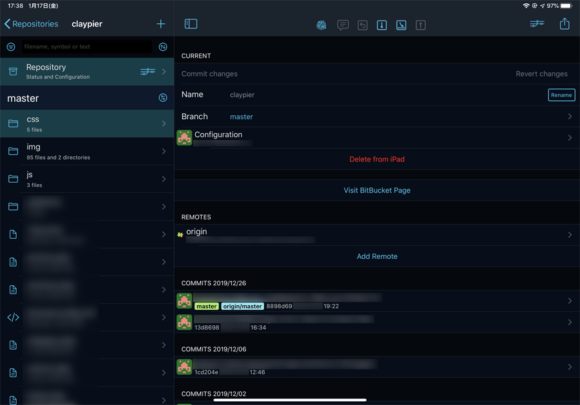
With "Working Copy," which lets you work with Git repositories, if you push the data you edited on your PC to Git, you can keep editing it on the iPad too. It's quite handy for making small source-code tweaks while you're out. Combined with the "Textastic" text editor, you can wrap up a workflow on iPad alone — "Pull from Git" → "Edit code" → "Upload to a web server." There's even an iPad version of Photoshop these days, so being able to handle image editing and programming on iPad alone is pretty amazing.
It Can Replace a Laptop! But...
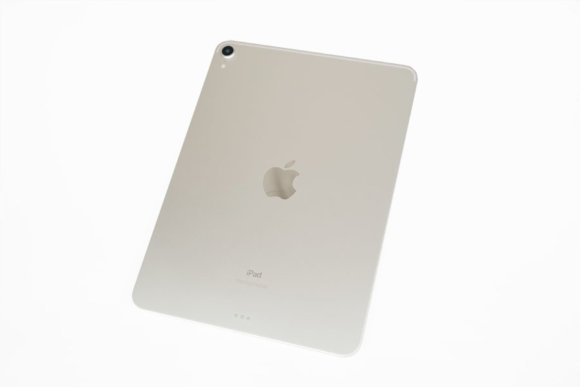
You can pull off most of what you'd do on a laptop, so the author's take is: why not just go with the lighter, touchscreen-equipped iPad Pro? That said, when it comes to video production or coding, the PC side still wins on efficiency as things stand. On top of that, you still need a PC to back up your iPad, so it may be a little while longer before iPads can fully replace computers. On price, you can get the entry-level model for around 80,000 yen, which is actually better value than picking up a cheap laptop on a whim. Even if you end up selling it later, Apple products tend to hold their value relatively well in the used market, so you can buy with confidence.