Charging Doesn't Go Through
When you try to top up your Suica with the iPhone Suica app, the balance is usually added right away. But sometimes an error appears and the charge fails. In that case, the steps below may help. If Apple Pay or JR is currently experiencing an outage, please don't try the steps below — just wait until the issue is fixed.

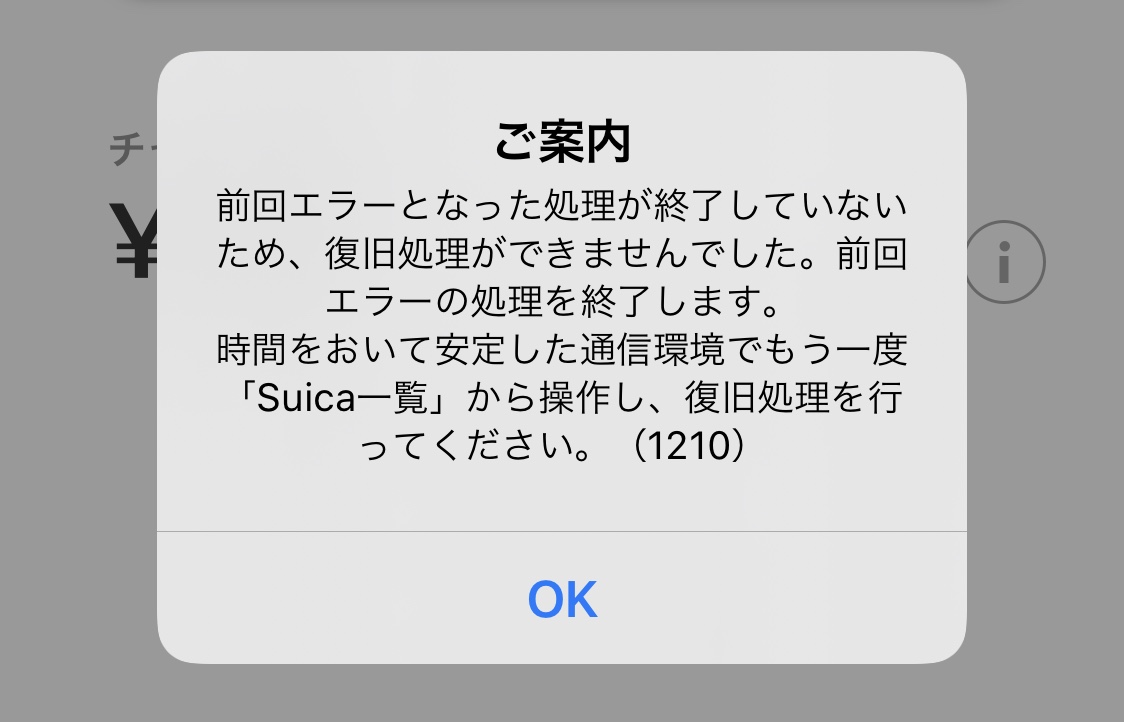
When the error occurs, you'll see "The previous transaction has not been completed. Starting recovery for the unfinished transaction." (or "Continuing the previous transaction."), and the charge does not complete. The app will try to recover automatically, but if that fails too, you'll then see "The previous error transaction has not finished, so recovery could not be performed. Ending the previous error transaction."
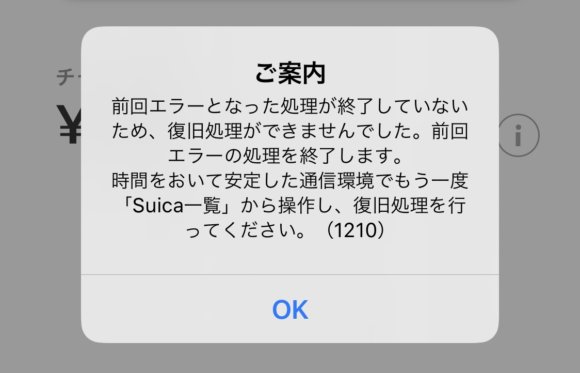
Once you're stuck in this state, you can keep retrying the recovery as many times as you like and it will still fail — and the balance may never get topped up. In some cases, after a while, you'll receive an email titled "Mobile Suica: Recovery Action Required" sent to your registered email address, but the error still doesn't go away.
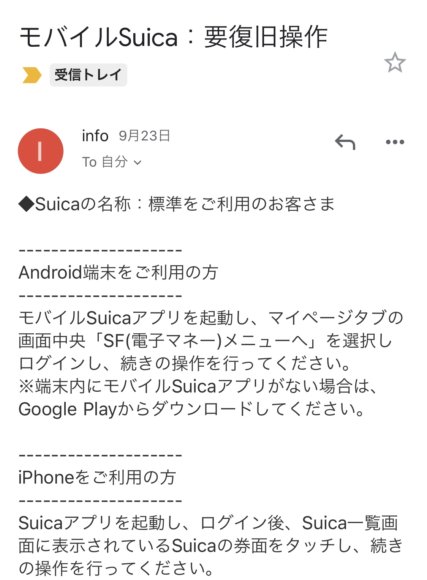
Why does this error happen?
For example, there may be an outage on Apple Pay or JR's side. Errors are also more likely when your network connection is poor, so it's a good idea to avoid charging in places with a weak signal or when your data is being throttled.
Try these Suica recovery methods
1. Just wait a while
It's a simple approach, but if you wait for a bit, the charge transaction may either get cancelled, or — if you're lucky — the top-up may actually go through and the balance will update.
2. Restart your iPhone
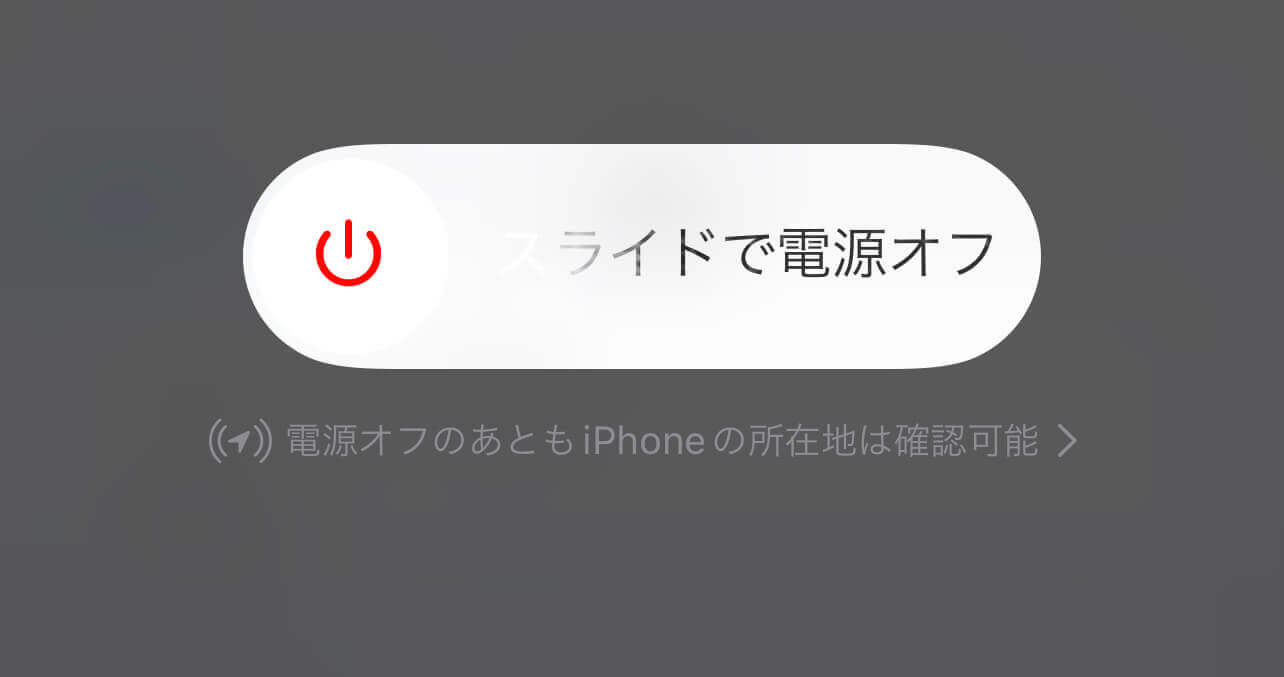
Restarting your iPhone sometimes clears the issue. Tap "Settings" → "General" → "Shut Down", then slide to power off. Once it's off, press the power button to start it back up, open the Suica app, tap the "!" mark, and run the recovery again.
3. Switch to Help Mode / show your history at a station ticket machine
Switching to Help Mode sometimes resolves the issue. Checking your balance history at a station ticket machine can also fix it.
- Go to "Settings" → "Wallet & Apple Pay" and tap the affected Suica.
- Tap "Turn On Help Mode."

When you exit Help Mode from this state, the balance may get updated.
4. Remove the card temporarily
Once you remove the card from your iPhone, it can take several hours or more before you're allowed to add it back. If you're currently riding a train with that Suica, or if you plan to use a commuter pass later, do NOT use this method.
According to Suica's official site (https://msfaq.mobilesuica.com/), one recommended approach is to temporarily remove the card from the iPhone and try recovery that way.
1. Go to "Settings" → "Wallet & Apple Pay" and tap the affected Suica.

2. When the details for the Suica with the error are shown, scroll all the way to the bottom and tap "Remove This Card."

3. When this screen appears, tap "Remove."

Removing the card does NOT erase the balance on the card.
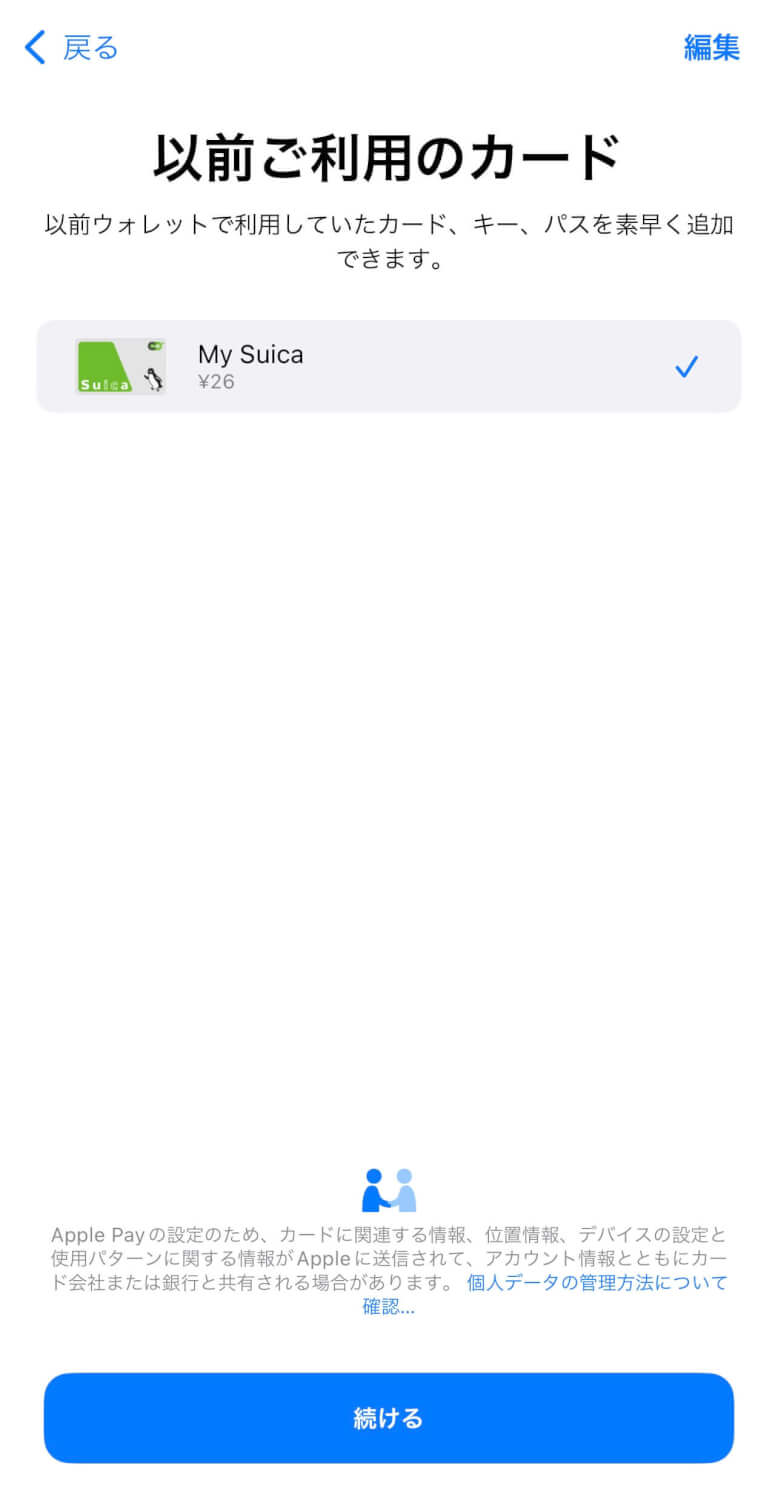
4. After the card is removed, tap "Add Card" → "Previously Used Cards."

5. The card you just removed will appear, so select it and tap "Continue."
6. If everything looks fine, tap "Next."
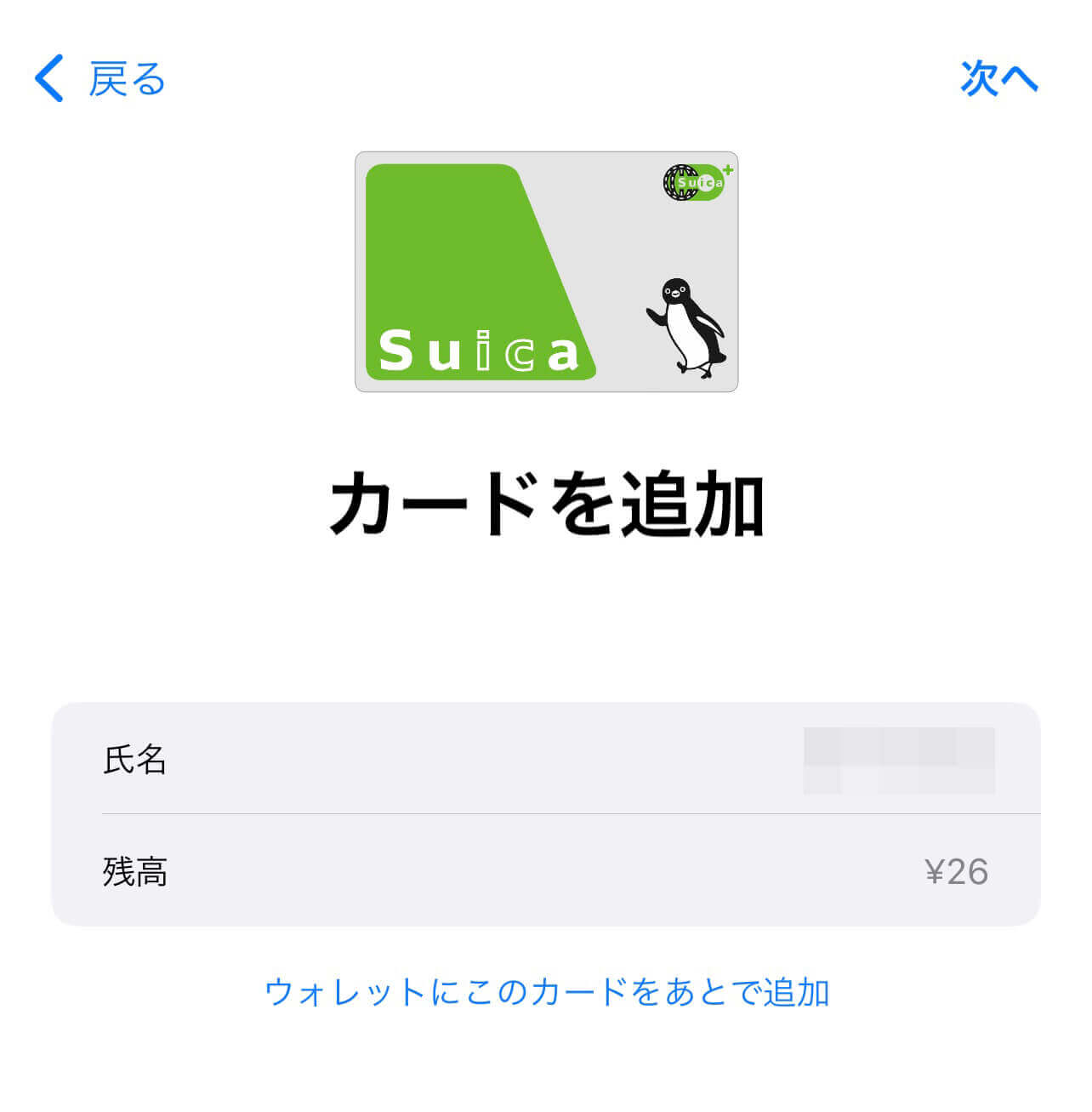
7. Tap "Add" and the card-adding process will start. After a short wait, it will finish.
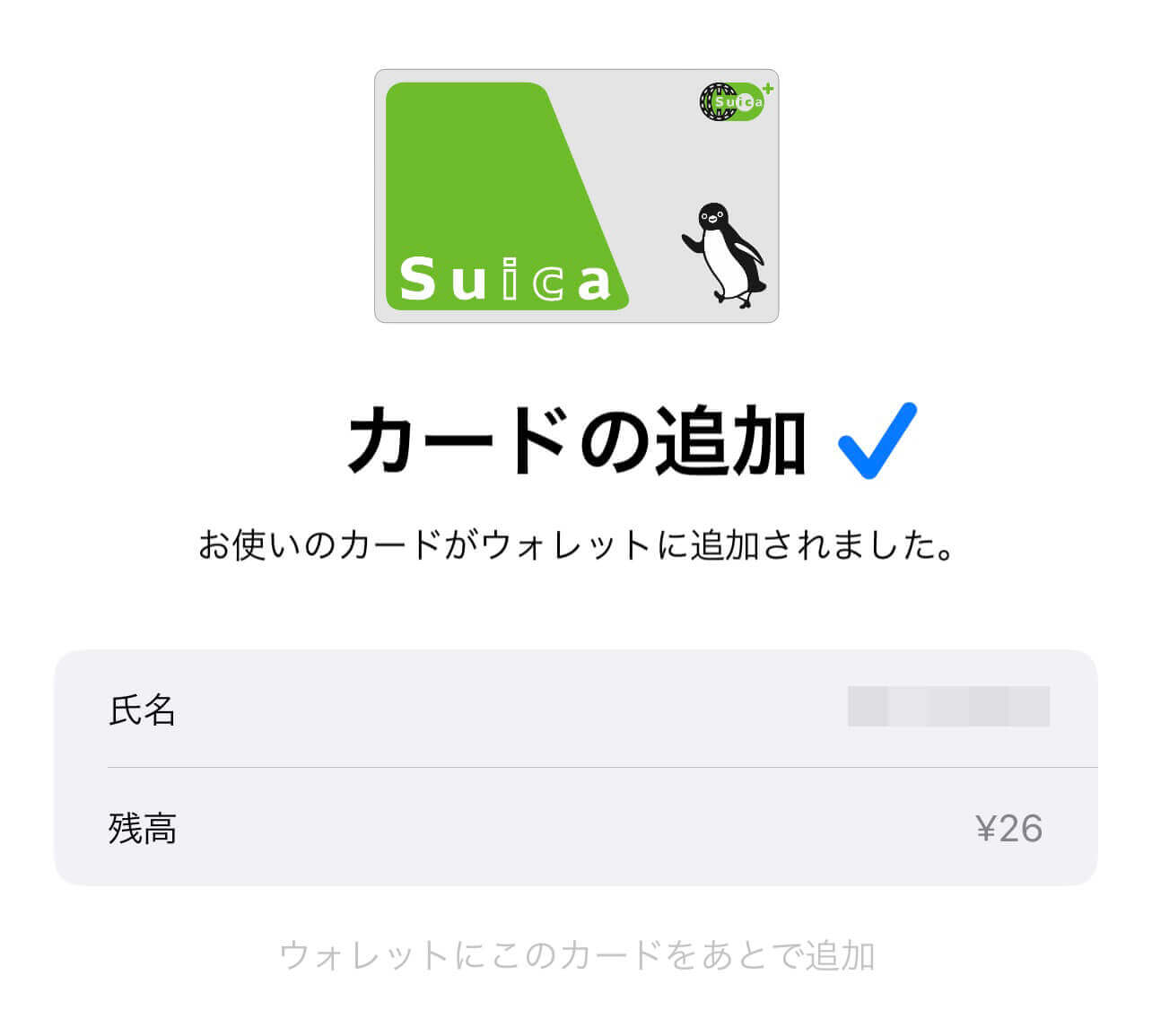
In this state, open the Suica app again and check whether the error still appears. If it isn't fixed, contact support or just wait a bit longer for it to recover.
4-E. If you see "This card cannot be used"
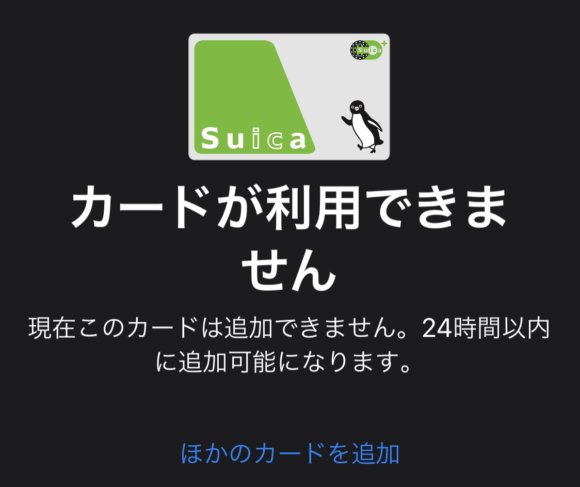
If you see "This card cannot currently be added. It will become available again within 24 hours.", you will not be able to add the card again until at least 5 a.m. the following morning*. This is by design in Suica's specifications, so unfortunately the only thing you can do is wait. (As of October 2019.)
If the error still won't recover, you'll get a refund

If you removed the card, you'll be able to add the Suica back the next morning, and if the charge didn't go through, the credit card you used for payment will be refunded. So your money does come back — that's at least a small relief. Once you're back to the pre-charge state, you can just charge normally as usual. If the error still hasn't been resolved by the next day, we recommend contacting support.
Update: October 9, 2021 — Some images and text were updated to the latest version.