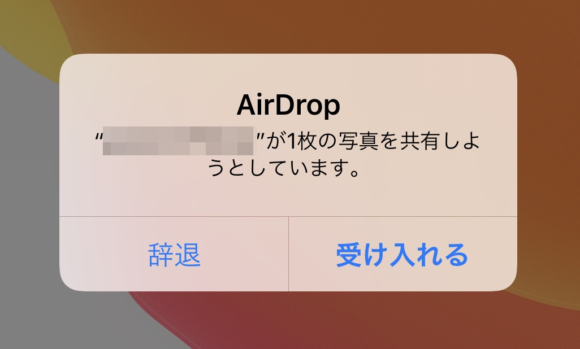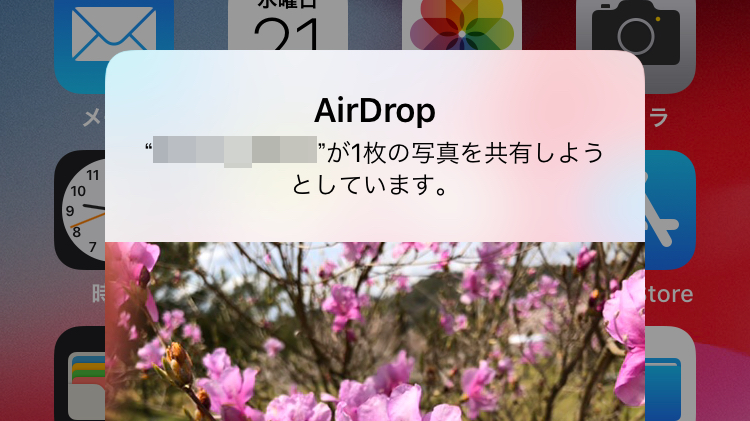
The iPhone has a handy file-sharing feature called AirDrop, but recently there have been many cases of people misusing it to send unwanted or offensive images to strangers nearby, and it's become a real problem. To keep your iPhone from receiving images you didn't ask for, we recommend setting AirDrop so that it doesn't accept incoming files at all.
How to turn off AirDrop receiving
1. First, open the "Settings" app on your iPhone.
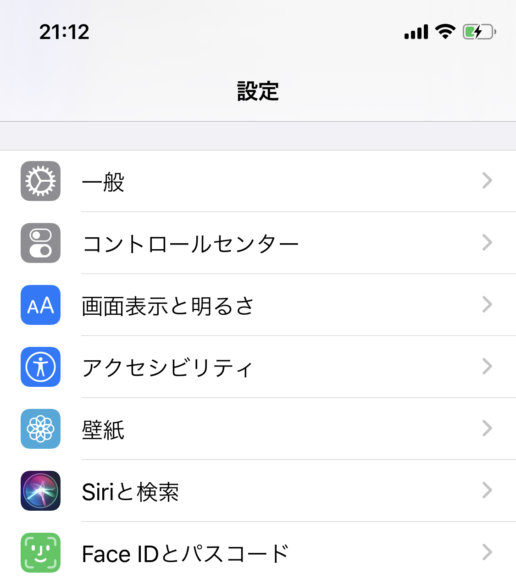
2. From the settings list, tap "General".
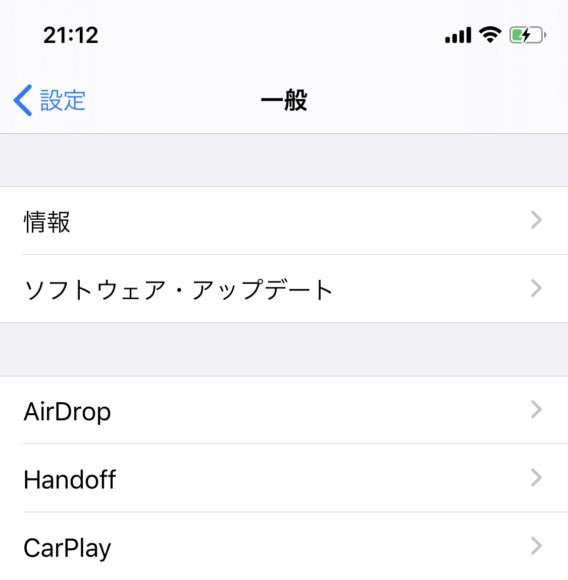
3. From the list, tap "AirDrop".
4. Tap "Receiving Off". Once a blue checkmark appears next to it, you're done.
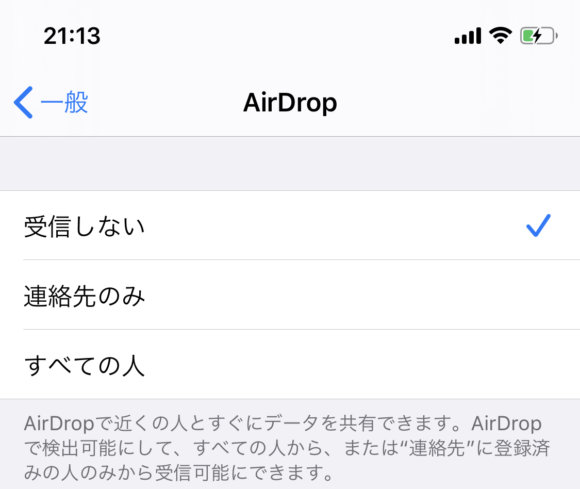
If you do use AirDrop from time to time, setting it to "Contacts Only" will let you receive files only from people you have saved in your contacts.
Protect yourself from unwanted image dumps!
That's all there is to it. With these settings in place, you've stopped your iPhone from receiving unwanted AirDrop images. As a side note — this isn't fully confirmed information — but on the latest iOS 13, the image preview reportedly no longer shows up in AirDrop requests. If that's true, then even if AirDrop receiving is left on, you can simply tap "Decline" to dodge the problem.