Google has added a new voice capability to the Gemini app for macOS[1]. Long-press the Fn key and you can speak into whatever window you happen to be working in. By default it acts as intelligent dictation, cleaning up what you said before dropping it into place. Turn on one extra setting and Gemini can also read the context on your screen to summarize, rewrite, and even generate images. The rollout has started globally in English.
No More Switching to a Chat Window
Asking an AI assistant for help has usually meant leaving whatever you were doing and moving to a separate chat window. This update is aimed squarely at removing that detour. Google says the macOS Gemini app was built to keep you in your flow, and the new voice feature follows the same idea[1].
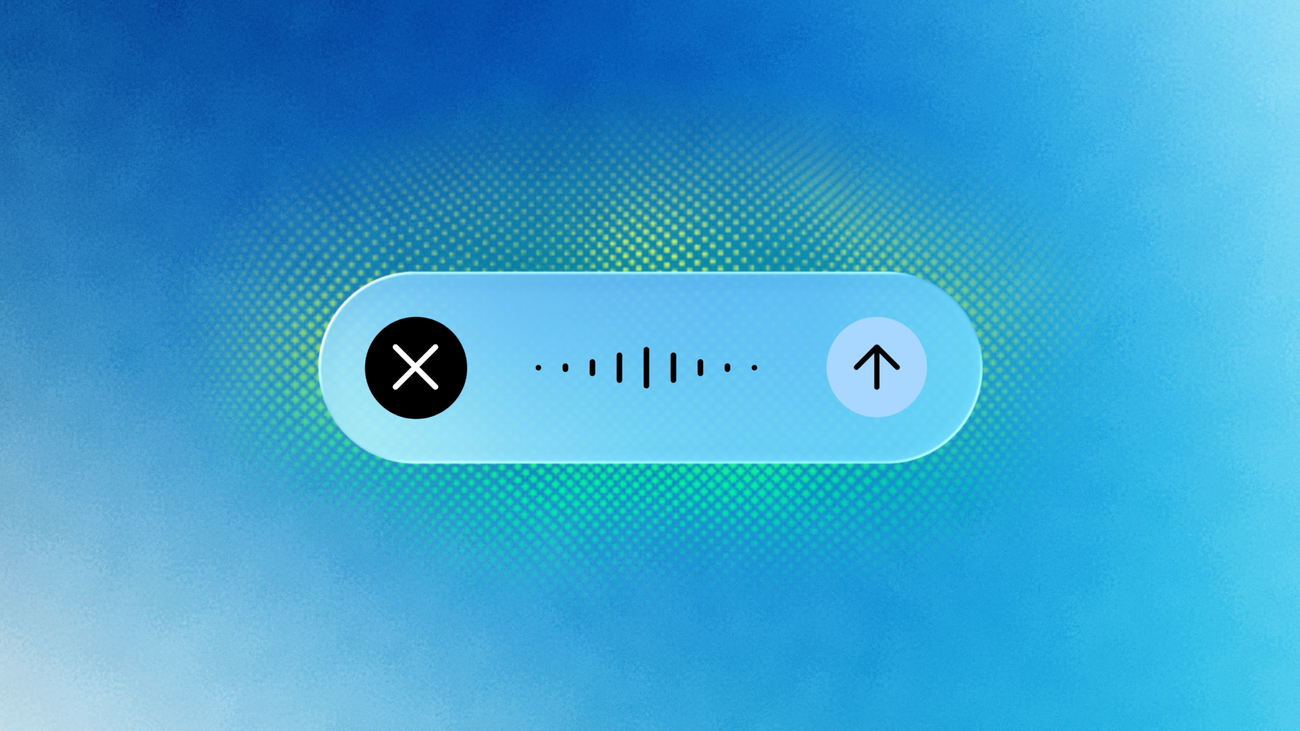
The trigger is a long press on the Fn key, which works anywhere in macOS. A small floating pill with a waveform appears at the bottom of the screen. You can also start it from the new screen sharing button at the end of the Ask Gemini prompt box[2].
Dictation That Strips Out the Ums and Ahs
The default behavior is intelligent dictation. Rather than transcribing you literally, Gemini removes filler words such as "um" and "ah" and follows mid-sentence corrections so the version that lands is the one you meant. The formatted text is inserted at your current cursor position[1].
The result is close to what Gboard Rambler does on phones[2]. It suits the case where your thought is not fully formed yet: you talk it through, and readable prose comes back.
Screen Reasoning Is Opt-In
For anything beyond transcription, you enable Gemini reasoning in the app settings. This is off by default and has to be switched on deliberately[1]. Once enabled, Gemini can understand the context on your screen and carry out tasks that involve several steps.
Google highlights 3 uses. The first is extracting and summarizing information: highlight local files, images, or documents on your desktop and describe what you need. The official example is "Read these vet files and summarize my dog's medical history in an email to the kennel." The second is composing and rewriting text: highlight text anywhere on screen, use your voice to rewrite it or adjust the tone, and drop the polished version where you need it. The third is generating and editing images, where you can point at an existing illustration and ask for something like a dark-mode version[1].
All 3 share the same pattern of pairing a selection on screen with a spoken instruction. Since the feature depends on letting Gemini read your screen, keeping it off by default is a reasonable design choice.
Availability and Required Version
The voice capability is rolling out globally to all users of the Gemini app for macOS in English, with more languages coming soon[1]. You need to update the app to version 1.88 to use it[2], and the app itself is available from Google's download page[1].
The feature was previewed at Google I/O 2026 in May 2026, so this is its formal rollout[2]. macOS has had built-in dictation for years, but it does not remove filler words or act on the context of what is on screen. Google is filling that gap at the app level.
Summary
The Gemini app for macOS now has a voice feature you call up by long-pressing the Fn key. By default it works as dictation that removes filler words and inserts clean text at your cursor, and enabling reasoning in settings lets you summarize, rewrite, and edit images by voice using files, text, and pictures on your screen. The rollout is underway globally in English and requires version 1.88 or later.
Source[1]: https://blog.google/innovation-and-ai/products/gemini-app/speak-naturally-gemini-app-mac-os/
Source[2]: https://9to5google.com/2026/07/29/gemini-mac-voice-control/