Here are some battery-saving and charging tricks that come in handy when your smartphone is running low on the go, or during a disaster. Worth checking before your battery hits zero!
The Easy Win: Turn On Low Power Mode
Both Android and iPhone come with a built-in low power mode. Turning it on disables some visual effects and dims the screen a bit to stretch your battery. It's a good idea to switch it on while you still have some breathing room.
iPhone (Low Power Mode)
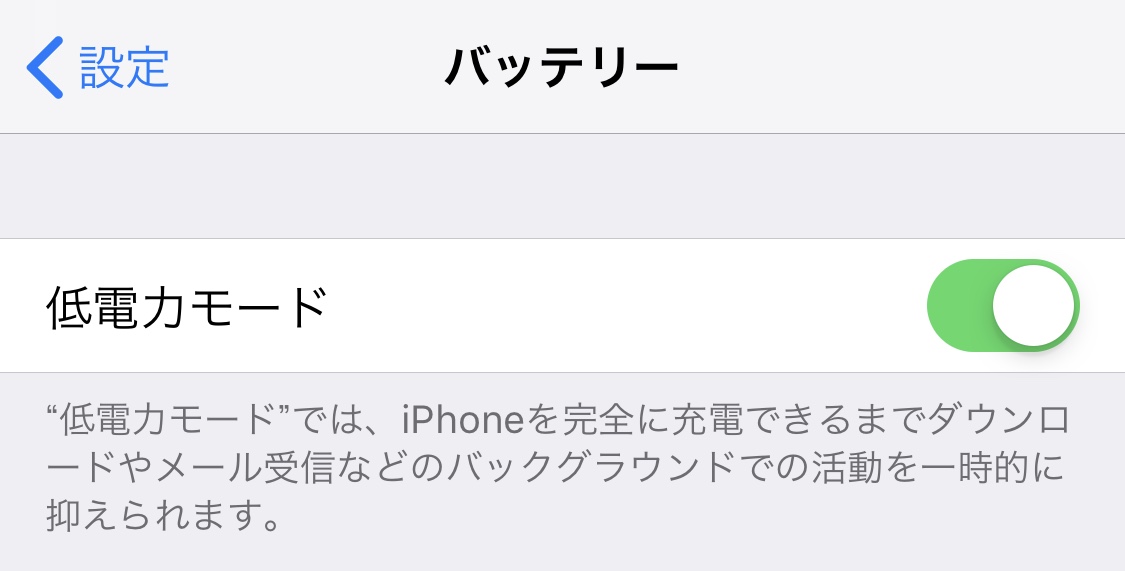
Go to Settings → Battery and toggle Low Power Mode on. (Or use the Low Power Mode button in Control Center.)
Android (Battery Saver)
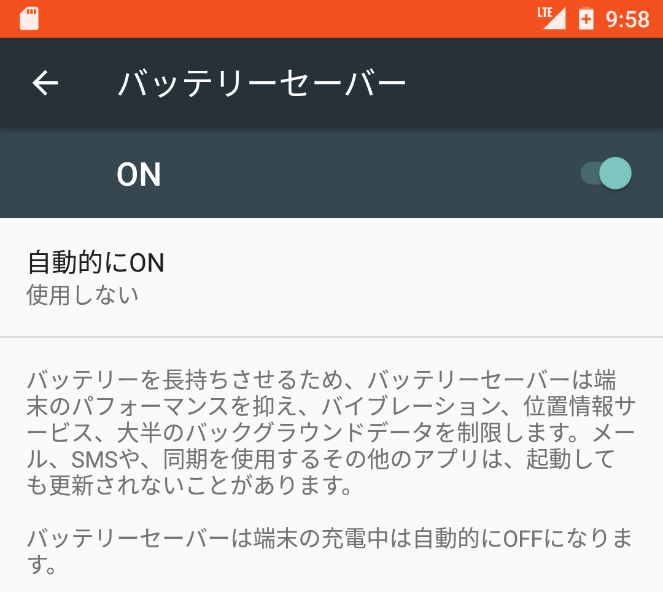
Go to Settings → Battery → Battery Saver to turn it on.
Turn Off Bluetooth and Wi-Fi
The idea here is simple: shutting off radios like Wi-Fi and Bluetooth stops them from drawing extra power.
Note: If you have access to a free Wi-Fi hotspot, don't turn Wi-Fi off — use it. Communicating over Wi-Fi consumes less battery than LTE.
iPhone
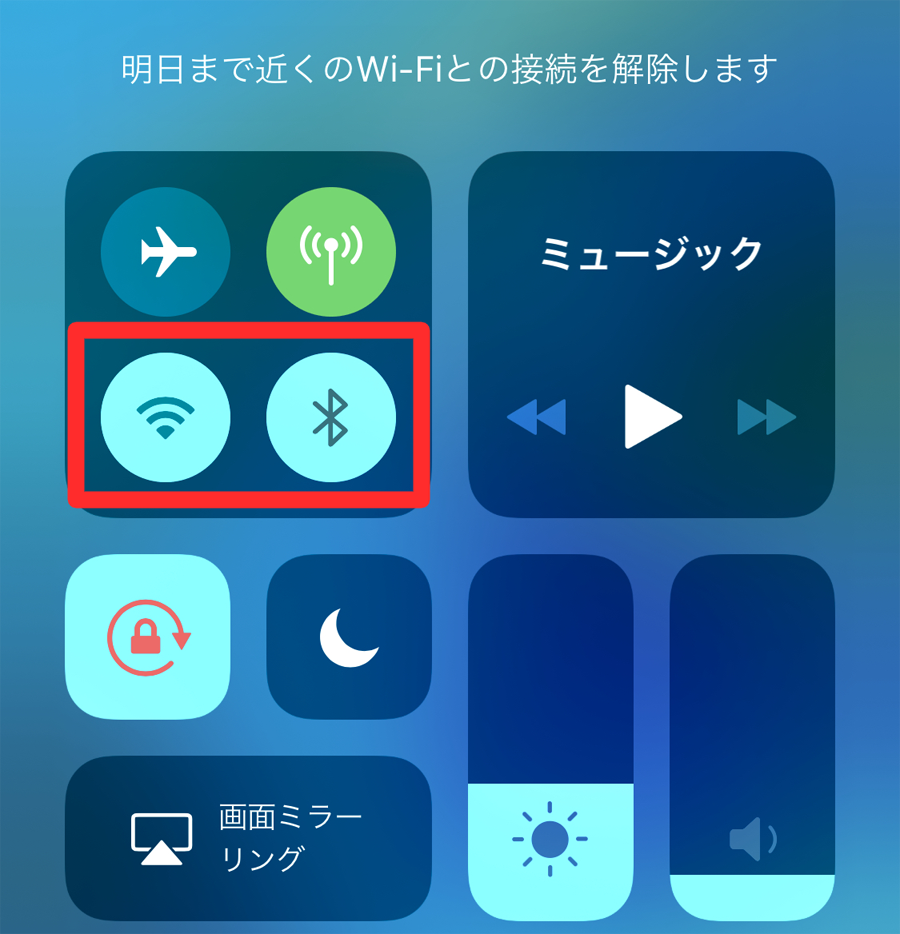
Tap the Wi-Fi and Bluetooth icons in Control Center to turn them off.
Android
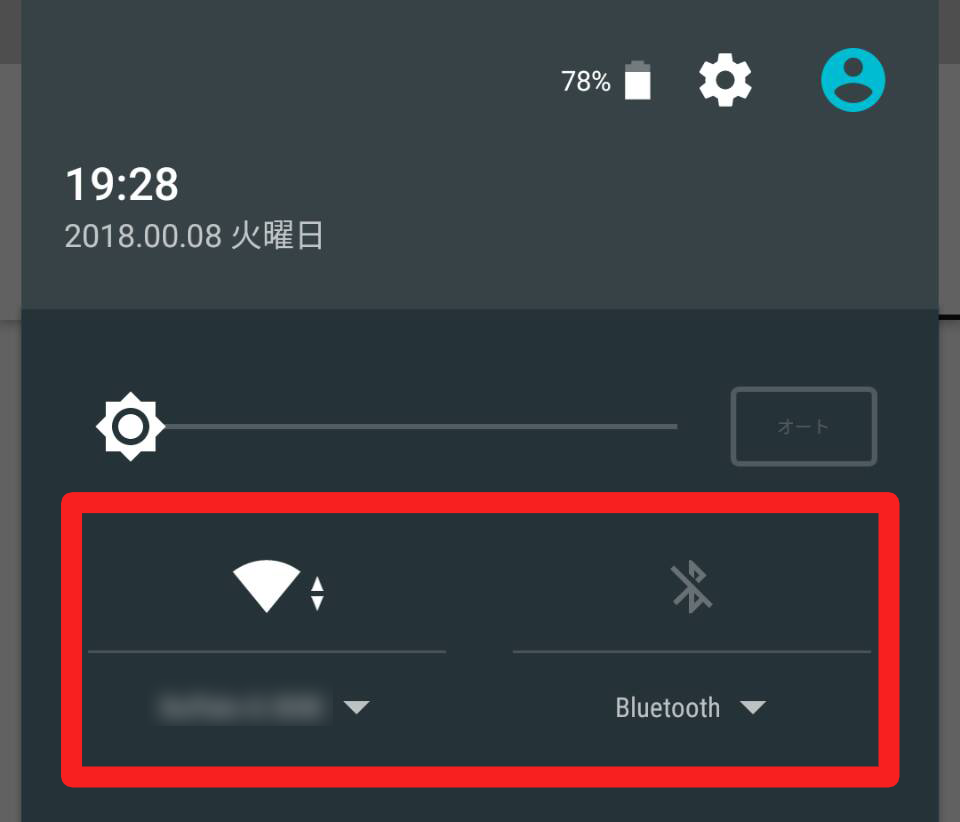
Tap the Wi-Fi and Bluetooth icons in the Quick Settings panel to turn them off. (The exact screen varies by device.)
Turn Off Location Services
You won't be able to use location in apps like Google Maps, but you'll save battery. Don't turn this off when you need maps or have to share your location.
iPhone
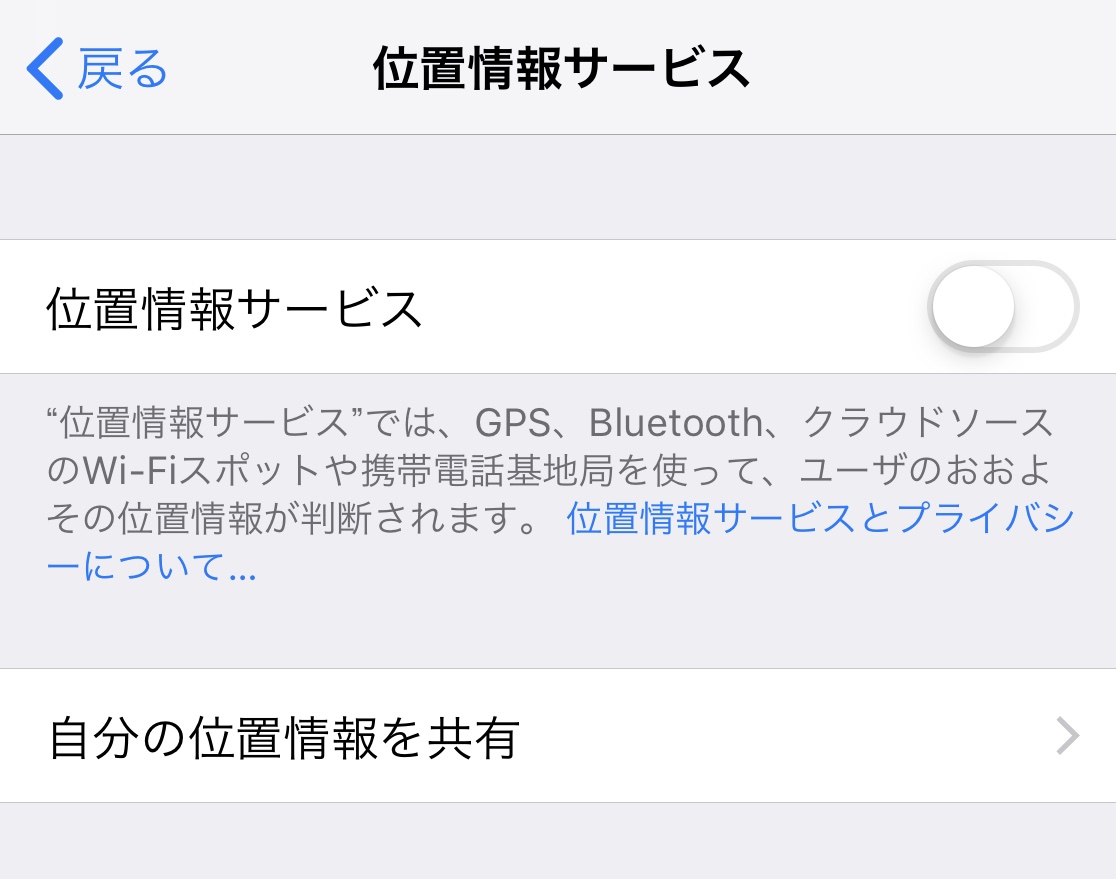
Go to Settings → Location Services and turn the toggle off.
Android
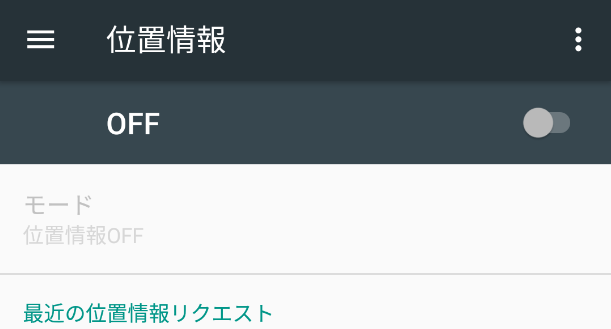
Go to Settings → Location and turn the toggle off.
Switch to a Black Wallpaper (or White, Depending on the Device)
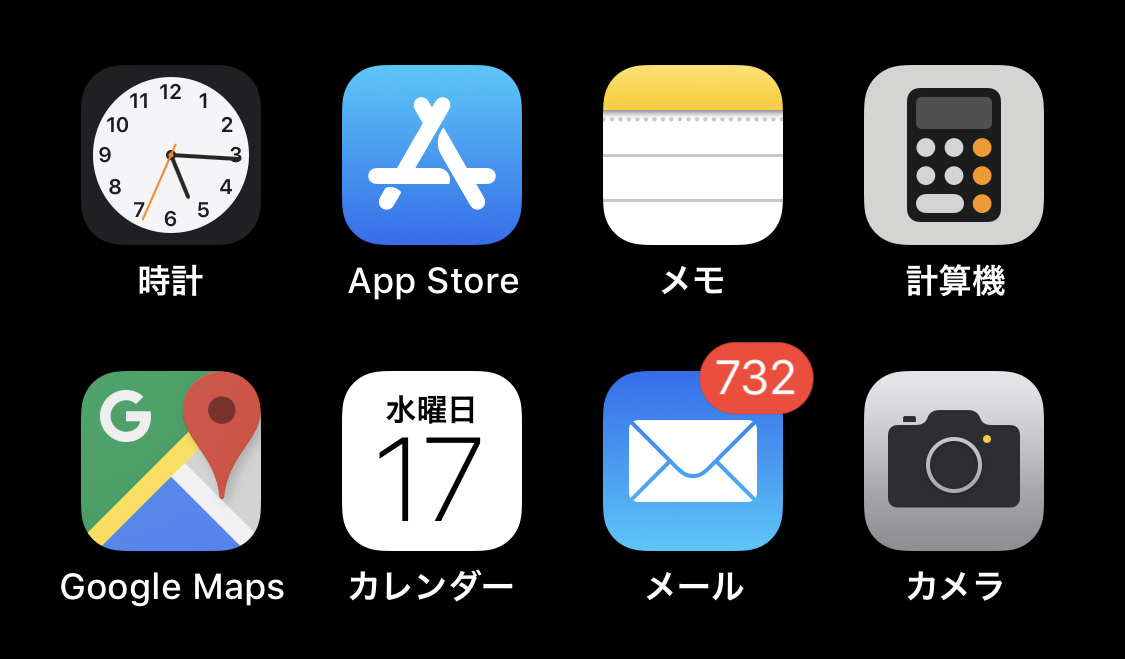
This depends on the device, but if your phone uses an LCD display (such as the iPhone 8) a white wallpaper is best, while for OLED displays (such as the iPhone X) a black wallpaper helps cut wasted battery.
The reason comes down to how each panel emits light. An LCD has a backlight that's always on, so the screen is essentially white by default, and various colors are created by applying voltage. The thinking is that white requires the least voltage. On the other hand, OLED has no backlight — each tiny element emits its own light, so black means "not lit." That makes black the most power-efficient state.
On OLED, going further with screen inversion or dark mode to make the entire screen black saves even more battery.
Note: For LCD panels, some measurements have reported that switching from white to black makes no measurable difference in power consumption.
[Last Resort] Turn On Airplane Mode
When you absolutely have to make the battery last as long as possible — Airplane Mode is your friend. LTE, Wi-Fi, Bluetooth, and phone calls all stop working, cutting you off from every form of communication, but the power savings are the biggest of any option here.
It doesn't switch off automatically when you charge, so once you're back in safe territory, don't forget to turn it off.
iPhone

Open the Settings app and turn Airplane Mode on.
Android

Go to Settings → Network & Internet (Wireless & Networks) and toggle Airplane Mode on.
[Bonus] How to Charge Faster in a Short Time
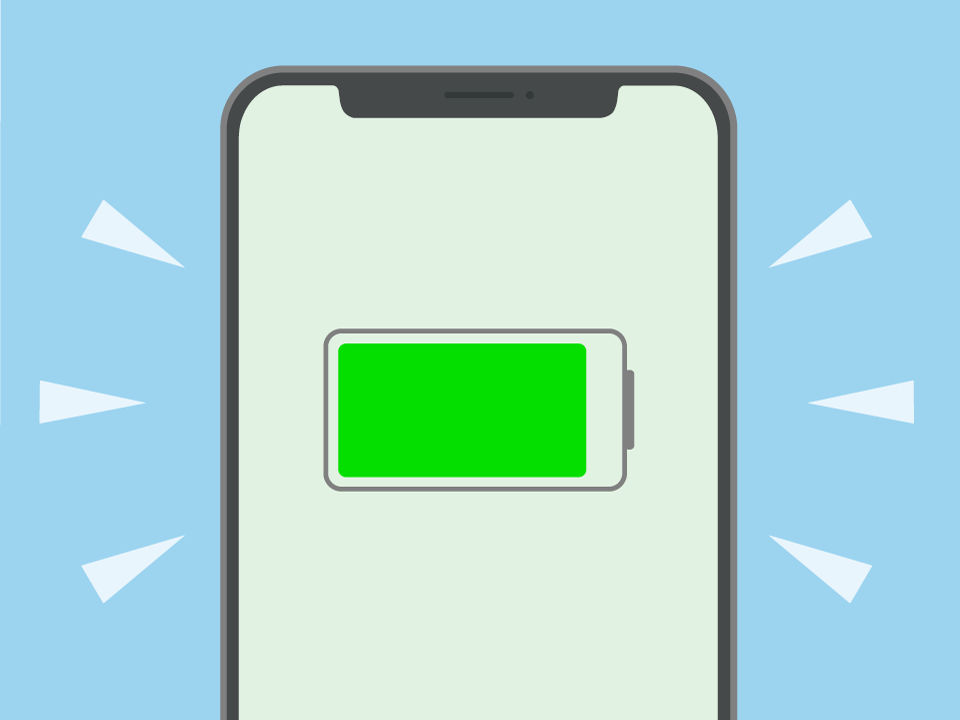
When you need to charge in a hurry, turning on Airplane Mode lets the phone charge faster than usual. It's effective when you wake up to a low battery, or when you're using a time-limited charging spot during a disaster.
Once charging is done, don't forget to turn Airplane Mode back off!