It's summer vacation, so how about a game server? (the author)
This time, since it's summer break and I wanted to play some games with my friends, I decided to rent a VPS server. (By the way, the author is on summer vacation all year round, so it doesn't really matter to me though...)
And by the way, even if you're not into game servers and want to set up a web server instead, a VPS is also a great choice.

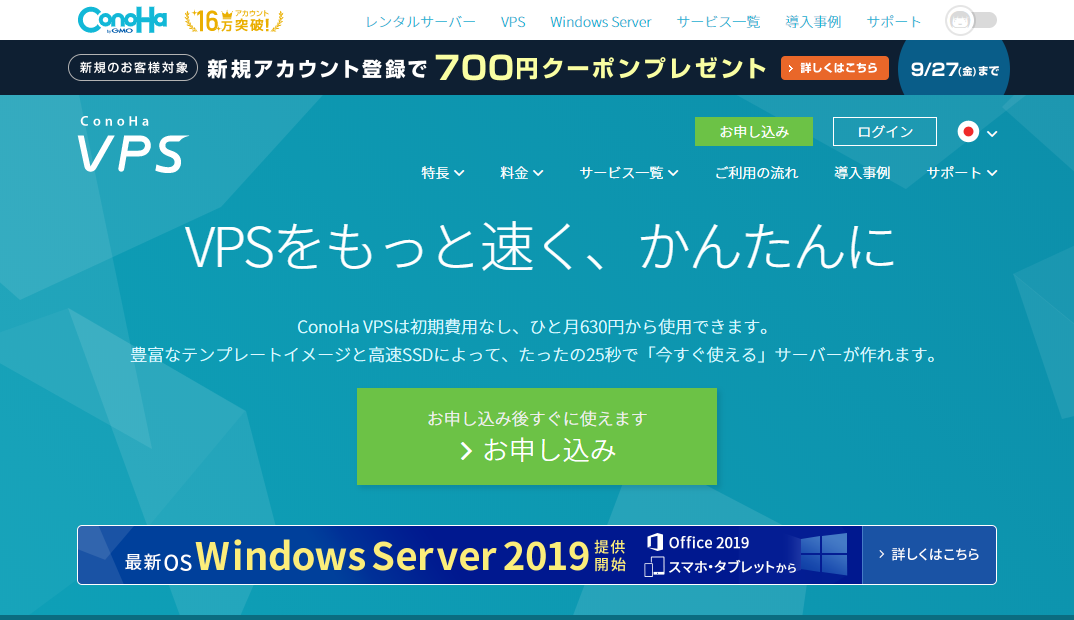
A "VPS server" might sound intimidating, but actually anyone can build one. This time, I went with ConoHa VPS, which was running a campaign with "no setup fee" and "a coupon giveaway (at the time of writing)."
ConoHa VPS Official Site
Why I Chose ConoHa VPS

There are plenty of VPS services out there, but the reasons I went with ConoHa specifically are:
・No setup fee
Some other providers charge several thousand yen, so it being free makes it easy to get started.
・Hourly billing
Instead of a flat monthly rate, you only pay for the time you actually use. Handy when you only need it for a week or so.
・No bandwidth charges
You don't get billed for server traffic, so you can relax. No matter how much data you push, the price stays the same.
・ConoHa Charge is convenient (with a student discount)
Besides credit cards, you can buy a dedicated prepaid card and top up your account. There's even a 10% student discount on top of that.
・The control panel is simple and easy to use
Something not to overlook is the control panel itself. ConoHa's is on the easier-to-use end of the spectrum. You can monitor CPU, disk IO and network usage as graphs, and you can use VNC and a serial console as well.
・Templates that let you spin up a game server right away
There are templates for Minecraft, 7DTD, factorio and more, perfect when you want to set up a game server. (Details — official site)
Trying Out ConoHa VPS
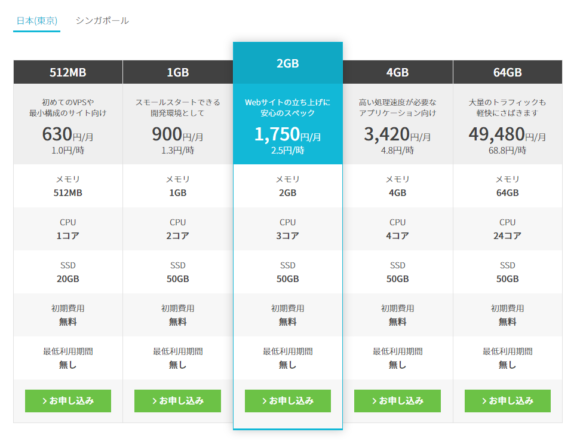
Before signing up, first you decide on a plan. Higher-performance plans cost more, so the best move is to pick the one that matches what you actually want to do. For details, please check the plans on the official site.
To the ConoHa VPS official site
For example, if you're going to host a vanilla Minecraft server for a small group of people, 2GB is plenty. For games that demand higher specs like RUST, you should pick at least 4GB to 8GB or more. (RUST tends to run out of memory at 4GB.)
If you're just going to run a small-scale web server, 512MB to 1GB is more than enough. And if all you want is a web server, going with ConoHa WING is also an option. (It feels a bit pricey, but it has lots of features.)
Picking the Configuration
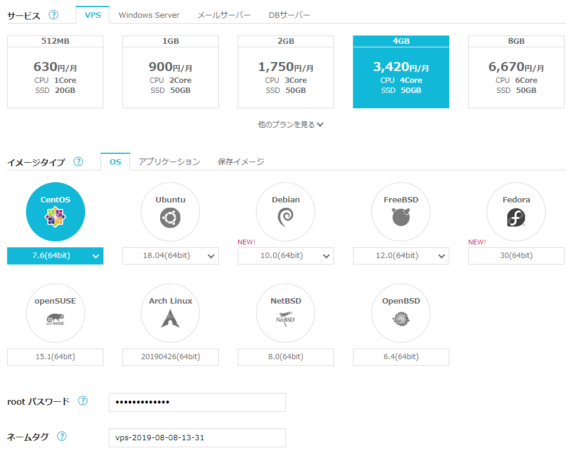
On the configuration screen, you select the region (where the server is located), the plan, and the image type (OS). With ConoHa, you can freely change plans later, so even if you go "I want a bit more horsepower!" or "I started a server but it's overkill for me," it's totally fine. So starting with a somewhat modest plan first is a perfectly valid approach.
The root password needs to combine upper- and lower-case letters, numbers, and symbols. If your root password leaks, your server can potentially be hijacked, so be careful. Also, if you forget it you'll have to recreate the server, so memorize it well.
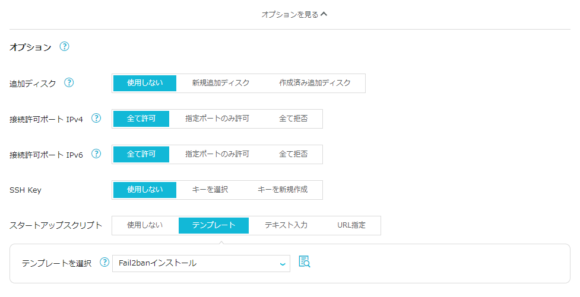
For options, set up things like SSH Keys (※1) and startup scripts (※2) if needed.
※1 You'll be able to log into the root account via SSH using public-key authentication right from the start. If you want to tighten security, create a new key and register it. (Normally you'd restrict SSH login for the root account, so you might only use this at the very beginning.)
※2 This is a feature that pre-installs apps like fail2ban and Let's Encrypt for you. It saves you the trouble of installing them later. Pick these if you have plans to use those features.
Accessing the Server You Just Built
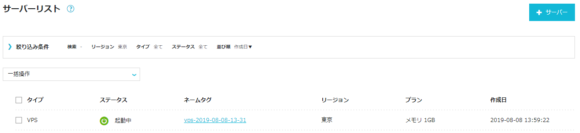
Once your VPS has been added, a server labeled "Running" will appear on the server list screen.
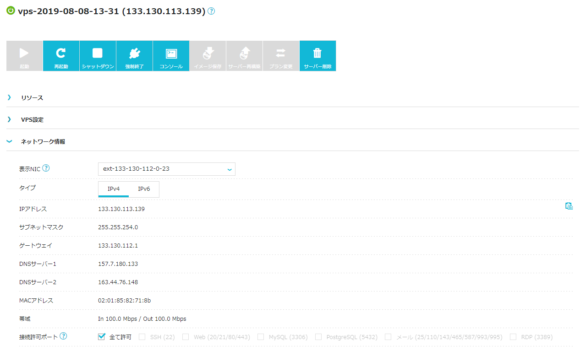
Clicking the name tag takes you to the server management page, where you can check and configure server info and settings in detail. Once the server has finished booting, click the console to open a shell. ConoHa VPS lets you choose between VNC and a serial console right from the web.
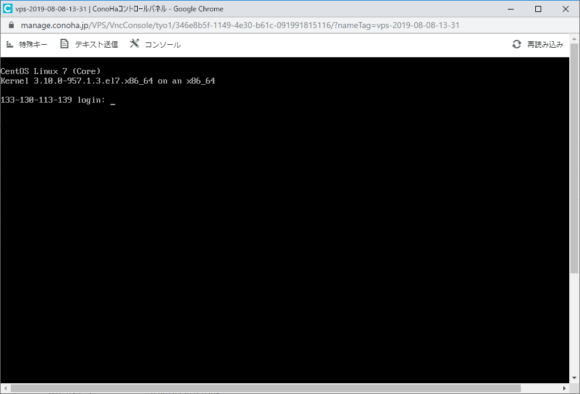
This is the screen opened with VNC. If you click "Send text" at the top of the screen, you can paste in copied text easily. There's a slight bit of input/display lag with VNC. Once you've made it this far, all that's left is configuring SSH and the firewall, then starting up your favorite game server.
I Benchmarked the CPU Performance
VPS providers use different servers and hardware, so benchmark scores vary. I ran a benchmark test on ConoHa VPS using Geekbench 4 as well.

Here are the test results. I measured the 4GB plan (4-core CPU), and got a Single-Core Score of 3063 and a Multi-Core Score of 8178. According to Geekbench, the CPU was an Intel Xeon E5-2660 v3. That said, it doesn't seem like the same CPU is necessarily used for every plan.
| Plan | Single | Multi | CPU |
| 512MB | 2897 | 2812 | Intel Xeon E5-2650 v3 |
| 1GB | 3327 | 6088 | Intel Xeon E5-2660 v3 |
| 2GB | 3035 | 7755 | Intel Xeon E5-2650 v3 |
| 4GB | 2721 | 9711 | Intel Xeon E5-2650 v2 |
How to Use It Free for One Month
I signed up for a VPS to write this article, but actually one month's worth of server fees ended up effectively free. I used the "self-back feature※" of A8.net  , which is famous for affiliate marketing.
※A mechanism that lets affiliates earn rewards by signing up for a service themselves.
Registration is a bit of a pain, but if you sign up for a free A8.net account and pick "ConoHa VPS" from "Self-back" and apply, one month's worth of usage fees comes back to you.
When your allowance is running low but you still want to play multiplayer with friends — this is a pretty good move, I think.