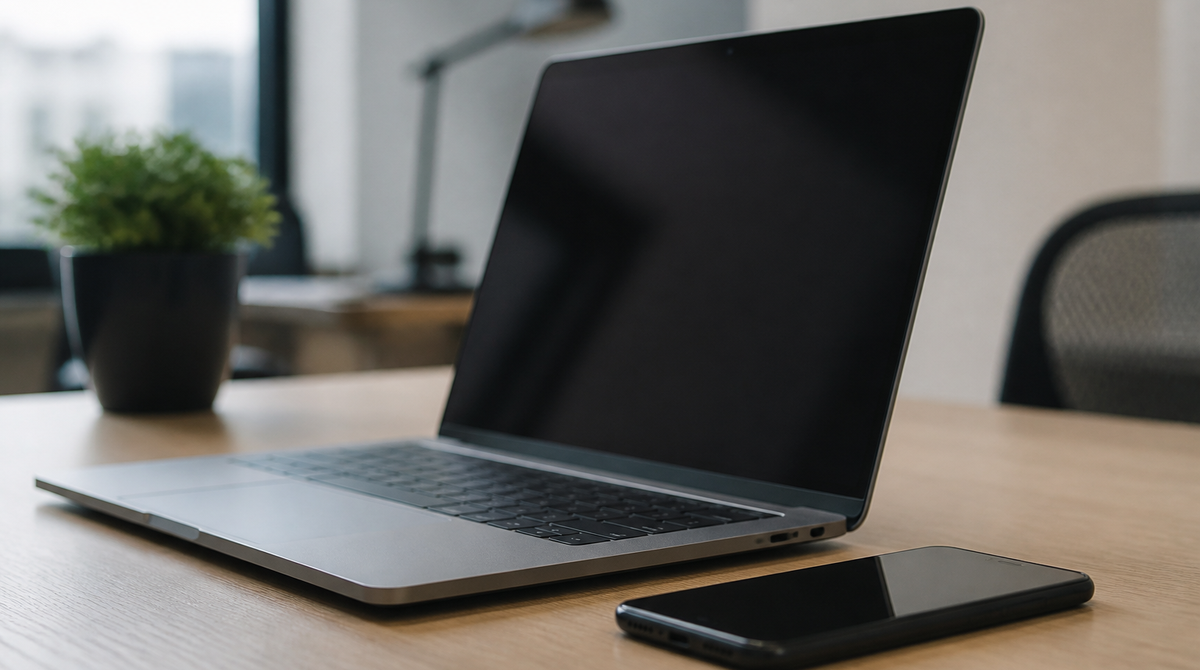
Google's agent-based development environment Antigravity now has a feature called Remote Control. From a web browser on whatever device you happen to have, you can connect to an Antigravity 2.0 session running elsewhere, pick up the conversation, and hand the agent new work. The idea is simple: once you have delegated a large refactor or a long test run, you should not have to sit at your desk waiting for it to finish.
Your browser becomes a window into a distant machine
Remote Control connects you, over a web browser, to Antigravity 2.0 sessions running on any of your machines, whether that is a laptop, a desktop, or a server. No special client is required. A browser is enough to bring up the control interface.
What matters is that the local environment on the far side stays intact. Files, workspaces, build tools, credentials, and environment variables are not copied over to the device you are holding. They remain on the machine that is actually running the session. Google describes the interface as a secure window into your workspace.
The intended use case is dividing labor between machines. You might keep UI work on a local laptop while a Linux box in the cloud handles server-side tasks, then move between them through the instance switcher. Because you can manage several environments and agents at once, one job finishing does not have to block another.
There is also no need to rebuild a development environment on whatever laptop you took with you. A session started on your workstation at home or at the office can be monitored and directed as it is.
One toggle to enable it, a daemon for headless boxes
On the Antigravity 2.0 desktop app, you open the Settings panel, go to the App section, and switch Enable Remote Control on. That is the whole setup. The panel opens from a keyboard shortcut or from Settings at the bottom of the left sidebar. Assigning a nickname is optional, but it makes machines easier to tell apart once several are listed.
On the connecting side, you open the Remote Control dashboard in a browser and sign in with the same Google Account used in the desktop app. Select the target machine in the instance switcher, and you can review active conversations, start new agent tasks, and inspect implementation plans and artifacts. On mobile devices, adding the web app to the home screen lets you receive notifications.
For headless servers, you install a dedicated daemon. On Linux and macOS you fetch the official installer script and run it from a terminal. Windows has an equivalent script, but it has to be run from a Command Prompt opened with administrator rights. PowerShell will not work, and only the install and uninstall operations require elevation. Status checks and restarts run under normal privileges.
Installation options let you set the instance name and how often updates are applied. There are also flags to disable automatic updates and to suppress every interactive prompt, which makes the daemon practical to push out from configuration management tooling. Setup asks you to sign in once in the terminal, and after that the service signs itself in, including across reboots. That sign-in is separate from the editor's, so you will be asked even if the editor is already signed in.
Notifications and reconnection, built around waiting
The more scope an agent takes on, the longer it runs. Remote Control sends a push notification when the agent finishes its turn and needs your input. The point is to shorten the stretch of time where work has stalled and you have not noticed.
Dropped connections are handled too. If the network on your end goes down briefly, the web interface tries to reconnect on its own. Agent tasks and shell commands running in the background keep going uninterrupted as long as the host machine still has internet access. The flip side is that a host that is asleep or offline simply will not appear in the list.
Things worth knowing before you start
Accounts are the easiest thing to trip over. If the desktop app and the browser are not signed in to the same Google Account, the machine will not show up. It is also worth checking that Enable Remote Control is on for the host and that the host is not asleep or suspended.
How the daemon stays resident differs by operating system. On Linux it starts at boot, keeps running after you sign out, and comes back on its own after a crash. Windows also starts at boot and survives sign-out, but after a crash it will not return until the next boot, the next scheduled update, or a manual restart. macOS starts the daemon at login and stops it when you sign out. Which machine you designate as the always-on one should follow from those differences.
Instance naming has a quirk as well. The settings file contains two very similar entries, one for the daemon's host name and one for the editor's. The daemon and the editor are treated as separate instances even on the same machine, so two similar names appearing in the list is not a fault. And if you specified a name at install time, that name wins, meaning edits to the settings file revert every time the service restarts. When a rename does not stick, this is the first thing to check.
Summary
Antigravity's Remote Control is built on a deliberate trade-off: rather than carrying the development environment with you, you leave it where it is and reach into it from a browser. Files and credentials stay on the machine that is running the work, so there is nothing to recreate on a device you took out with you. It suits a workflow built around long-running agents, and notifications plus automatic reconnection are what make that workflow hold together. The conditions worth weighing beforehand are that the host has to stay awake, and that daemon behavior varies by operating system.