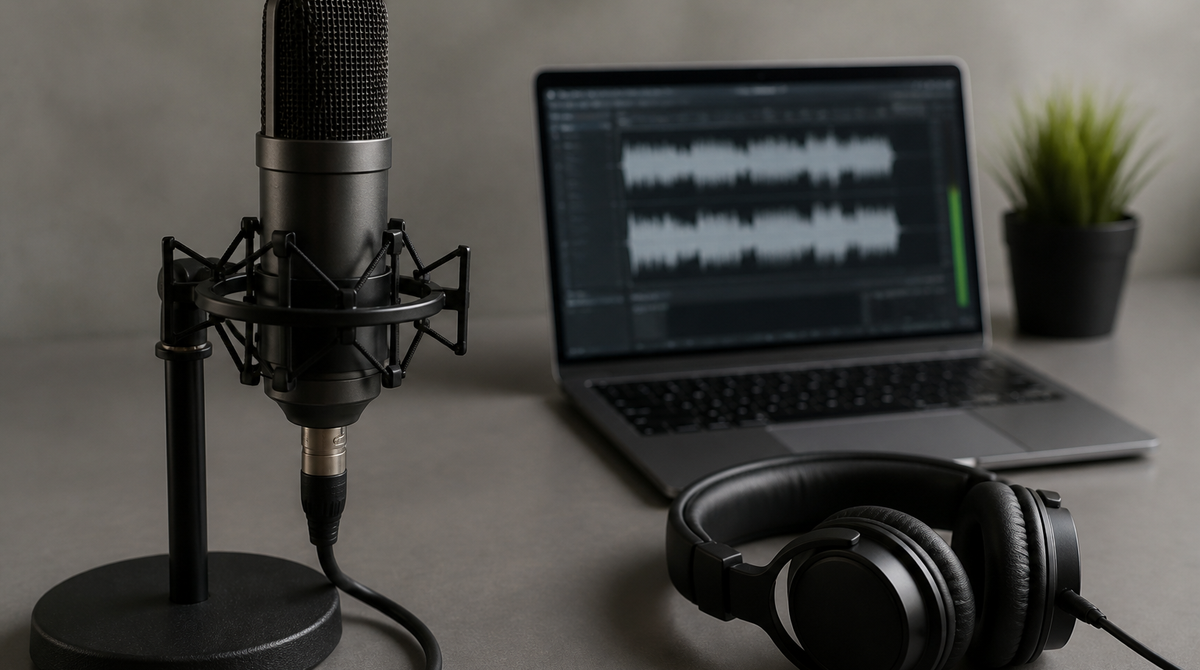
Adobe has moved three Firefly audio tools out of beta and into general availability: Generate Music, Generate Speech and Generate Sound Effects. Everything they produce is cleared for commercial use. A soundtrack that fits the cut, a voiceover read from a script, and effects timed to the action on screen can now be assembled in the browser without trawling stock libraries.
The three audio tools finally line up
What shipped is a set of three, each backed by its own model. Generate Music runs on the Adobe Firefly Music Model, and Generate Sound Effects runs on the Adobe Firefly Audio Model.
Music is built to match the length and mood of a video rather than being trimmed to fit after the fact, which removes a step from the back end of an edit. Sound effects are shaped around the action and timing on screen, aimed at the familiar loop of scrolling a library and settling for something close enough.
The practical change here is less about any single tool than about all three sitting in the same place, which was not the case during the beta period.
Voiceovers come with a choice of model
Generate Speech lets you pick between the Adobe Firefly Speech Model and ElevenLabs. Feed it a script and it returns a voiceover, with control over the voice itself as well as pacing and emotional delivery.
Opinions on synthetic speech quality vary by use case, so having a first-party model and a specialist third-party model behind the same switch is useful in practice. A measured explainer voice and a brisk promotional read can go to whichever model handles each better.
Sound effects can take timing cues from your own voice
The most interesting part of the effects tool is that a recording of your own voice can be handed over alongside the text prompt. Rather than typing "glass breaking" and hoping, you can perform the sound yourself and let the timing and intensity of that take guide the result.
Upload your own video or audio file and effects can be dropped at a chosen point on the timeline. Layers can be stacked into denser ambience, and position and volume stay adjustable afterwards. Reaching a specific sound through text alone is hard, so giving the tool a rough vocal reference is a sensible route in.
Training data chosen with commercial use in mind
Adobe keeps returning to the commercial question. The sound effects model is trained on licensed and public domain content, and its output is treated as royalty free. No attribution is required and no separate licensing fee applies.
Generative audio with murky rights is awkward to hand to a client. Naming the source of the training data and stating plainly that the output is cleared for commercial work gives people who produce this material for a living something to work with, whether that is short social video, a product tutorial or a podcast.
A Japanese AI assistant trial and the addition of Gemini Omni Flash
Alongside the audio tools, the Adobe Firefly AI Assistant now works in Japanese, and a free trial program has opened with it. Eligible users get a daily allowance of free image, video and audio generations, granted separately from the standard Firefly free tier, so trying it out does not eat into existing credits.
Firefly has also added Google's Gemini Omni Flash to its roster of available models. It accepts prompts that combine text with video, audio and images, and is positioned for turning an idea into a storyboard and carrying it through to a first cut. The direction is clear enough: Firefly is lining up outside models next to Adobe's own rather than betting on a single house model.
Summary
Firefly's audio features are now generally available, putting music, voiceover and sound effects in one environment with commercial use cleared. Details like voice-guided timing for effects, and the choice between the Speech Model and ElevenLabs, point to a tool designed around how editing actually goes. With the Japanese AI assistant trial open as well, adding sound to a video you already have is the simplest place to start.
※The image is for illustrative purposes only.